
How to Register a New Member
Your club registers its new members itself. You fill in the membership form for the person, choose their licence, and your club pays the order. The membership is active as soon as you submit the form. A person who is already known in the system is found by a search, so their details are not entered twice.
Before you begin
You need:
- the club administrator role for your club;
- the person’s licence number, or their first name, last name and date of birth;
- for a person who is not in the system yet: their personal and contact details;
- which licence the member needs, and the consents they agreed to.
Step 1 — Open your profile menu
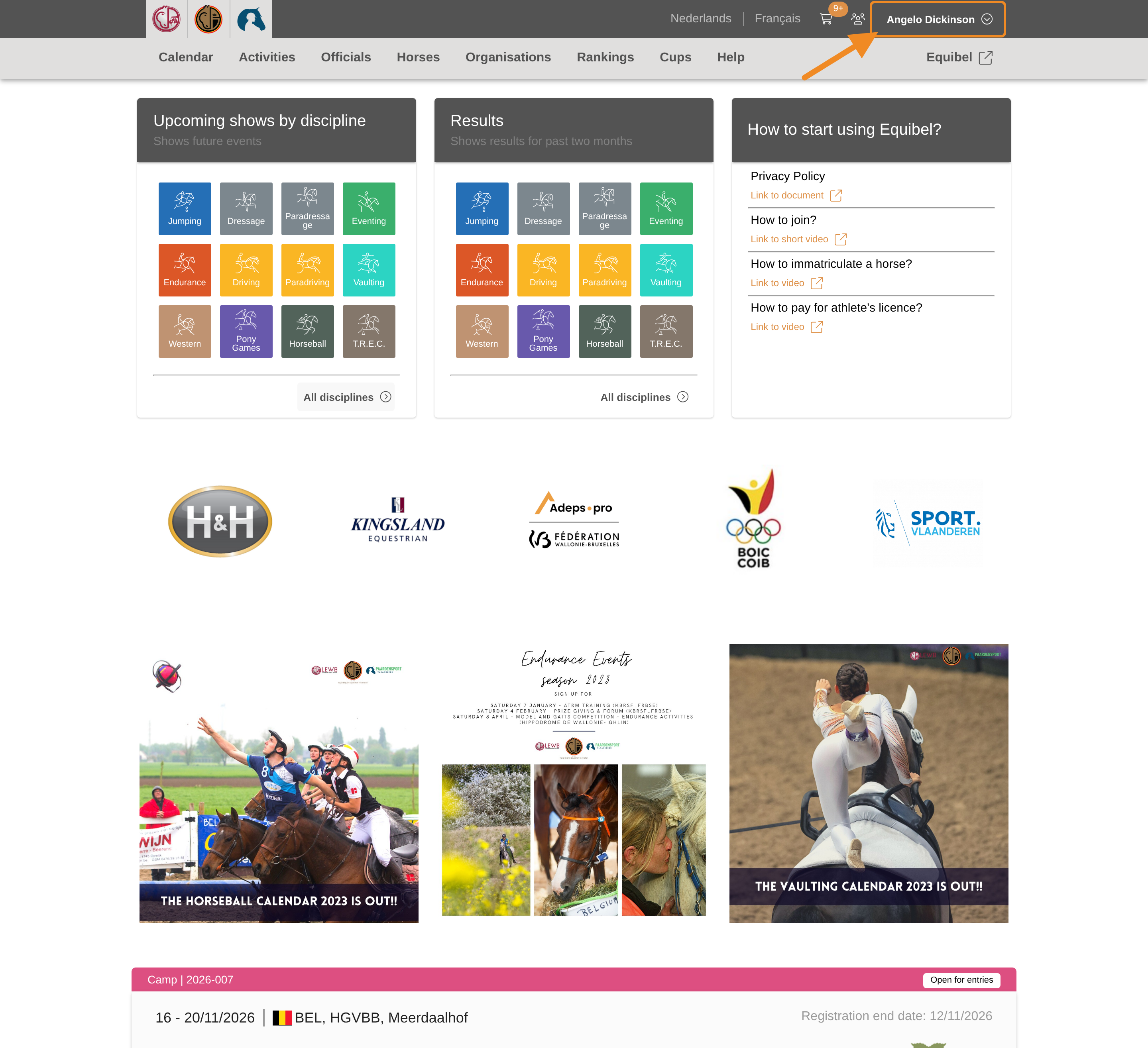
Click your profile button in the upper-right corner of any page.
Step 2 — Open your club
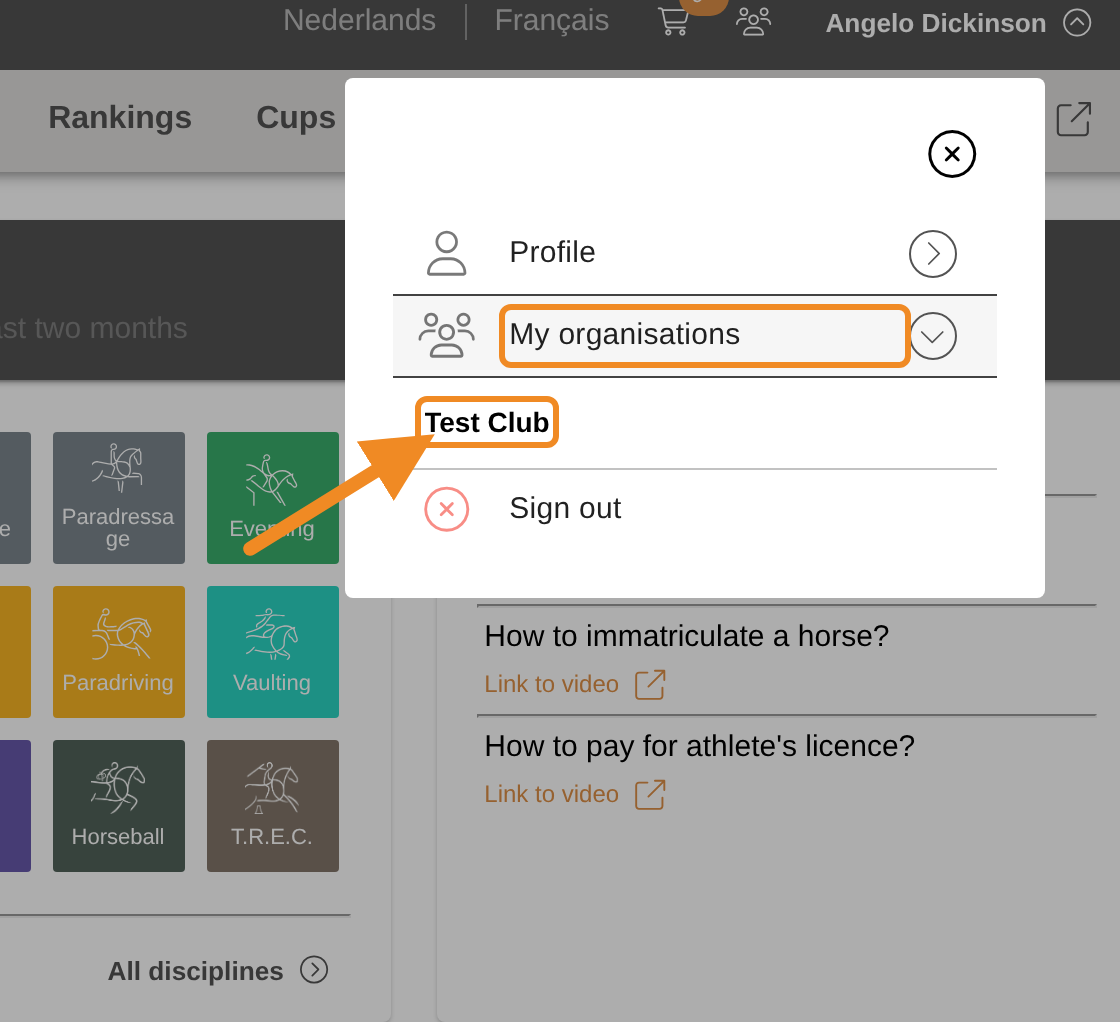
Open “My organisations” and select your club.
Step 3 — Find the Memberships section
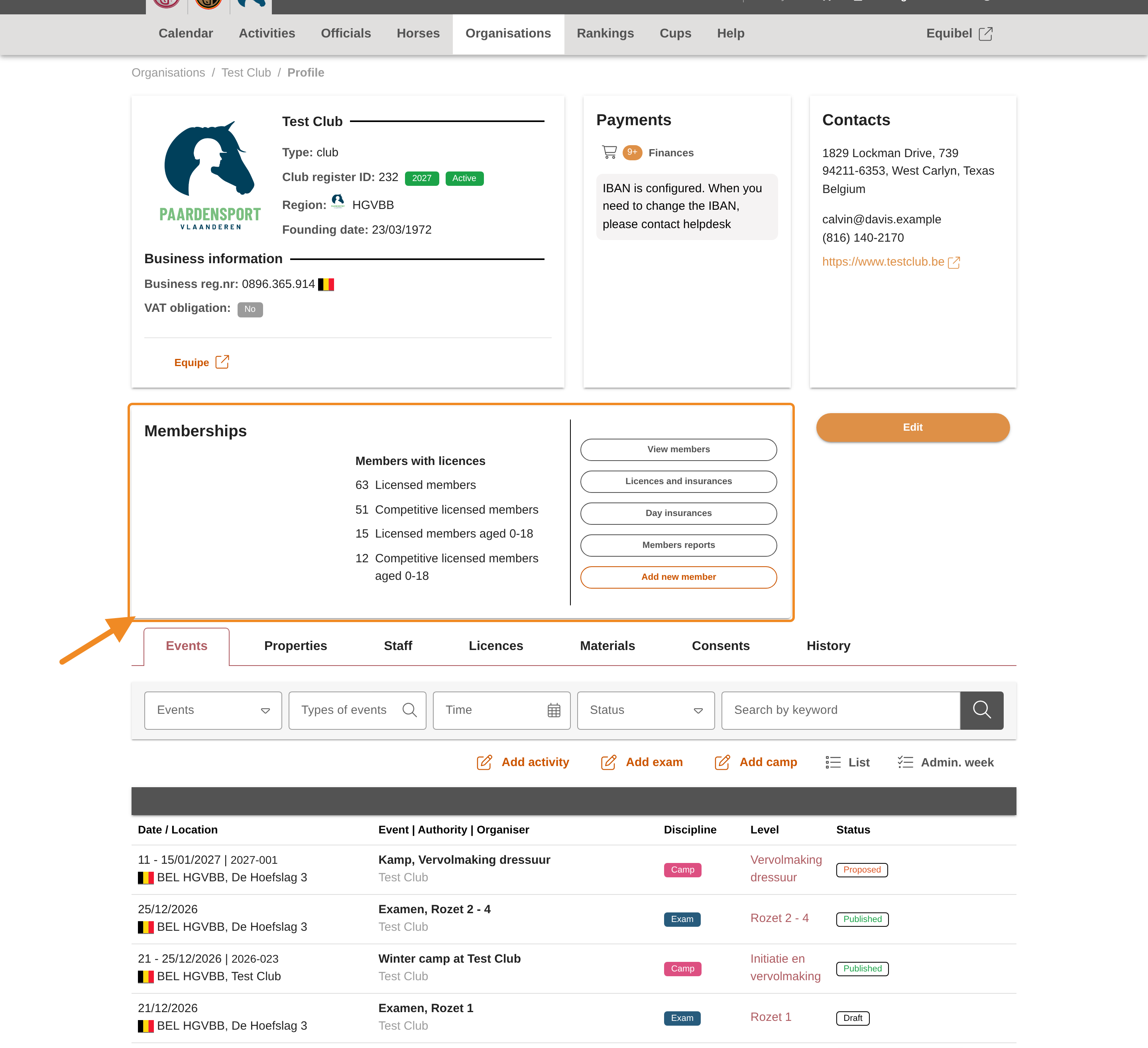
On your club page, find the “Memberships” section.
Step 4 — Open the form
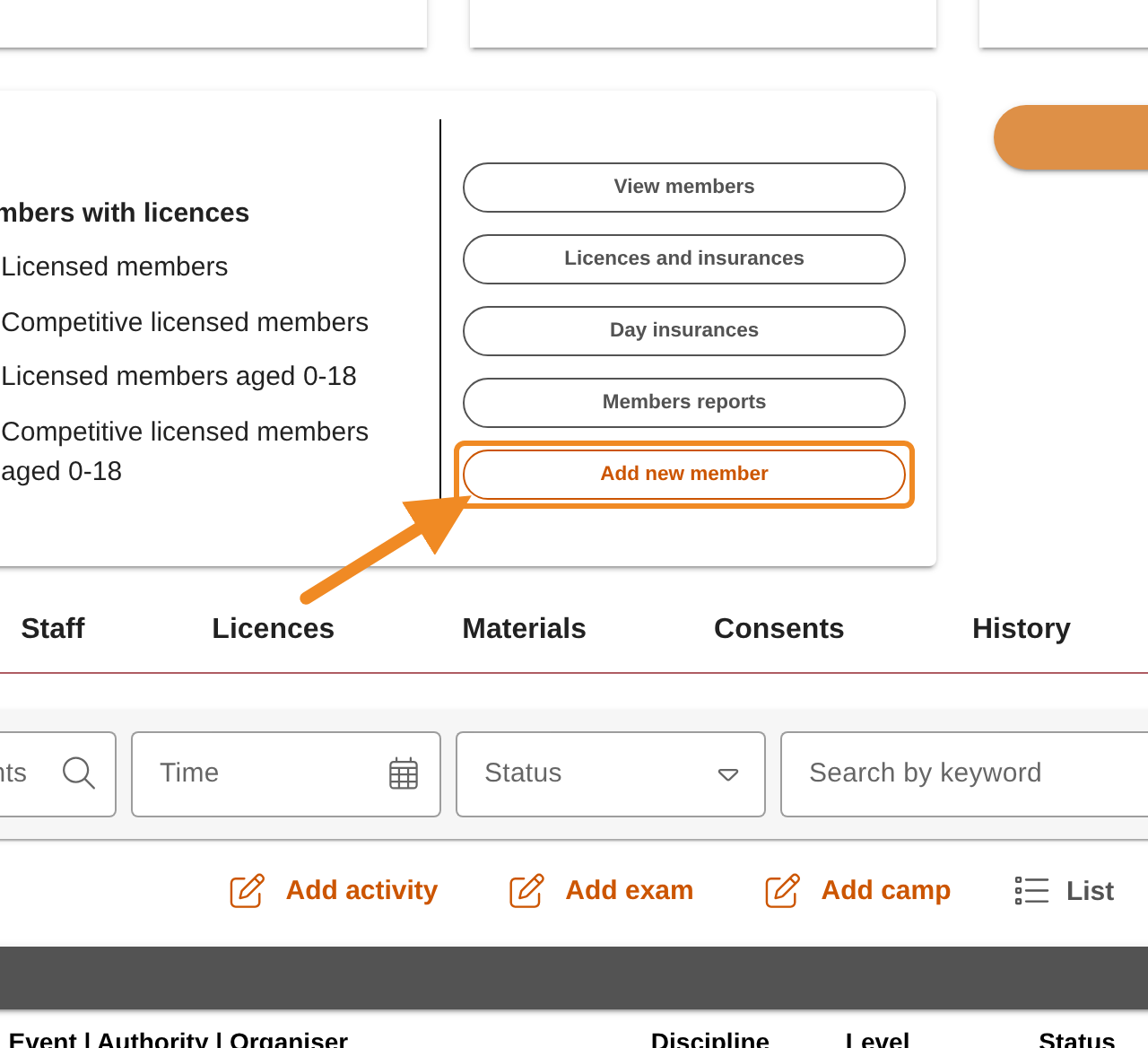
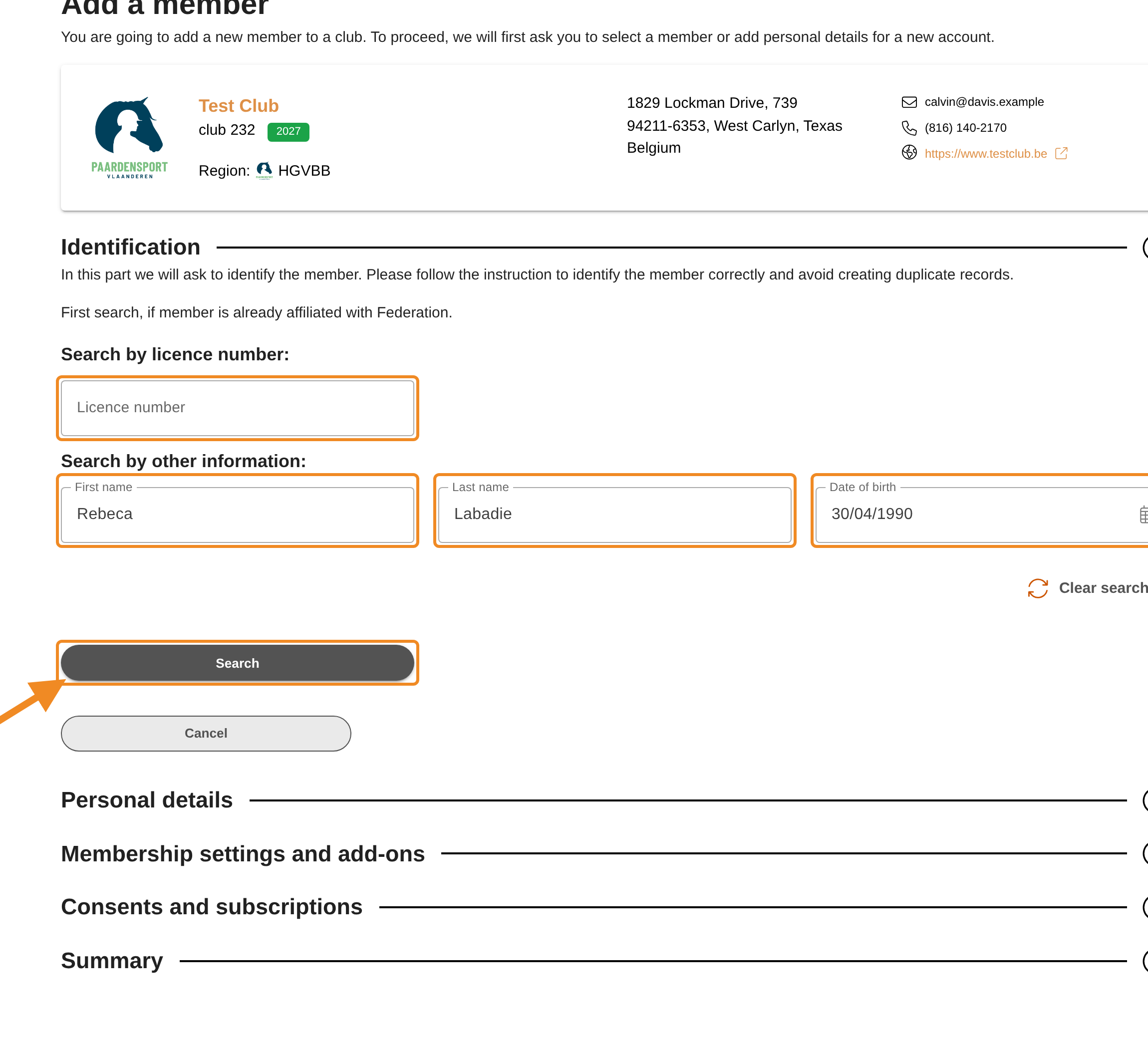
Click “Add new member”. The form “Add a member” opens. It has five parts: “Identification”, “Personal details”, “Membership settings and add-ons”, “Consents and subscriptions” and “Summary”.
Step 5 — Search for the person
Always search first: a person who has ever been a member, rider or official is already in the system, and searching keeps them from being created twice. Search in one of two ways:
- “Licence number”: the person’s licence number; or
- “First name”, “Last name” and “Date of birth”, all three.
Click “Search”.
Step 6 — Select the person, or continue without
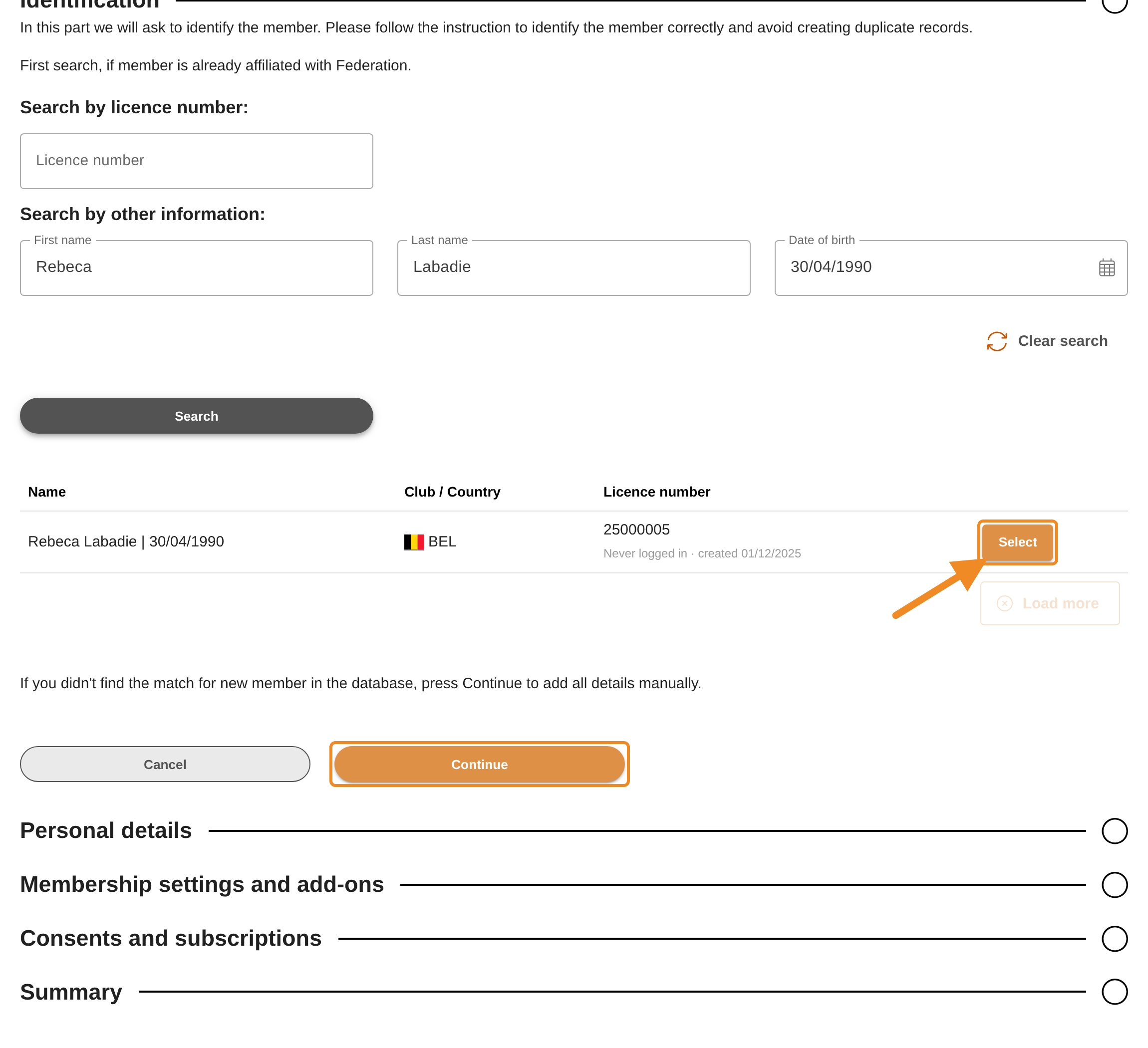
- The person is in the list: click “Select” next to them. Check the name, date of birth and licence number, so you pick the right person.
- The person is not found: try the other way of searching first. If they are still not found, click “Continue”. You then enter the new member’s personal and contact details yourself in the next part.
Step 7 — Complete the personal details
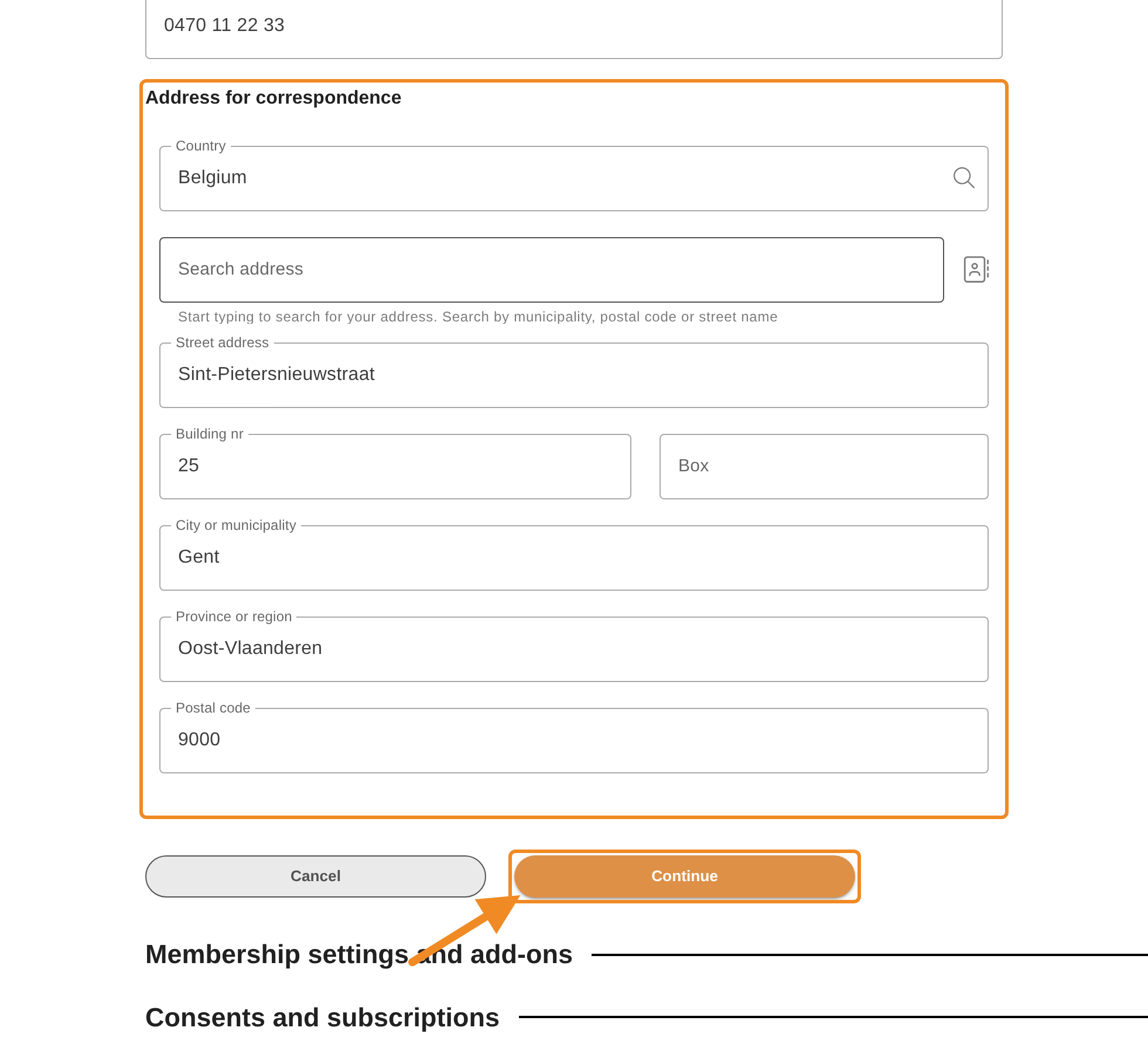
For a person you selected, the details the system already has are shown at the top. Fill in only the fields the form still asks for — often a phone number and the address for correspondence. For a new person, fill in all the fields.
To enter an address, type the municipality, postal code or street in “Search address” and pick a suggestion from the list; keep picking until the street and building number appear in the fields below. Then click “Continue”.
The details are added to the member’s profile. They can be checked and corrected after the membership is issued.
Step 8 — Choose the licence
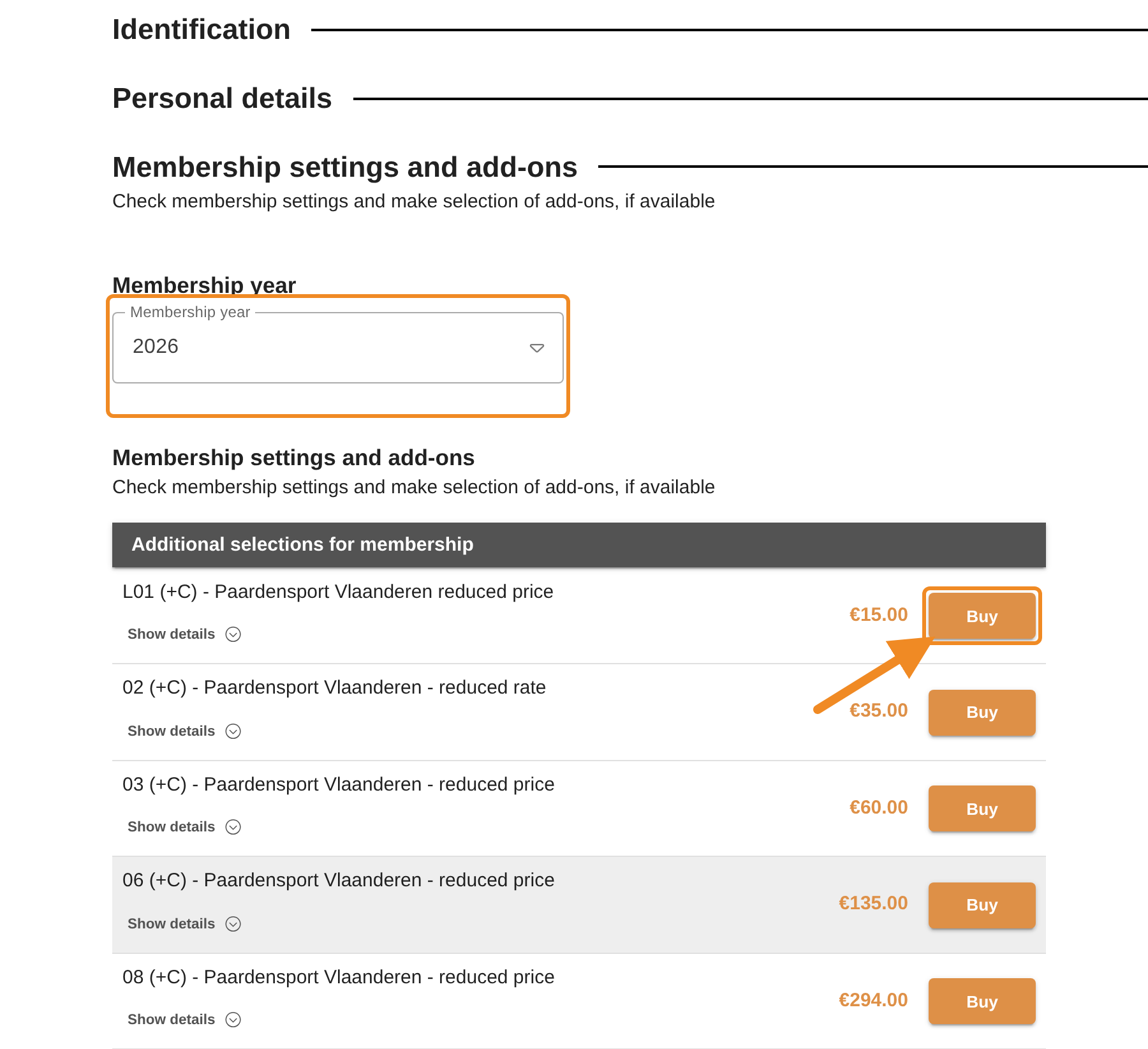
Check the “Membership year”. Then click “Buy” next to the licence the member needs. “Show details” under a licence tells you what it includes.
Step 9 — Complete the licence
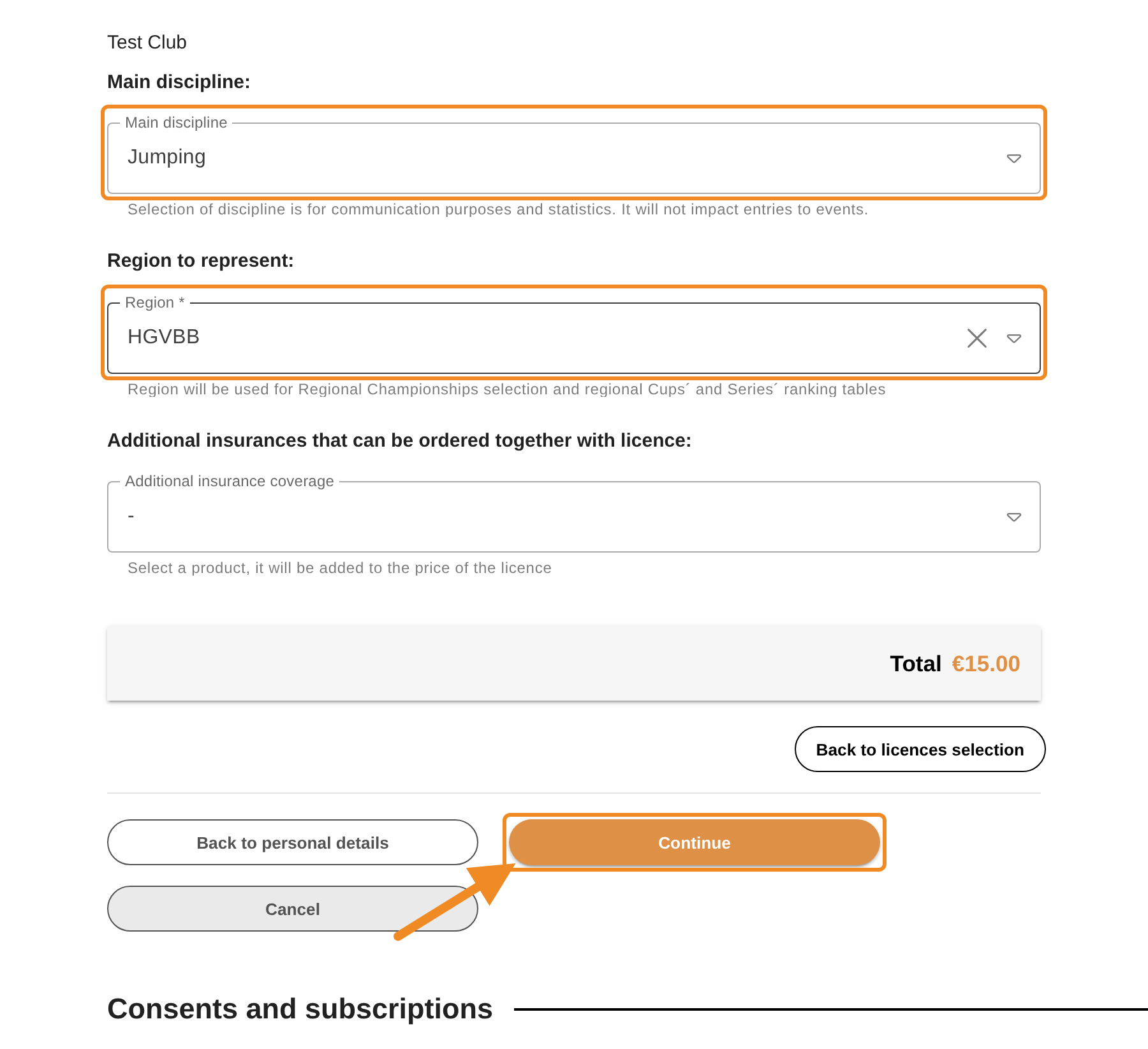
- “Main discipline”: the member’s main discipline. It is used for communication and statistics only; it does not limit which events they can enter.
- “Region”: the region the member represents, for regional championships and rankings. It is filled in from your club; change it only if the member represents another region.
- “Additional insurance coverage”: an extra insurance to order with the licence, if the member wants one. Its price is added to the licence.
Check the total and click “Continue”. To choose another licence, click “Back to licences selection”.
Step 10 — Record the consents
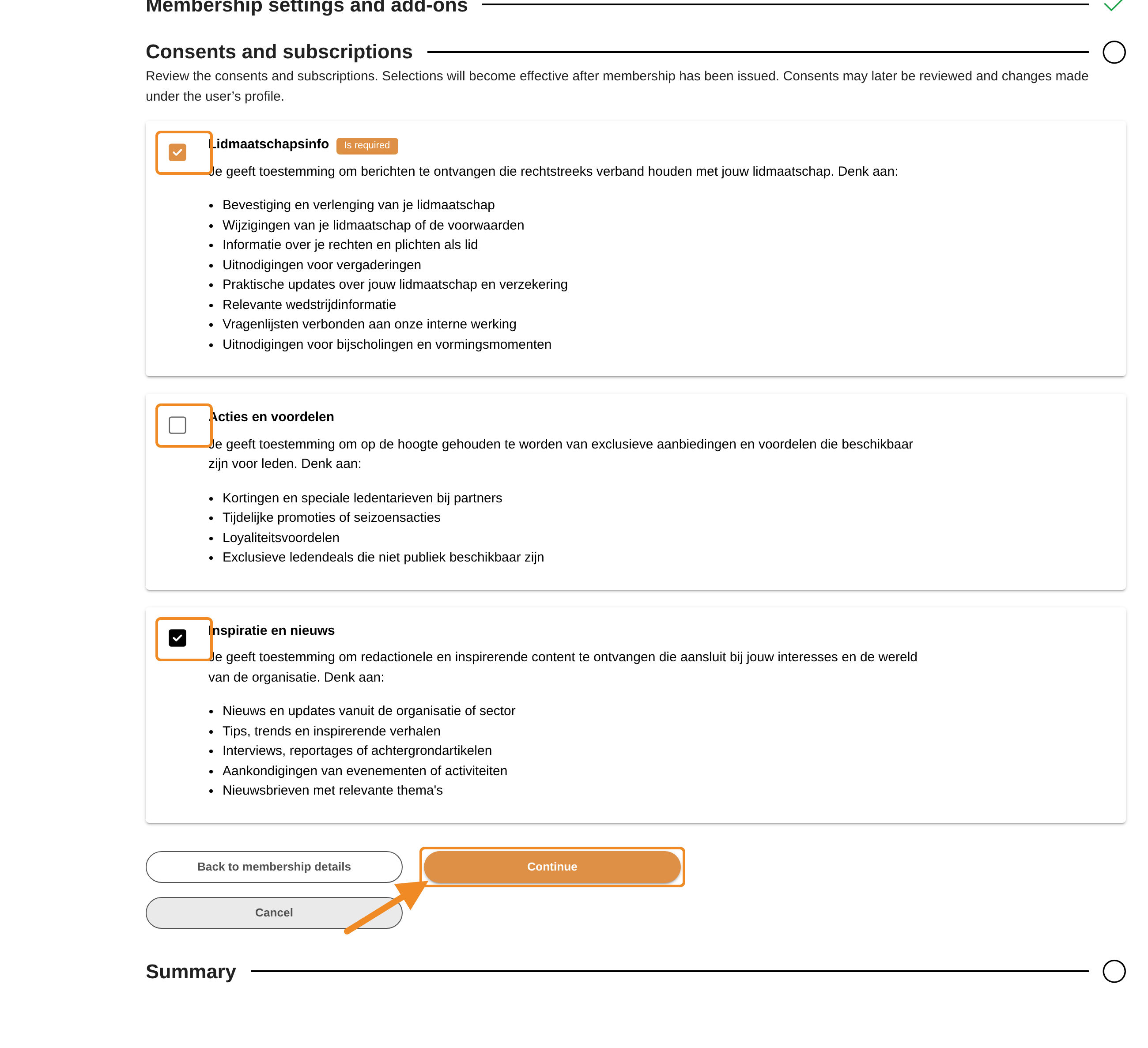
Tick the consents and subscriptions the member agreed to, and untick the others. A consent marked “Is required” is needed for the membership and stays ticked. The member can change their consents later on their own profile. Click “Continue”.
Step 11 — Check and submit
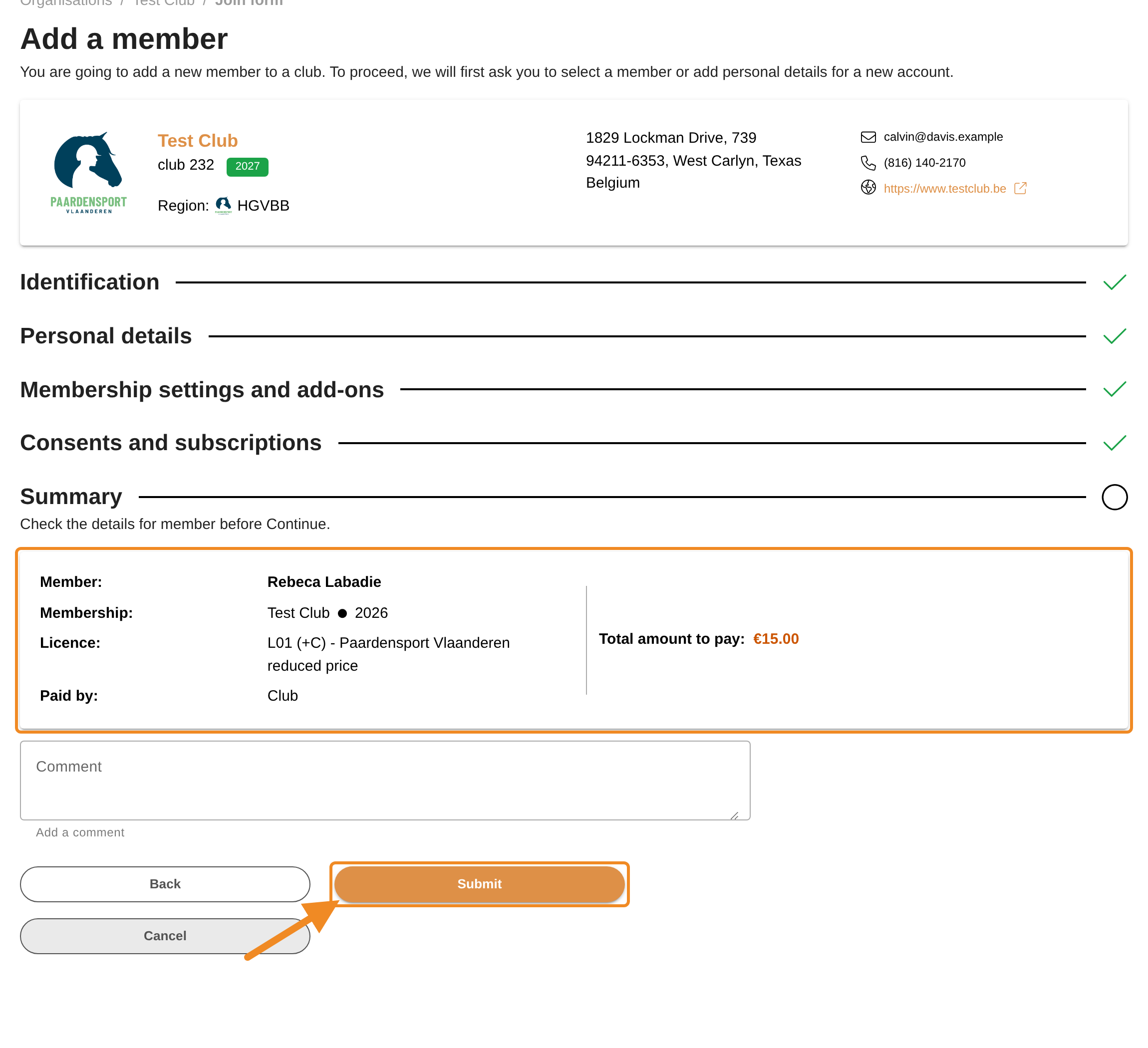
The “Summary” shows the member, the membership, the licence, who pays (“Club”) and the total. Add a “Comment” if you want, then click “Submit”.
Step 12 — Check the member’s details
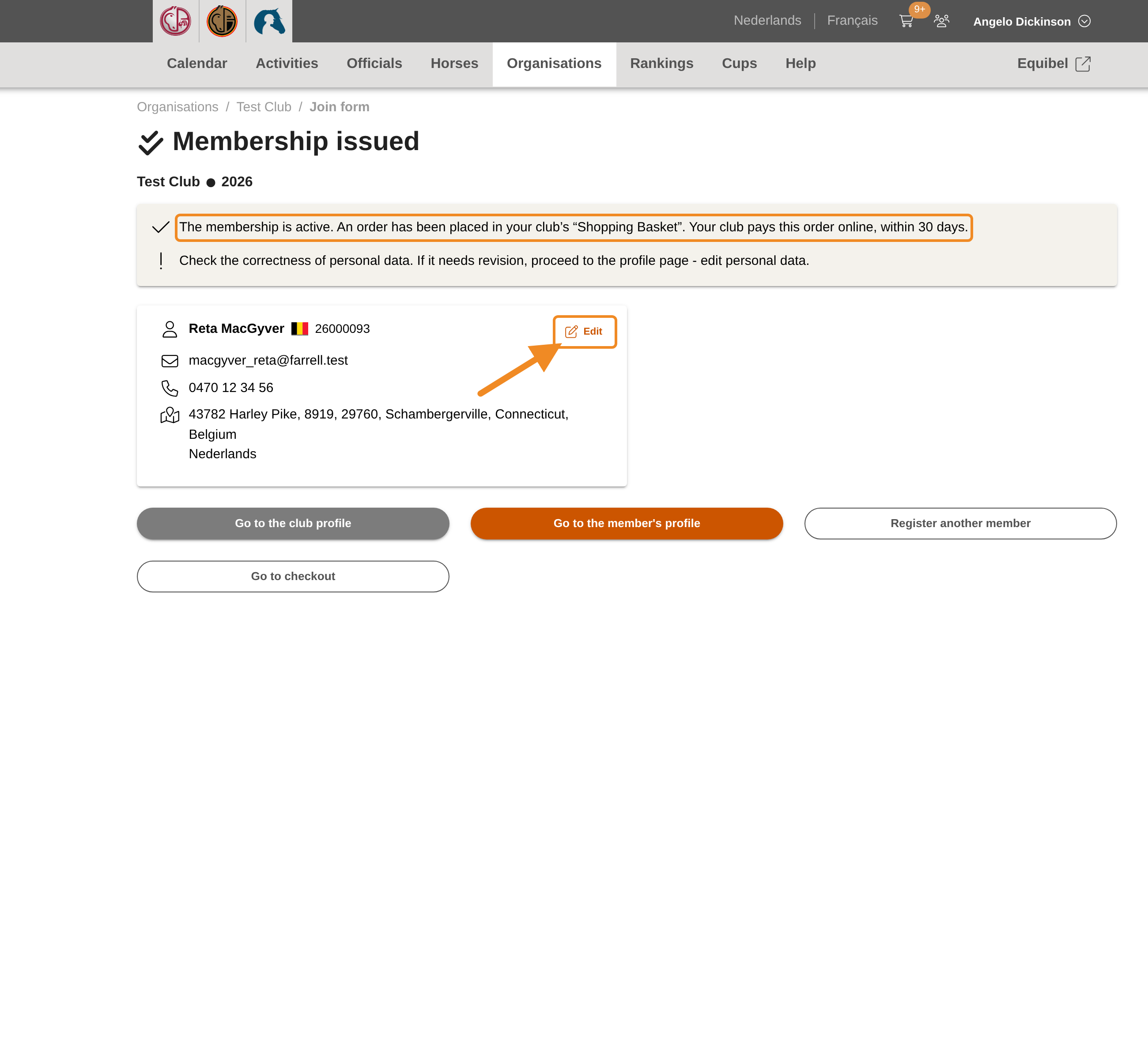
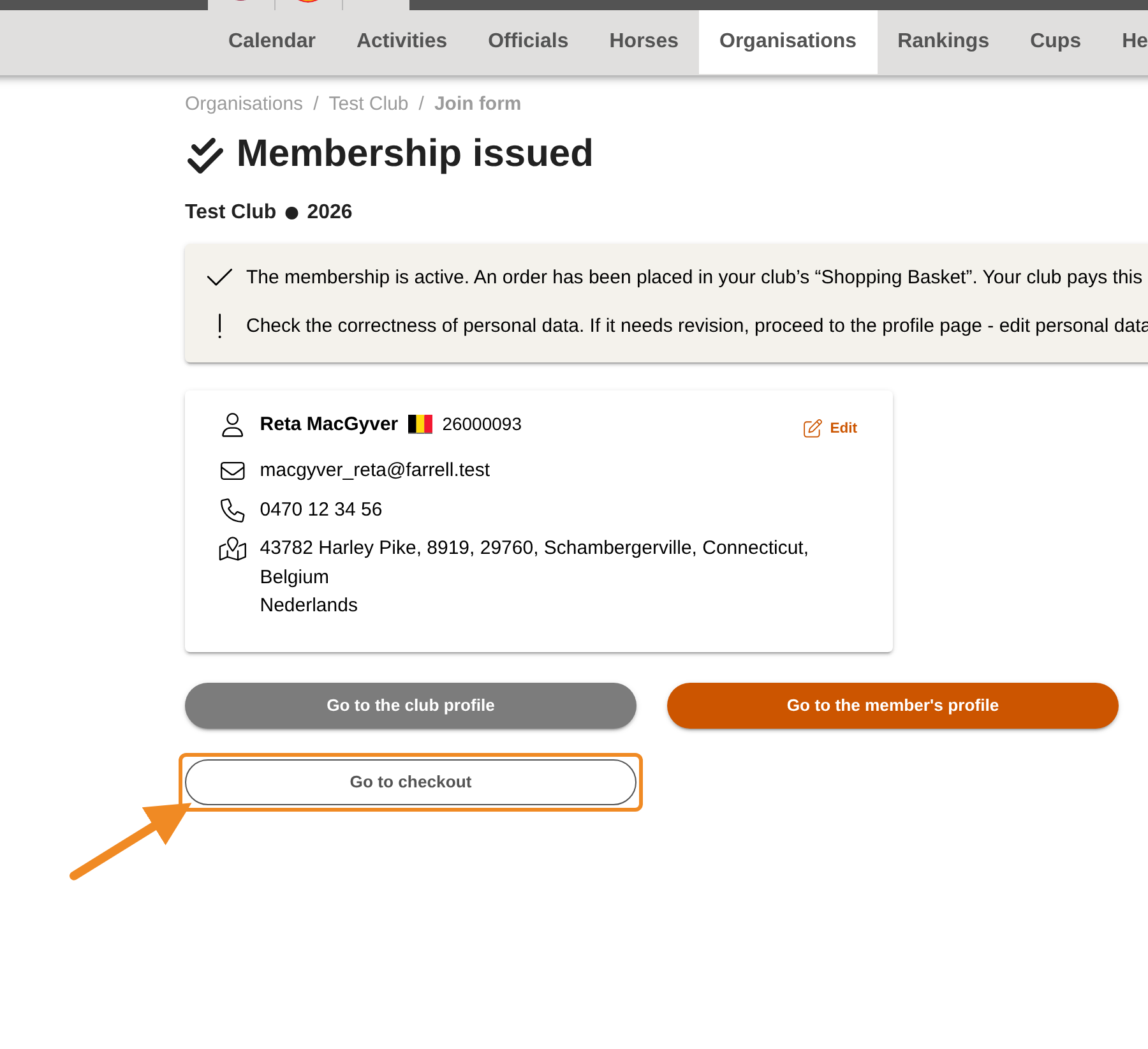
The confirmation “Membership issued” appears. The membership is active straight away, together with the licence and any insurance you chose. An order for the fee is placed in your club’s shopping basket (“Finances”); your club pays it online within 30 days.
Below the message are the member’s details. Check them, the email address above all: the member receives a confirmation email at that address 15 minutes after you submit. To correct a detail, click “Edit” before then.
Step 13 — Go to the shopping basket
Click “Go to checkout”. Your club’s shopping basket opens — there is no need to go back to the club page. To register the next person instead, click “Register another member”; the order waits in the basket.
Step 14 — Pay the order
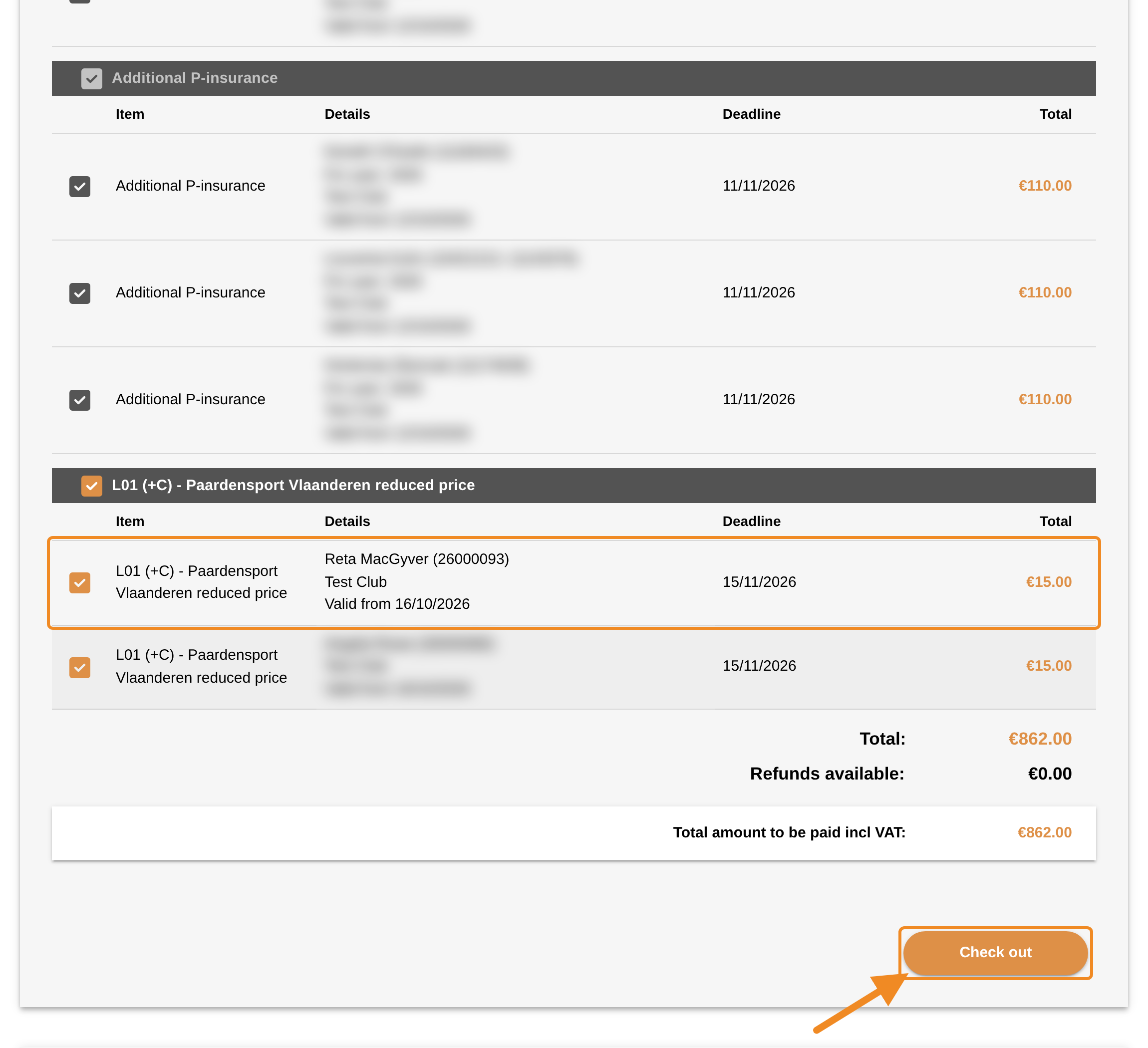
The basket lists your club’s open orders by product, each with the member, the “Deadline” (30 days after the order) and the total. Select the orders you want to pay — several at once is fine — and click “Check out” to pay online. Once they are paid, your club gets a proof of payment. See How to Pay Your Club’s Orders.
Good to know
- Stopping halfway: if you click “Cancel”, you are asked whether to delete what you have entered so far. Click “Discard”: you cannot open a half-finished registration again later, so you start again from the beginning.
- Who pays: for Paardensport Vlaanderen clubs, your club pays the membership — the summary shows “Club”.
- Membership year: only years for which your club holds a valid club licence can be chosen.
- Pay on time: an order must be paid within 30 days. While your club has overdue orders or a debt, new members cannot be registered. Pay those orders in your club’s shopping basket (“Finances”) first.
If something goes wrong
| What you see | What to do |
|---|---|
| No membership year can be chosen | Your club has no valid club licence for the year. Renew your club’s membership first; see How to Renew Your Club’s Membership. |
| A warning that the person may already exist | Go back and search again with the licence number. Continue only if you are sure this is a different person. |
| “Please review the input” with a field named under it | Go back to that part of the form and fill in the field. |
| I don’t see “Add new member” on my club page | Your role does not include registering members, or your club is blocked by unpaid orders. Contact the federation. |
Related articles: How to Renew Your Members’ Licences and Insurances · How to Pay Your Club’s Orders