
How to Pay Your Club’s Orders
Every order your club places — a new member, a renewal, a day insurance, the club’s own membership — waits in your club’s shopping basket until it is paid. Your club pays its orders online, within 30 days of each order, and gets a proof of payment back. You can pay several orders at once.
Before you begin
You need:
- the club administrator role for your club;
- a payment card or a banking app;
- about 5 minutes.
Step 1 — Open your profile menu
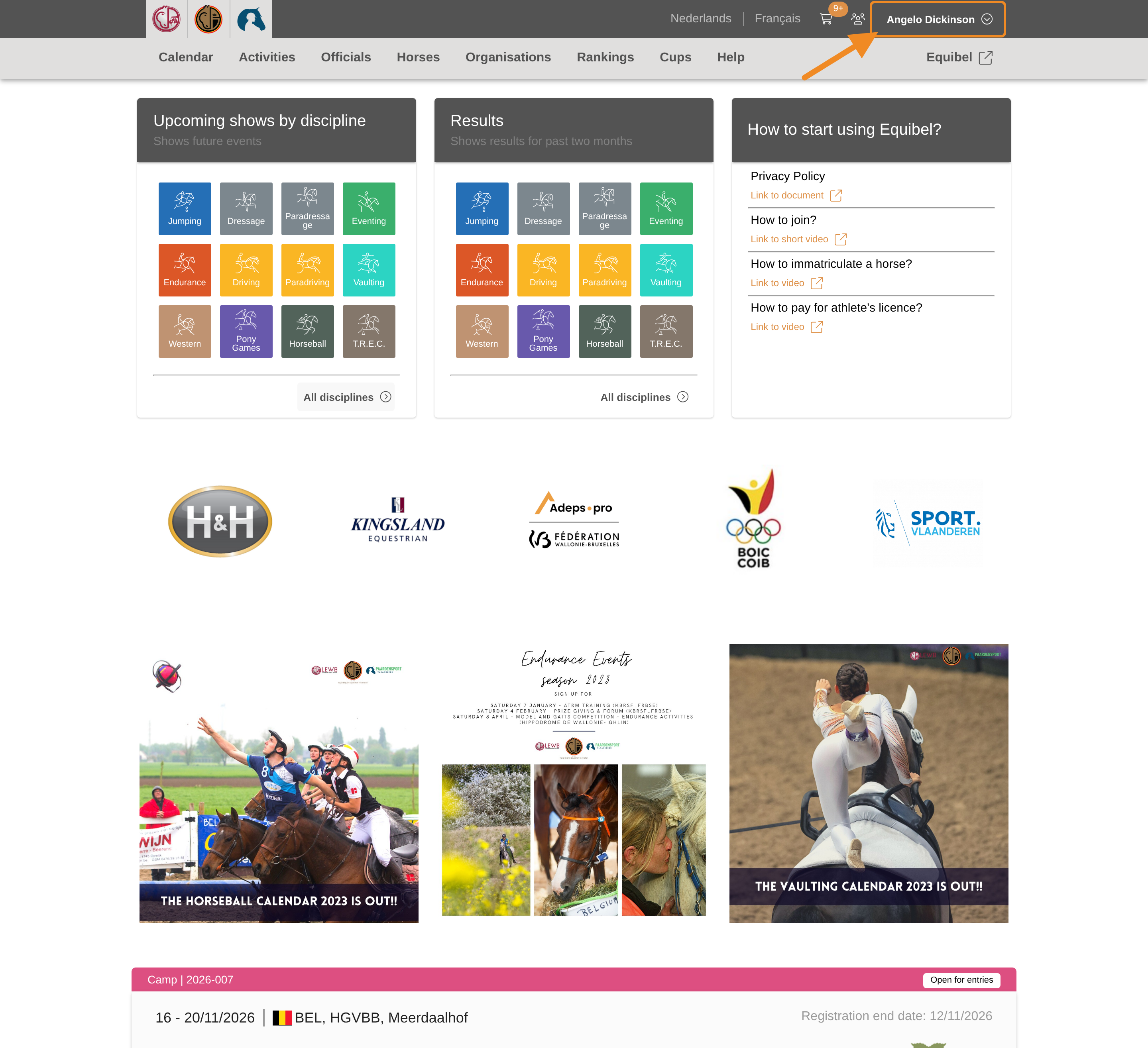
Click your profile button in the upper-right corner of any page.
Step 2 — Open your club
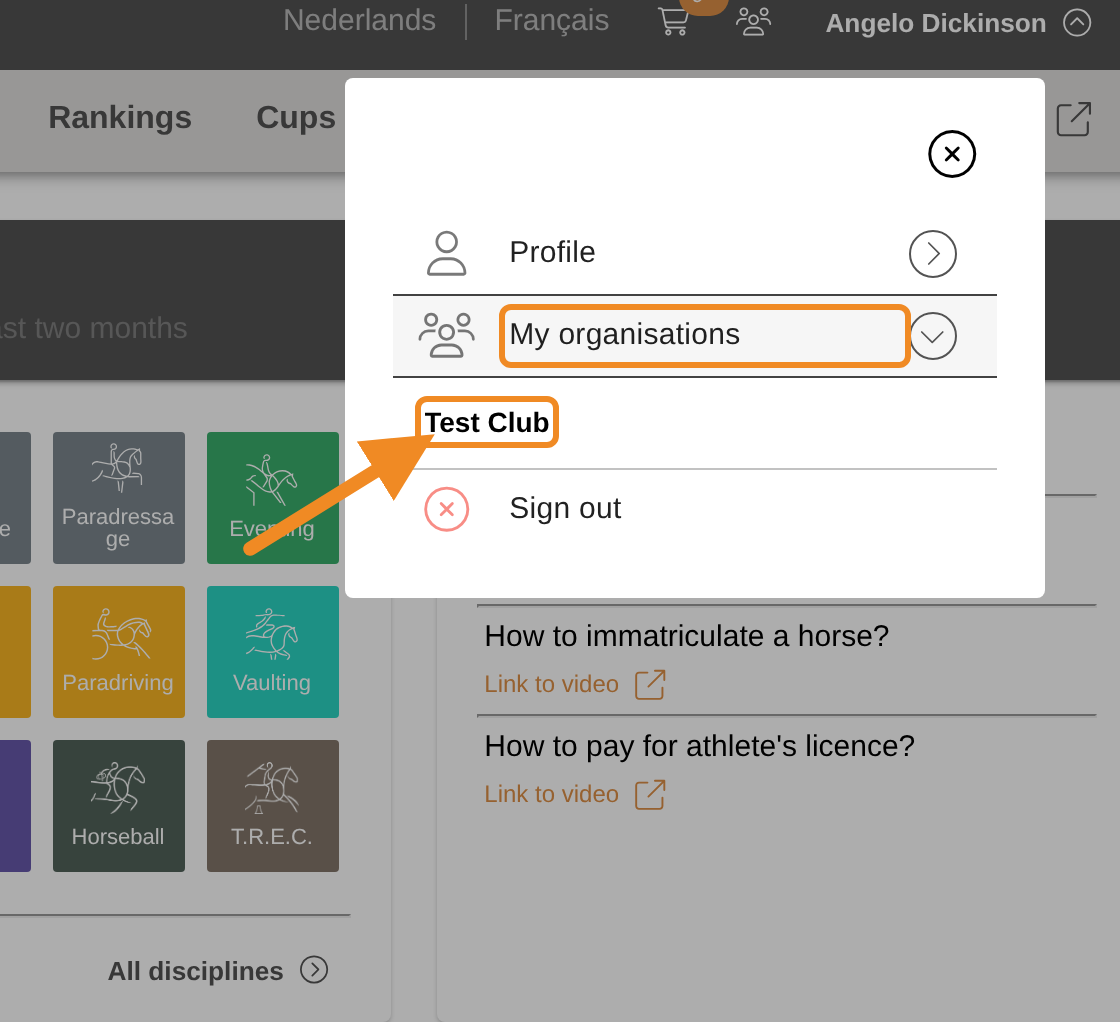
Open “My organisations” and select your club.
Step 3 — Find the Payments section
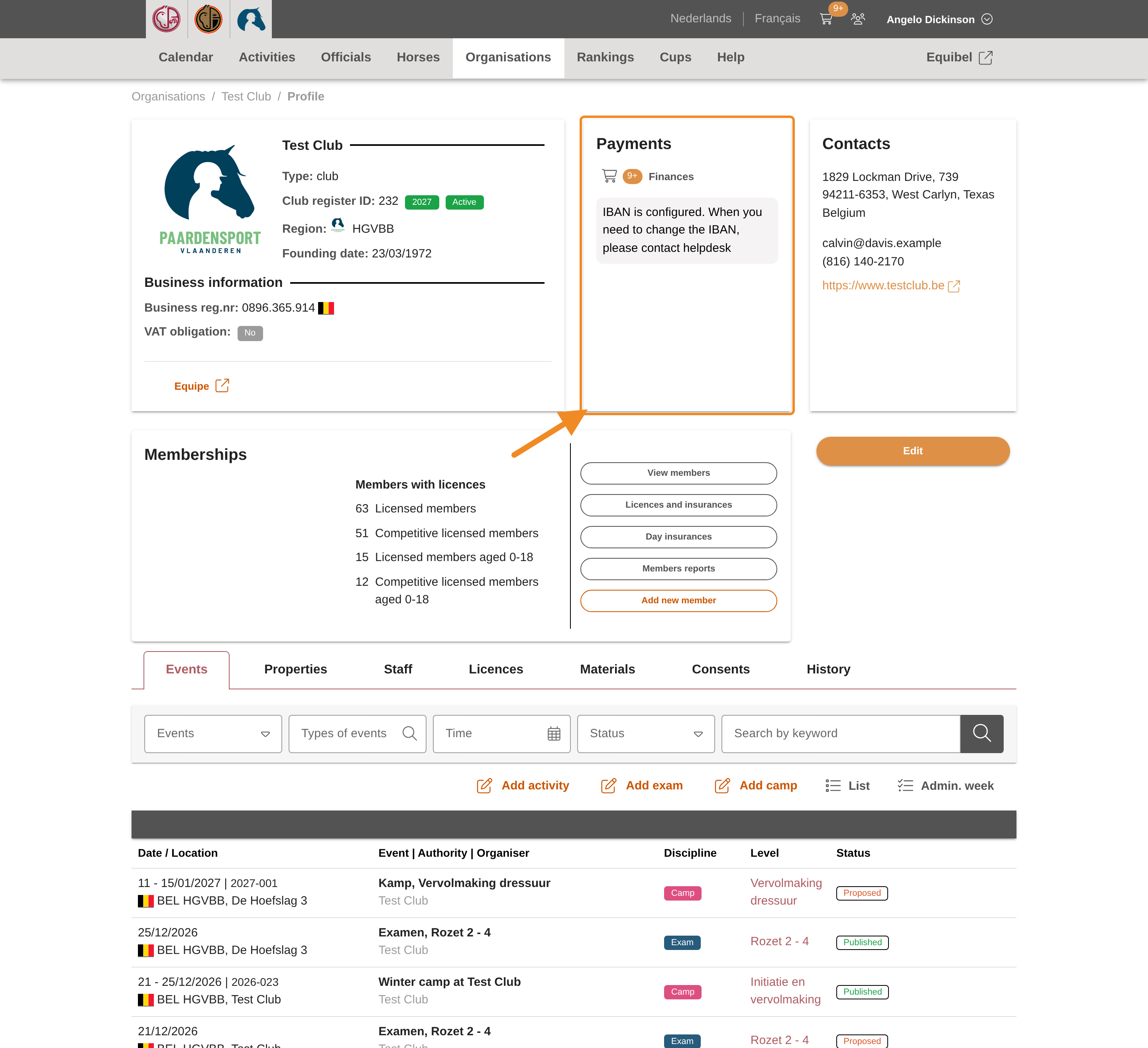
On your club page, find the “Payments” section.
Step 4 — Open the shopping basket
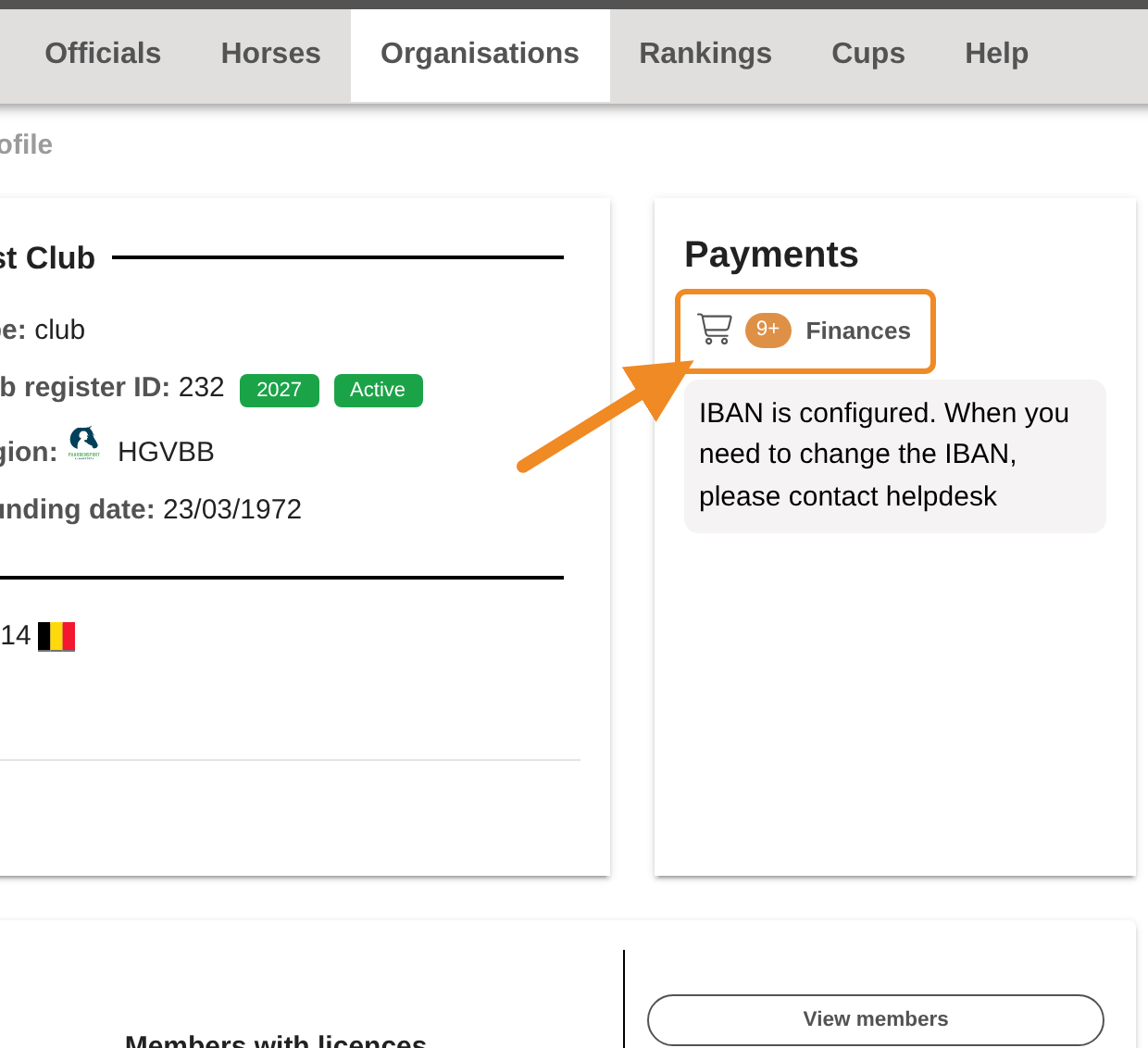
Click “Finances”. Your club’s shopping basket opens on the “Shopping basket” tab.
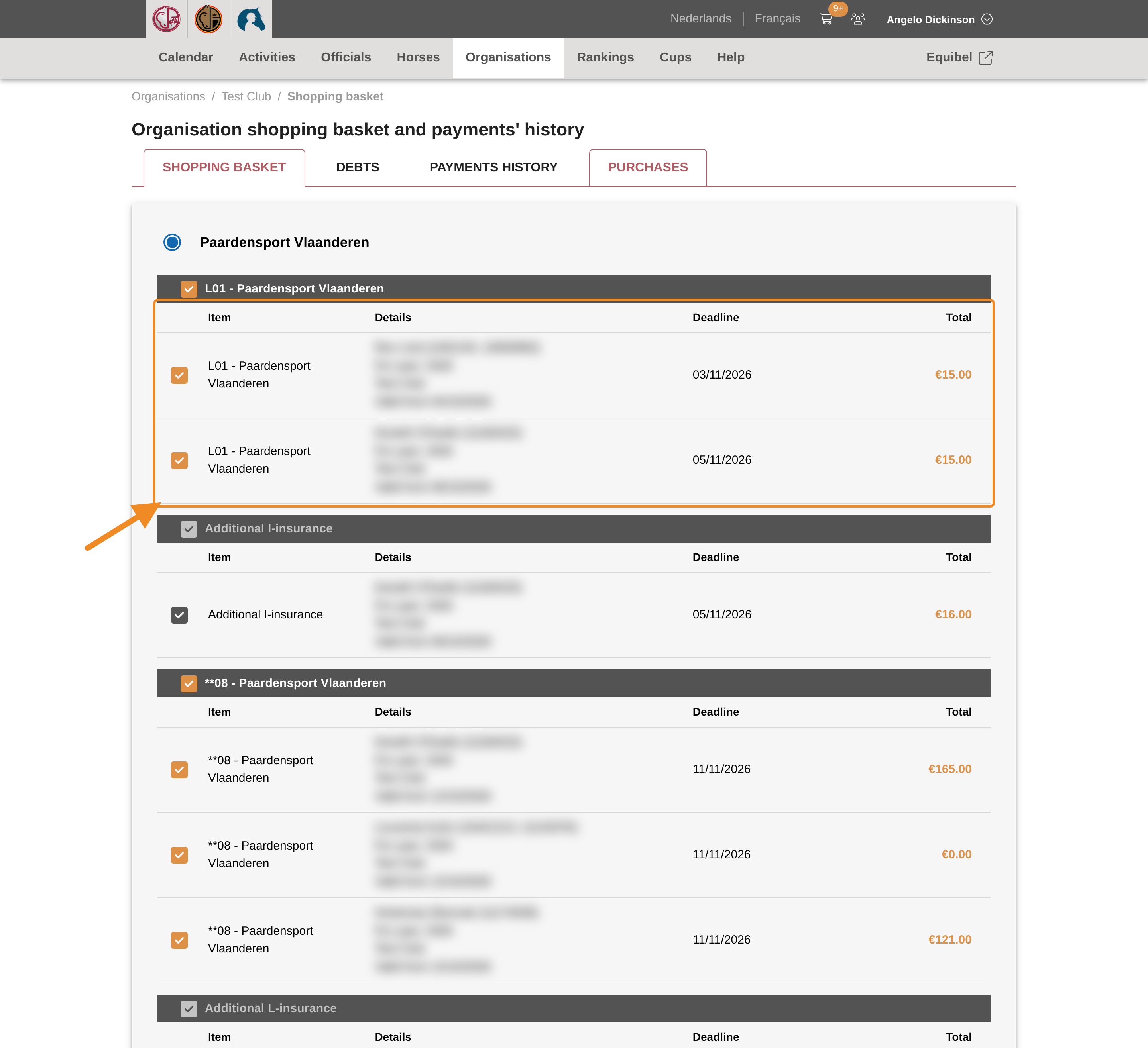
Step 5 — Look at your club’s orders
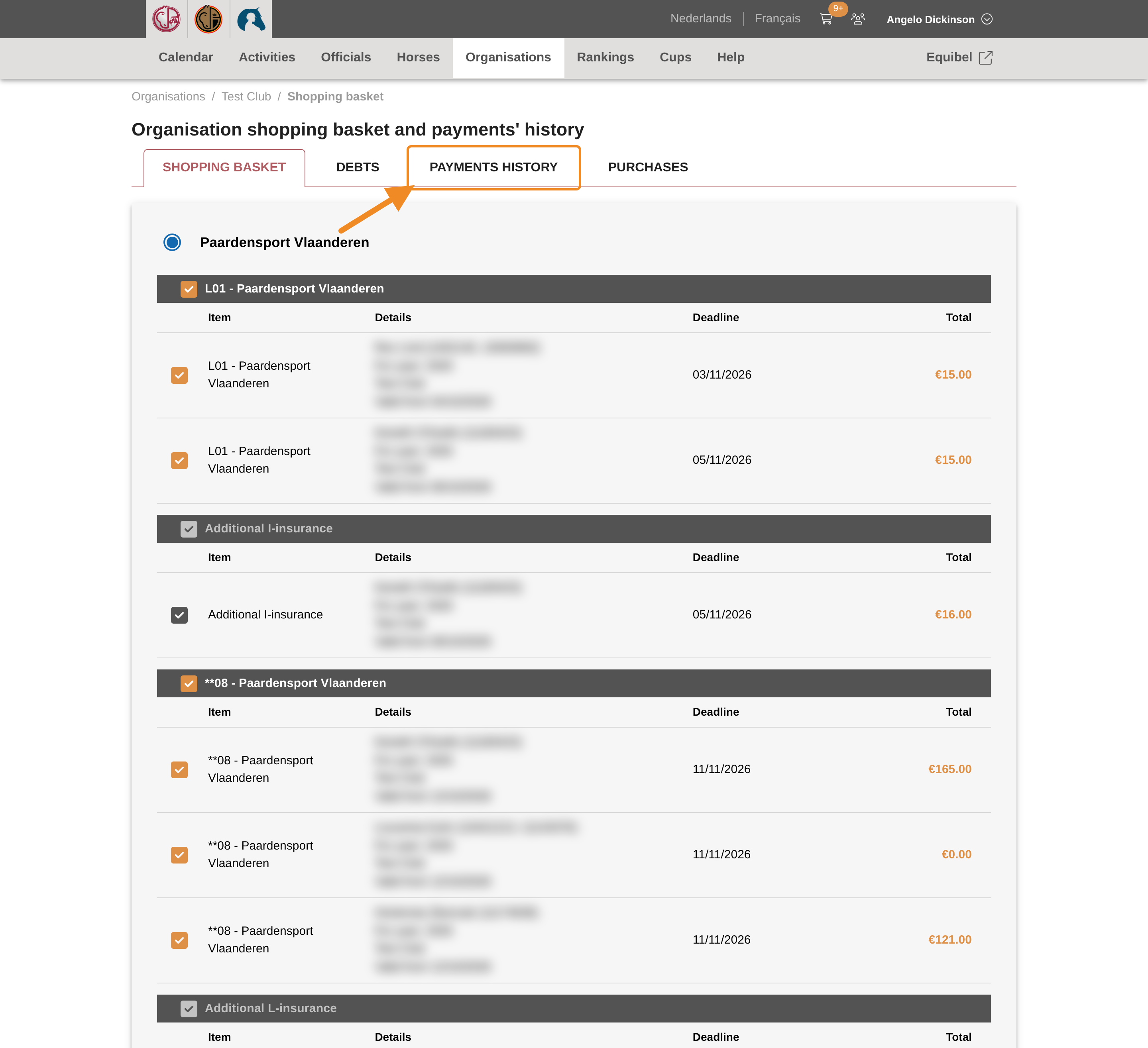
The basket lists every order your club has not paid yet, grouped by product. Each order shows the member it is for, its deadline and its amount.
Step 6 — Choose what to pay now
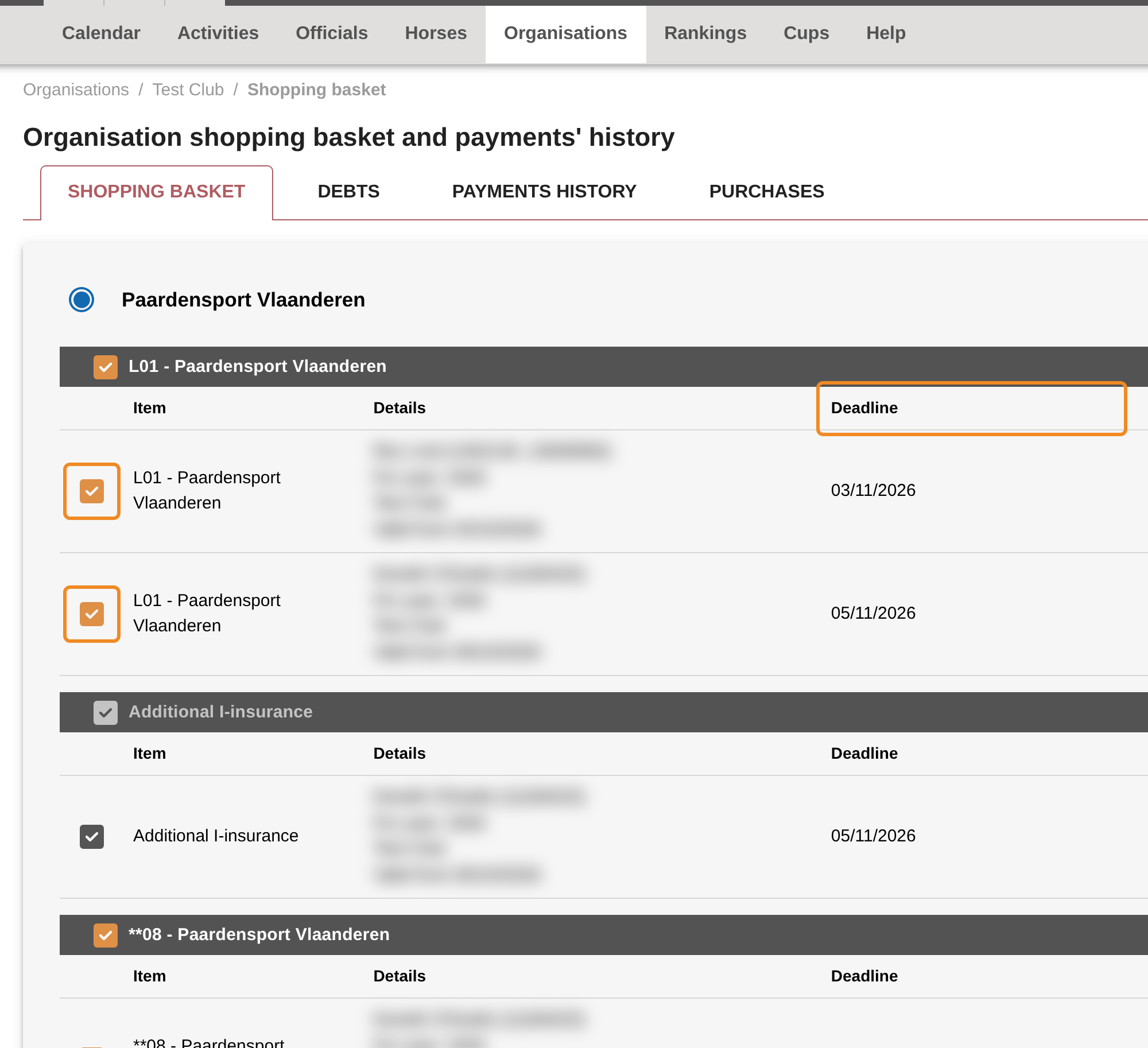
Each order must be paid by the date under “Deadline”: 30 days after the order was placed. All orders are ticked. To pay an order later, untick it.
- An order past its deadline cannot be unticked: it has to be part of the payment.
- An additional insurance stays with the licence it was ordered with. It cannot be unticked on its own.
Step 7 — Check out
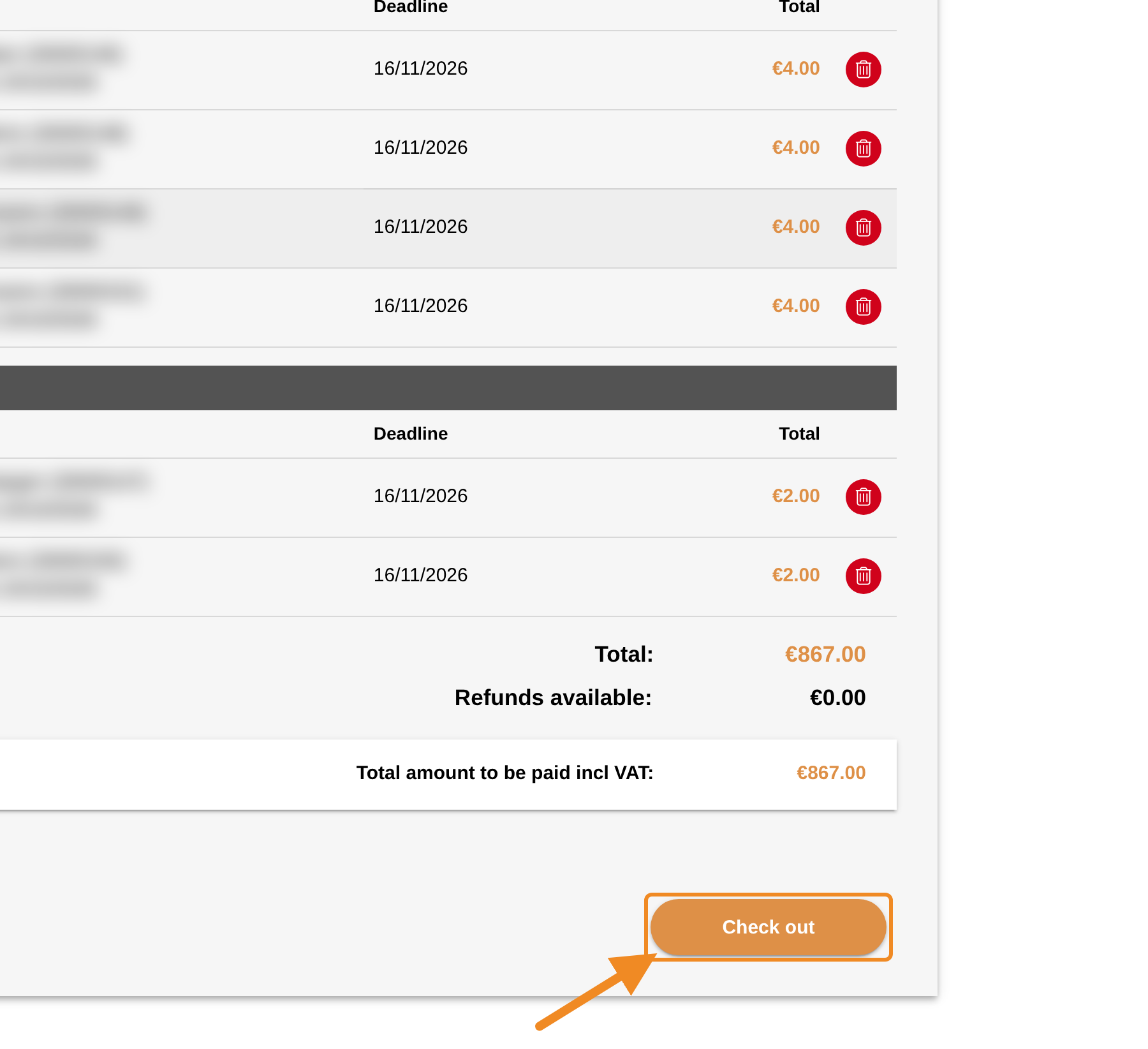
Check the total. Then click “Check out”.
Step 8 — Check the payer’s details
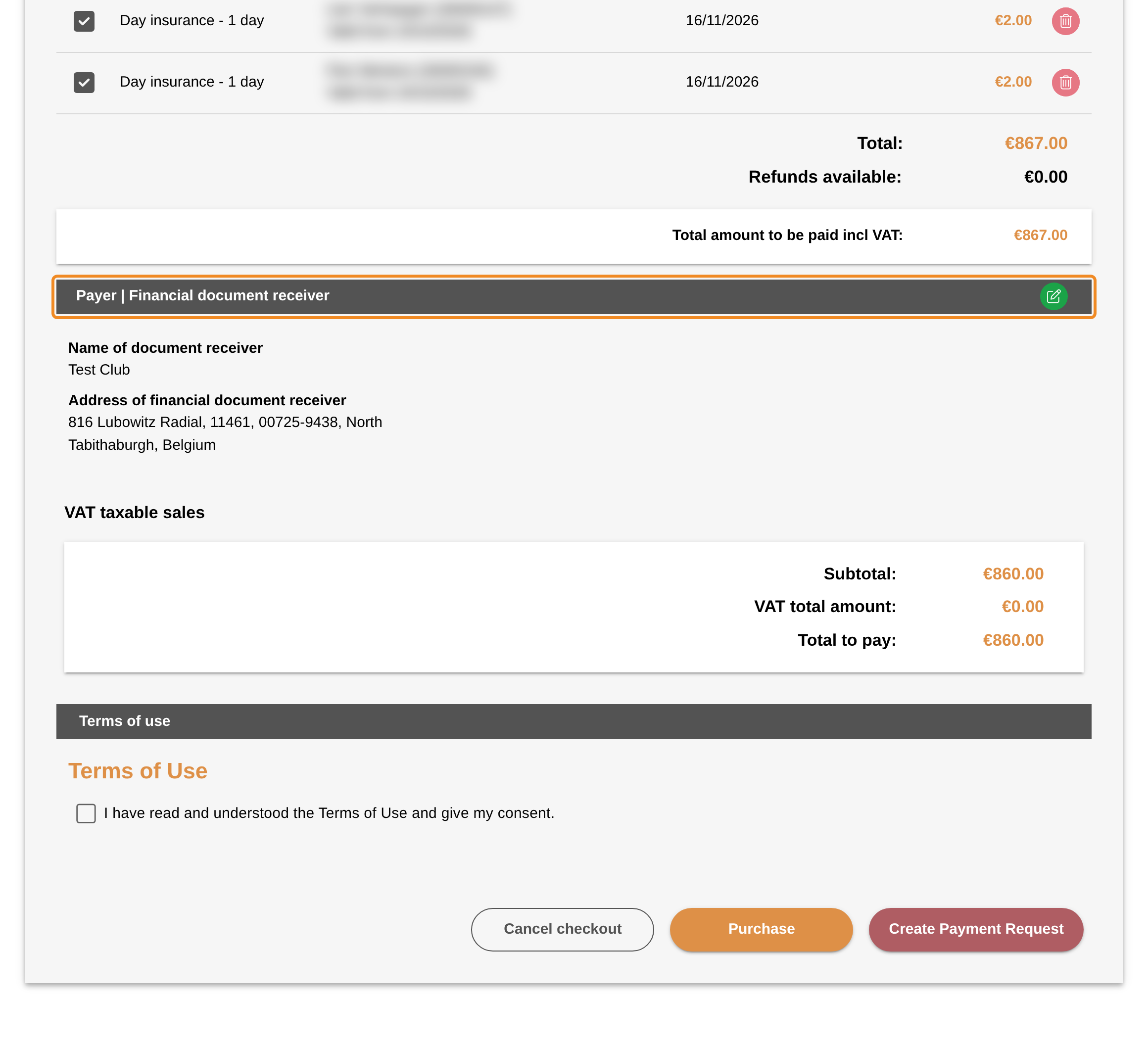
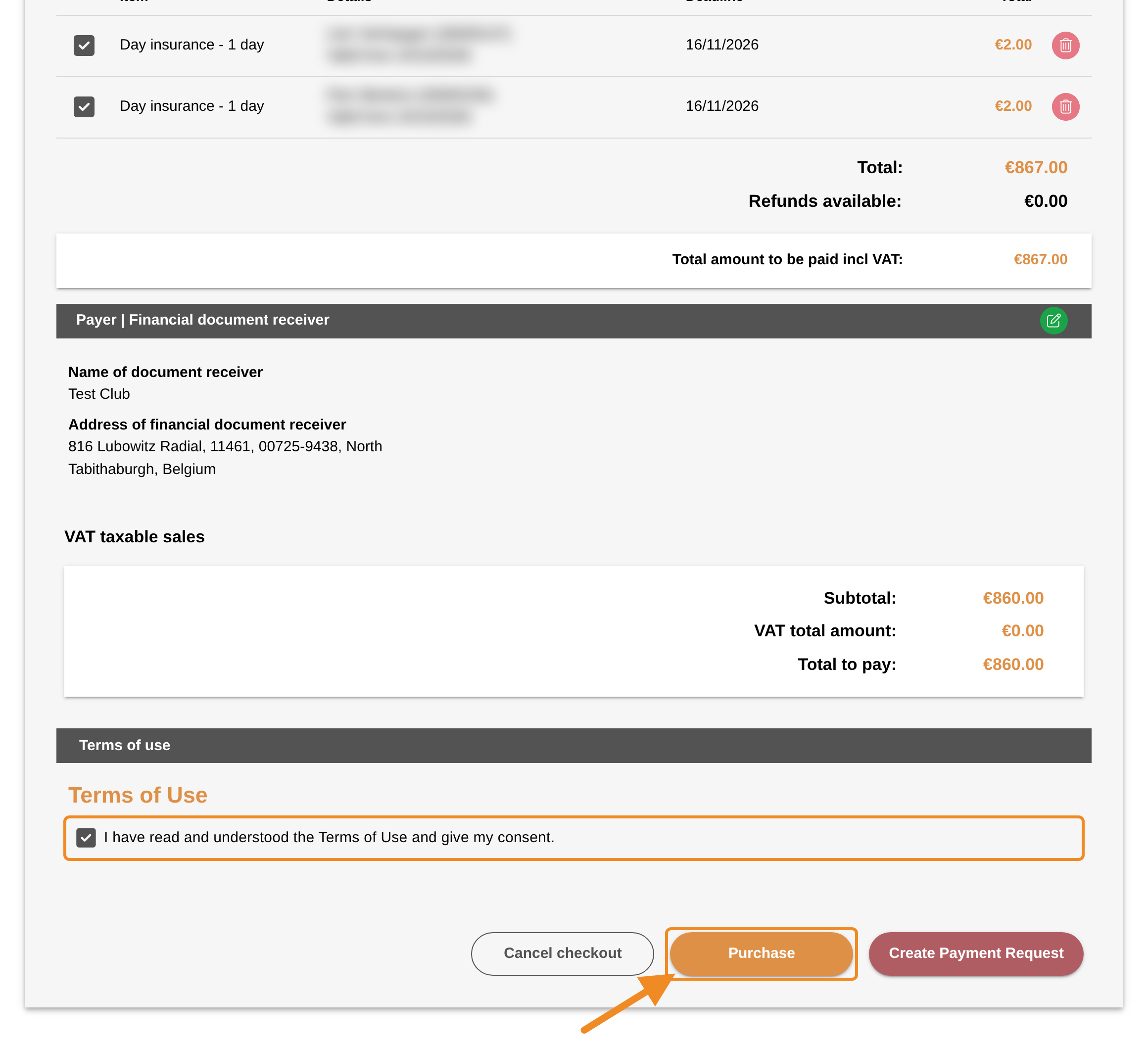
Under “Payer | Financial document receiver”, check your club’s name and address. They appear on the proof of payment. If something is wrong, click the pencil icon and correct it.
Step 9 — Accept the terms and pay
Check the total to pay. Tick the box to accept the terms of use. Then click “Purchase”.
To go back to your orders without paying, click “Cancel checkout”.
Step 10 — Complete the payment
The ways to pay appear under the terms: Bancontact, a payment card and others. Choose one, fill in what it asks for and click “Pay”. Your bank then asks you to confirm the payment, in its app or on its own page.
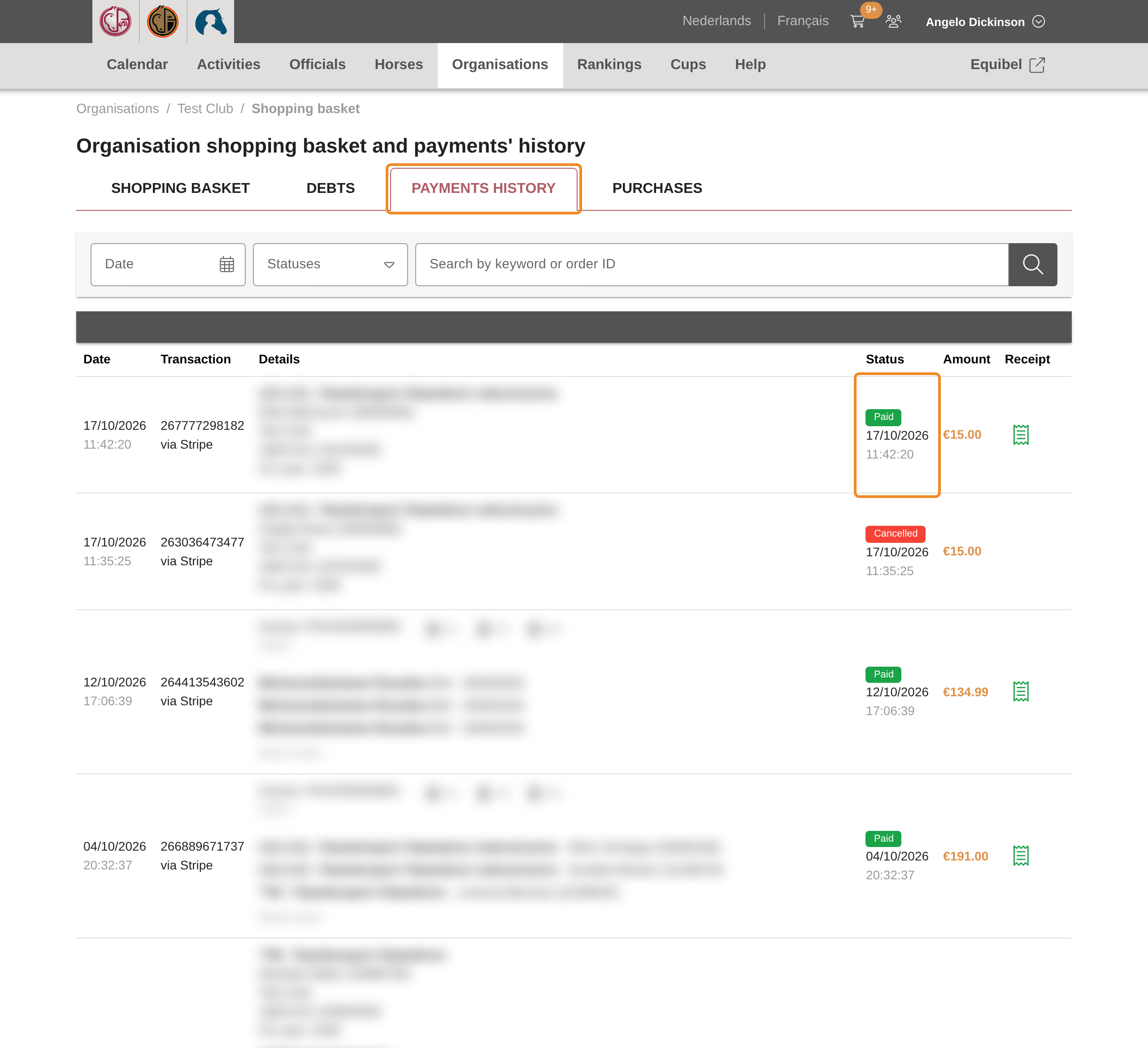
When the payment is done, you return to the “Payments history” tab of your club’s basket. Your payment is at the top, marked “Paid”.
Step 11 — Find the payment
Paid orders leave the basket. To find a payment later, open the “Payments history” tab of the basket. It lists your club’s payments, the most recent first.
Step 12 — Download the proof of payment
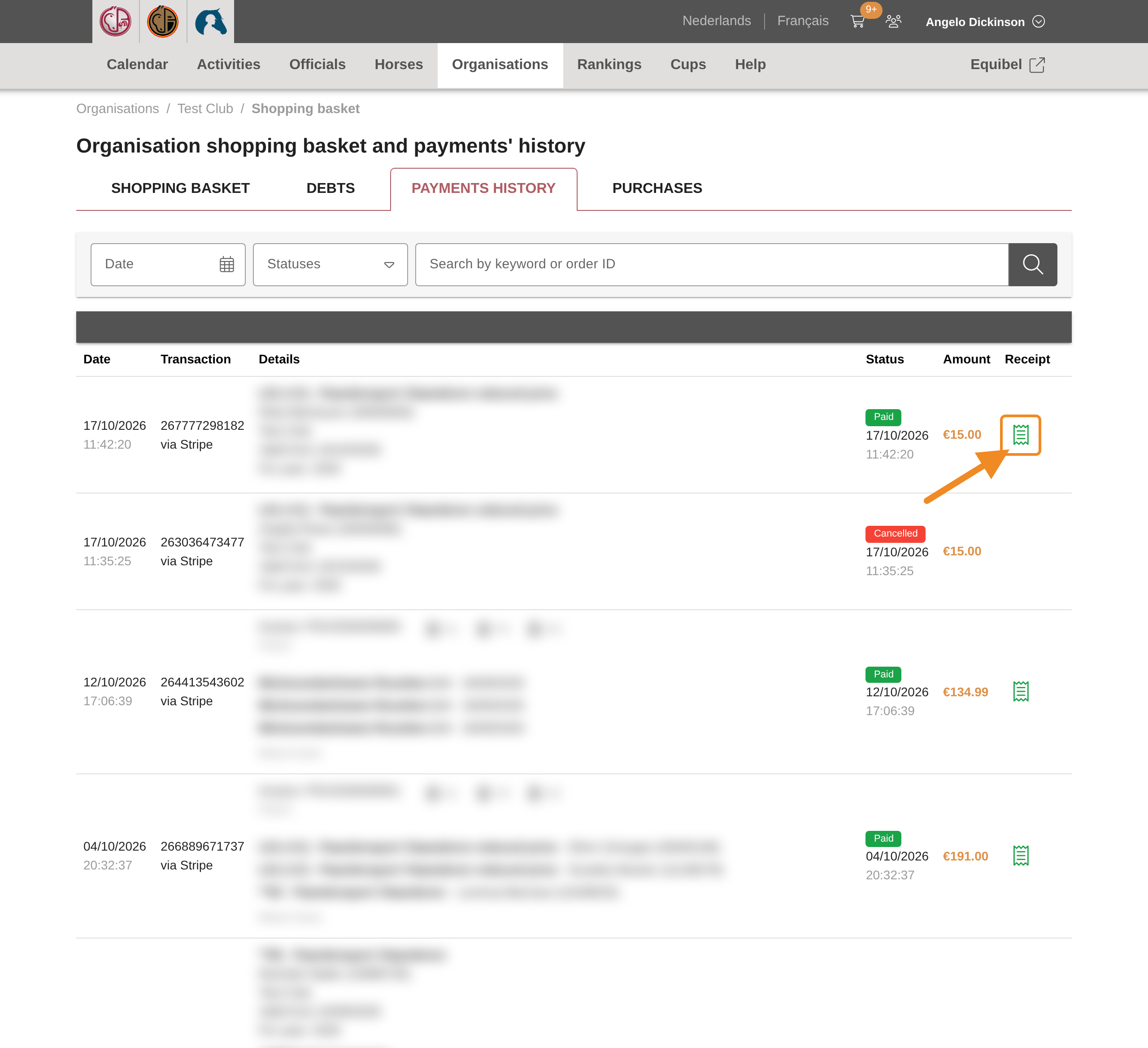
Each payment has a receipt icon in the “Receipt” column. Click it to download your club’s proof of payment as a PDF.
Good to know
- What paying changes: a member’s membership, licence or insurance is active from the moment you order it; paying settles the order. Your club’s own membership renewal is different: it is approved as soon as its order is paid.
- Unpaid after 30 days: an order past its deadline has to be paid first. Orders left unpaid for longer become a debt of your club, which stops it from placing new orders. See Unpaid Orders: Reminders and Debts.
- Someone else pays: your club’s accountant can pay orders without logging in, with a payment link you send them. See How to Let Someone Else Pay with a Payment Link.
- Every order, paid or not: the “Purchases” tab lists every order your club has ever placed, with its status.
If something goes wrong
| What you see | What to do |
|---|---|
| An order cannot be unticked | It is past its deadline, or it is an additional insurance that goes with a licence. Pay it with the rest. |
| An order you placed by mistake | Contact the federation. |
| The payment is done, but the order is still in the basket | Wait a minute and reload the page. If it stays, contact the federation. |
| No receipt icon yet | The proof of payment is being prepared. Reload the page after a few minutes. |
| An order shows “In process” and has no tick box | A payment for it was started and not finished. After 10 minutes the order is back in the basket. Then pay it again. |
Related articles: How to Let Someone Else Pay with a Payment Link · Unpaid Orders: Reminders and Debts