
How to Check Your Club’s Details
Your club’s details — its contacts, addresses, description, logo, characteristics, staff and consents — are used by Paardensport Vlaanderen, and most of them are shown on your club page. Check them from time to time, and whenever something changes. Some details, such as the name, the address and the business number, can only be changed by the club administration of Paardensport Vlaanderen.
Before you begin
You need:
- the club administrator role for your club;
- about 10 minutes;
- for the logo: an image file of your club’s logo.
Part 1 — The club’s details
Step 1 — Open your profile menu
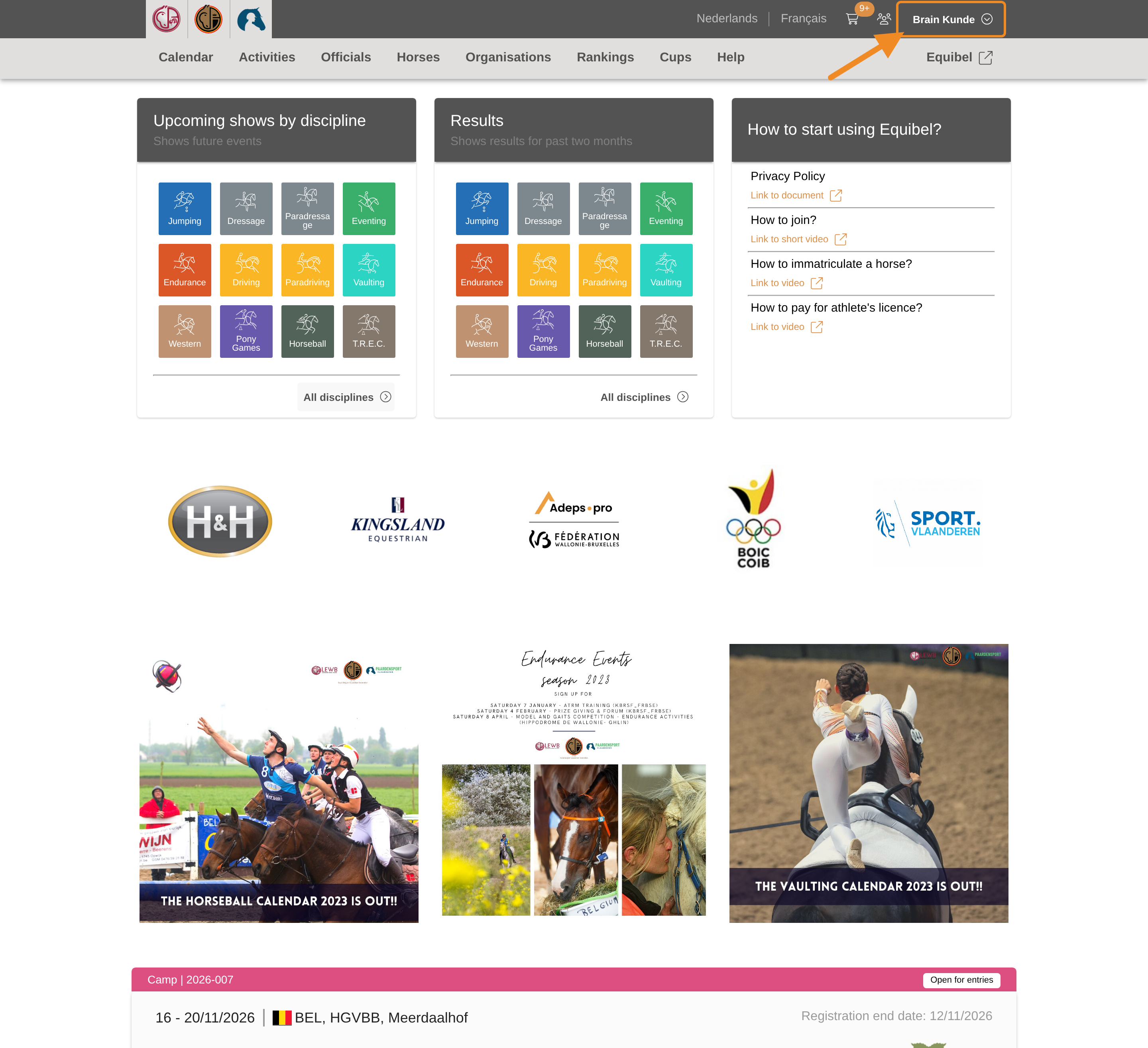
Click your profile button in the upper-right corner of any page.
Step 2 — Open your club
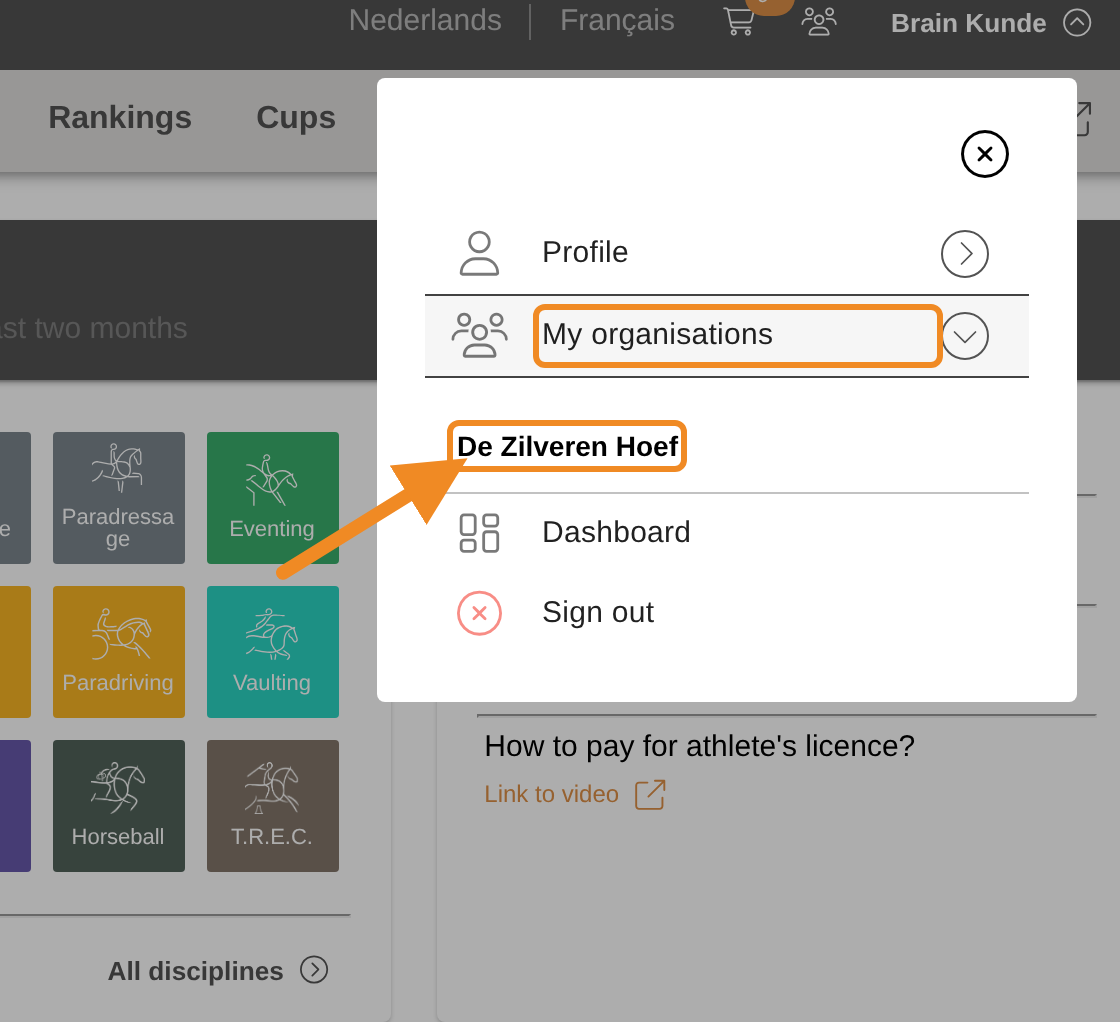
Open “My organisations” and select your club.
Step 3 — Find the edit button
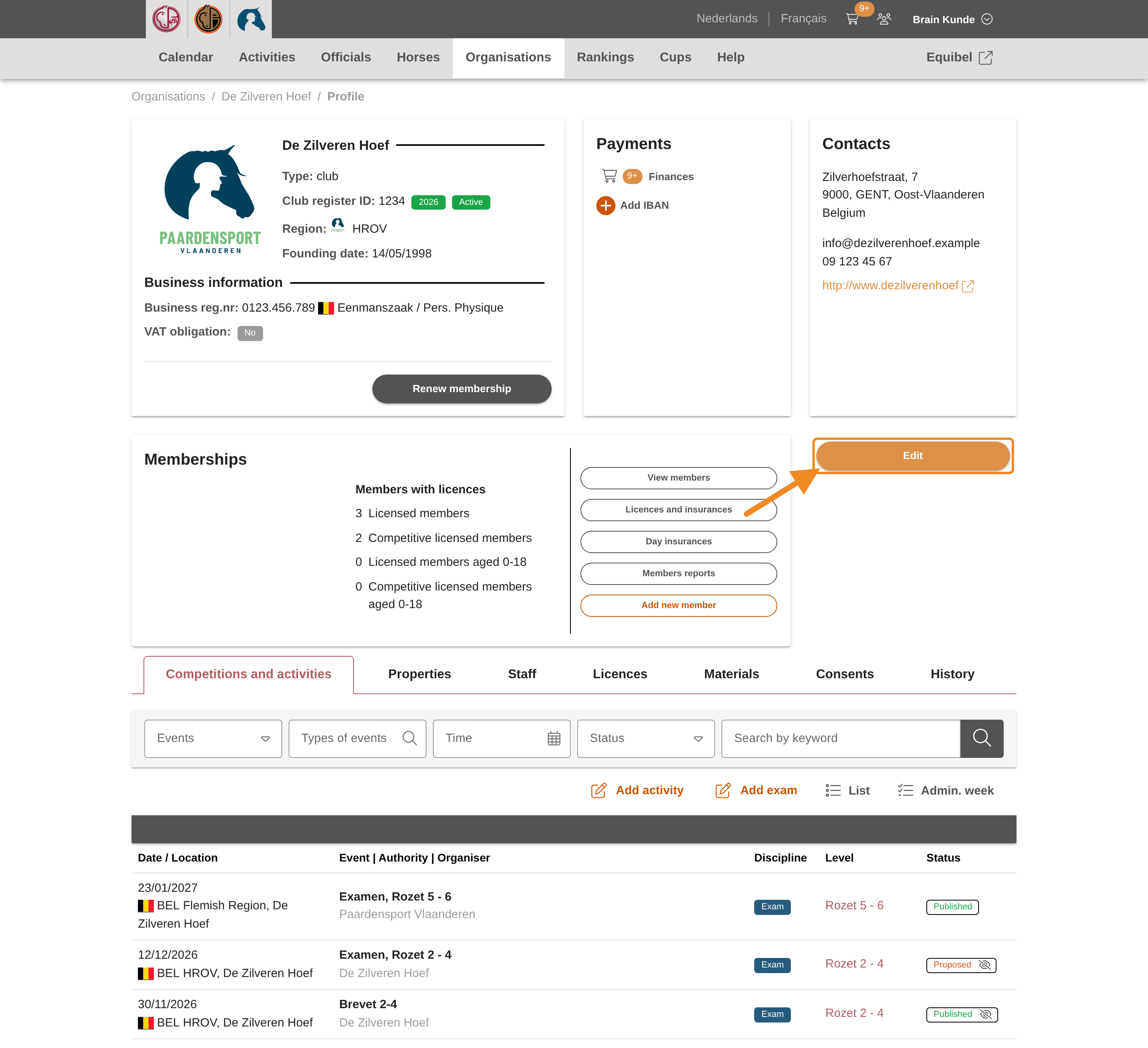
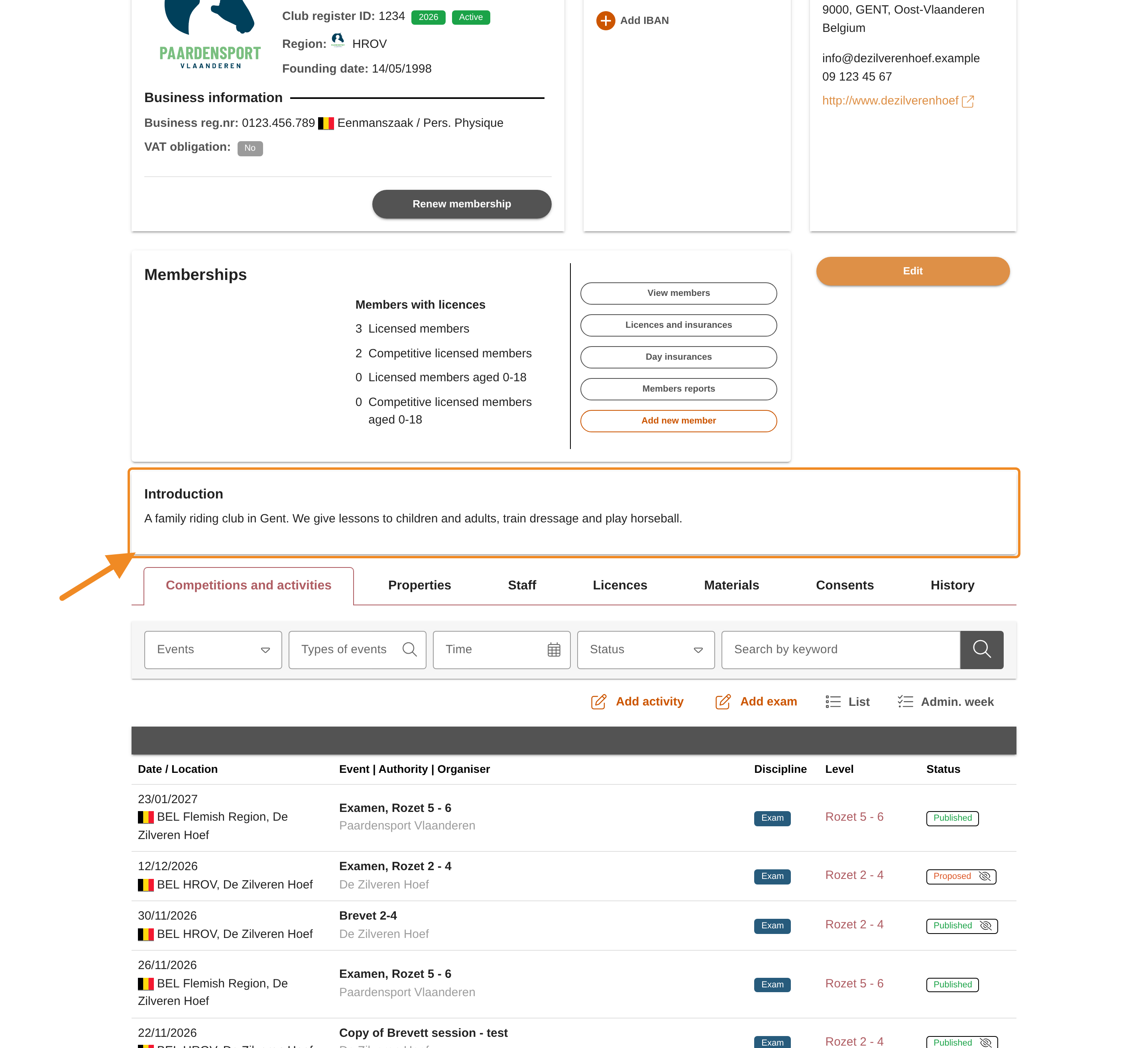
Your club page shows your club’s details, contacts and address at the top. To change them, find “Edit”, on the right of the page.
Step 4 — Open the form
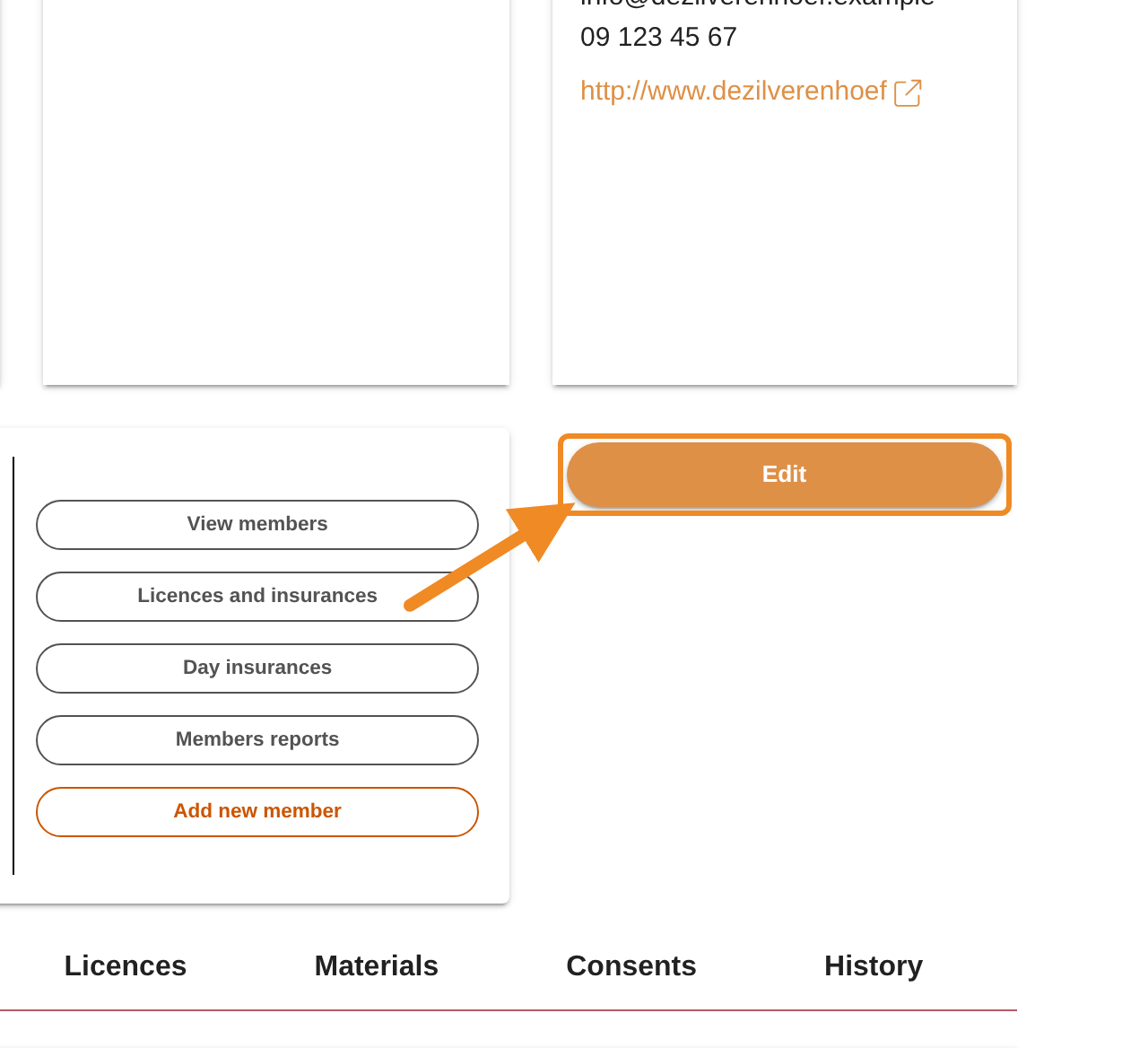
Click “Edit”. A form with all your club’s details opens.
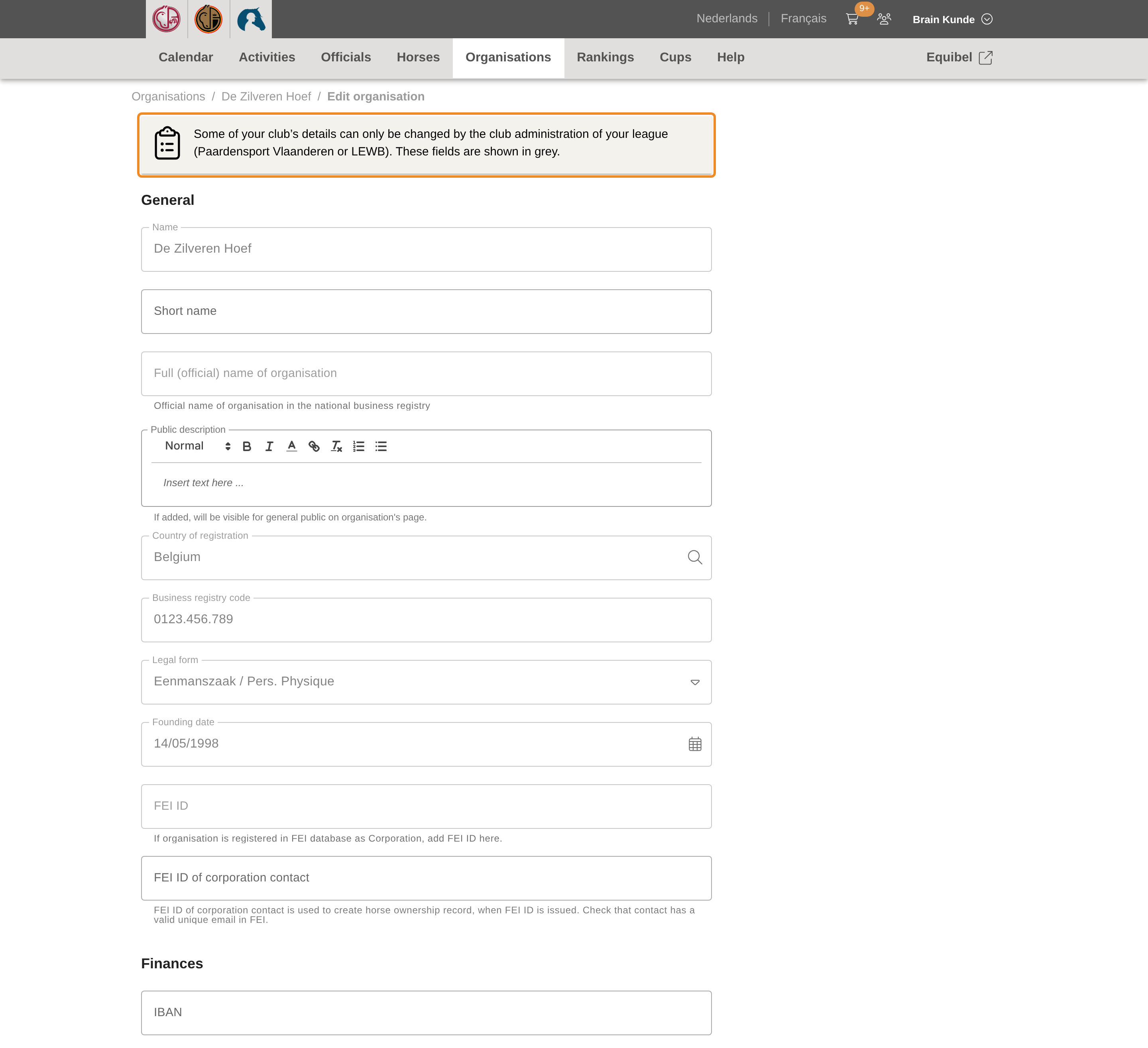
Step 5 — See what you can change
The form shows every detail your club has. Grey fields are frozen: only the club administration of Paardensport Vlaanderen can change them. For your club these are the name, the official name, the addresses, the business number, the legal form, the founding date, the VAT details and everything under “Membership”. If one of them is wrong, contact the club administration of Paardensport Vlaanderen.
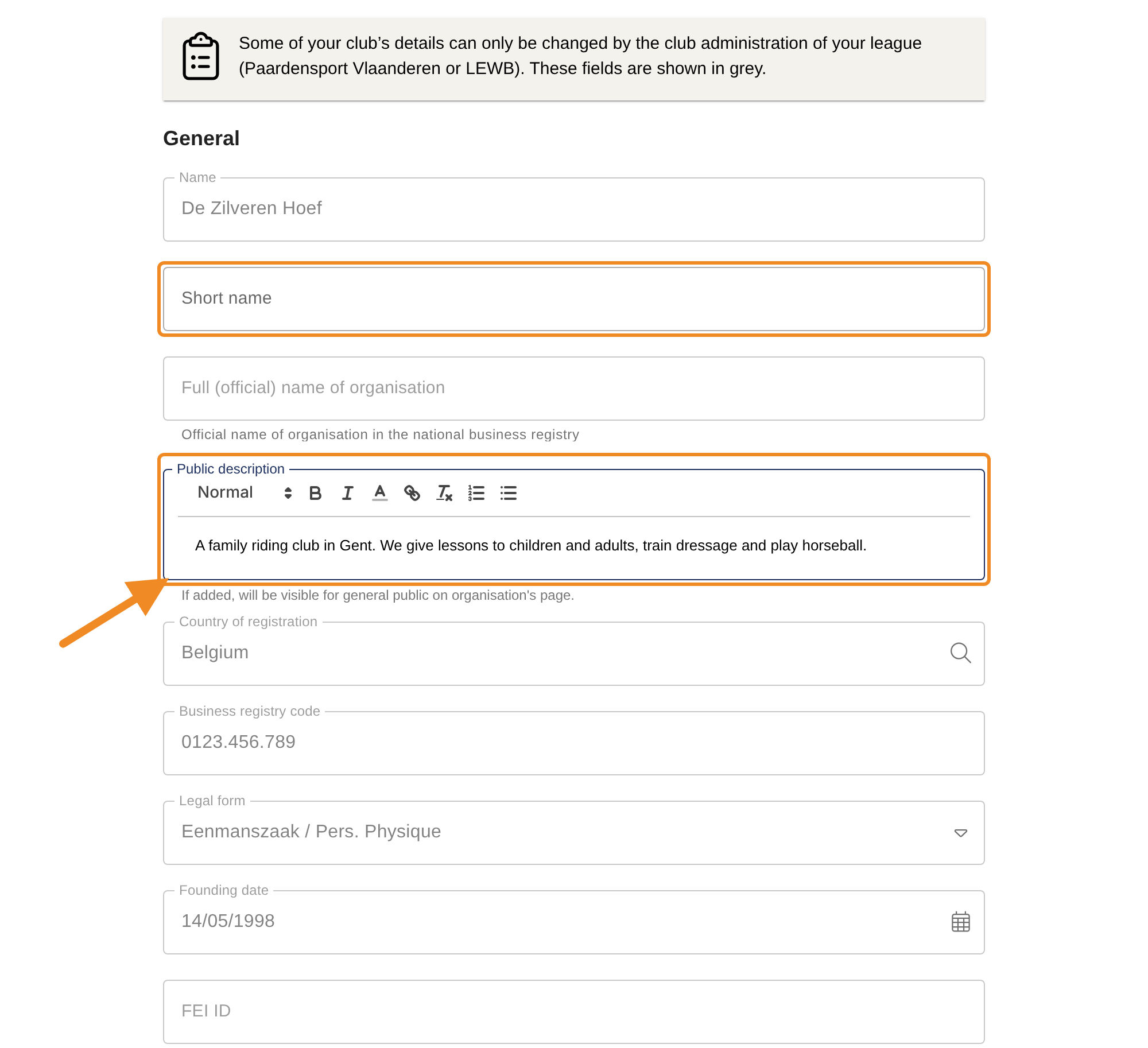
Step 6 — Fill in a short name and a description
Under “General”:
- “Short name”: a shorter form of your club’s name, used where there is little room.
- “Public description”: a few sentences about your club — what you offer and for whom. Everyone who opens your club page sees it (step 11).
If your club owns horses that are registered with the FEI, “FEI ID of corporation contact” is also in this part. Fill in the FEI ID of the person who is the club’s contact for the FEI.
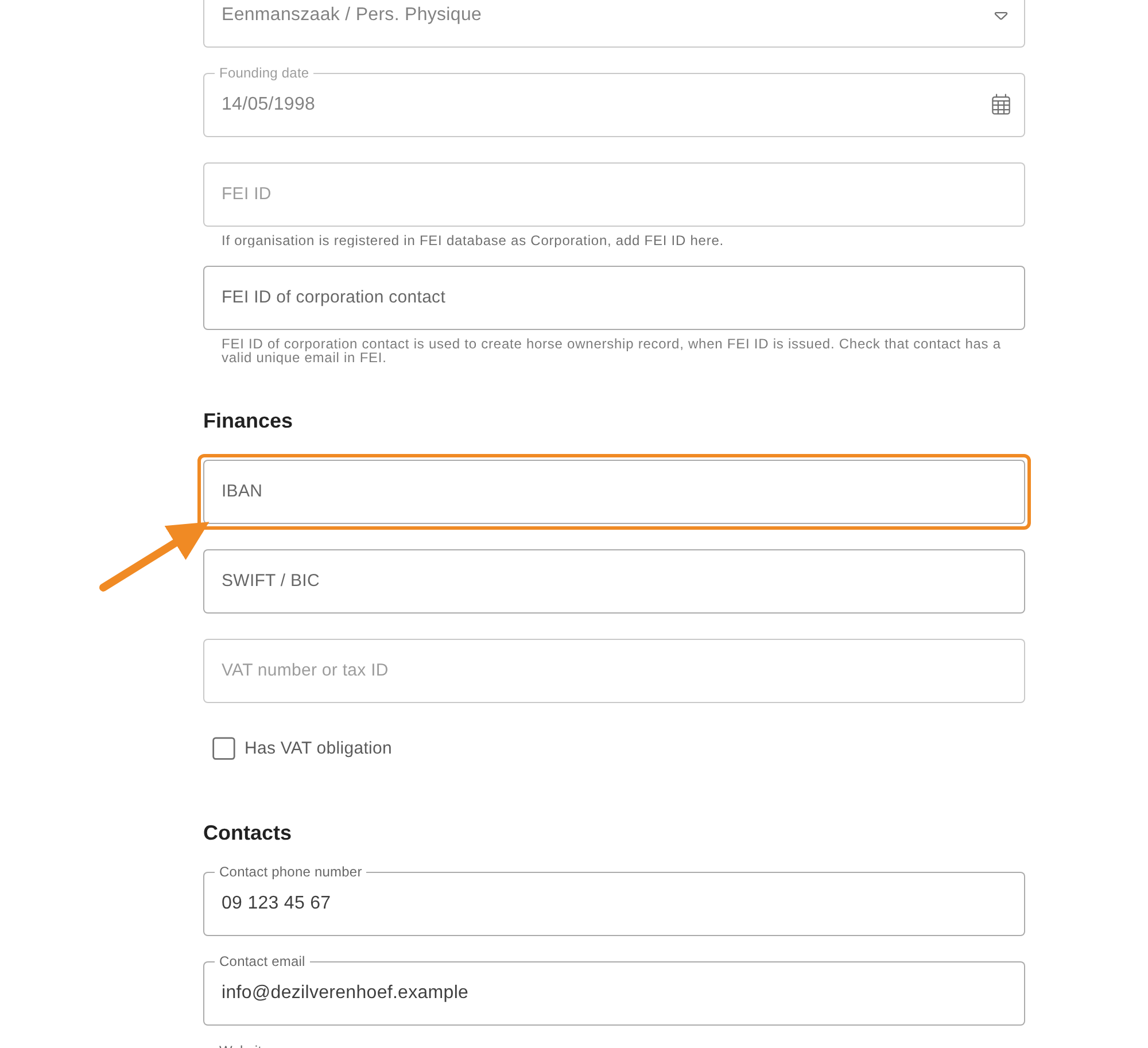
Step 7 — Enter your club’s bank account
Under “Finances”, enter your club’s “IBAN” and “SWIFT / BIC” if they are still empty. Once they are saved, they are frozen: to change them, contact the club administration of Paardensport Vlaanderen.
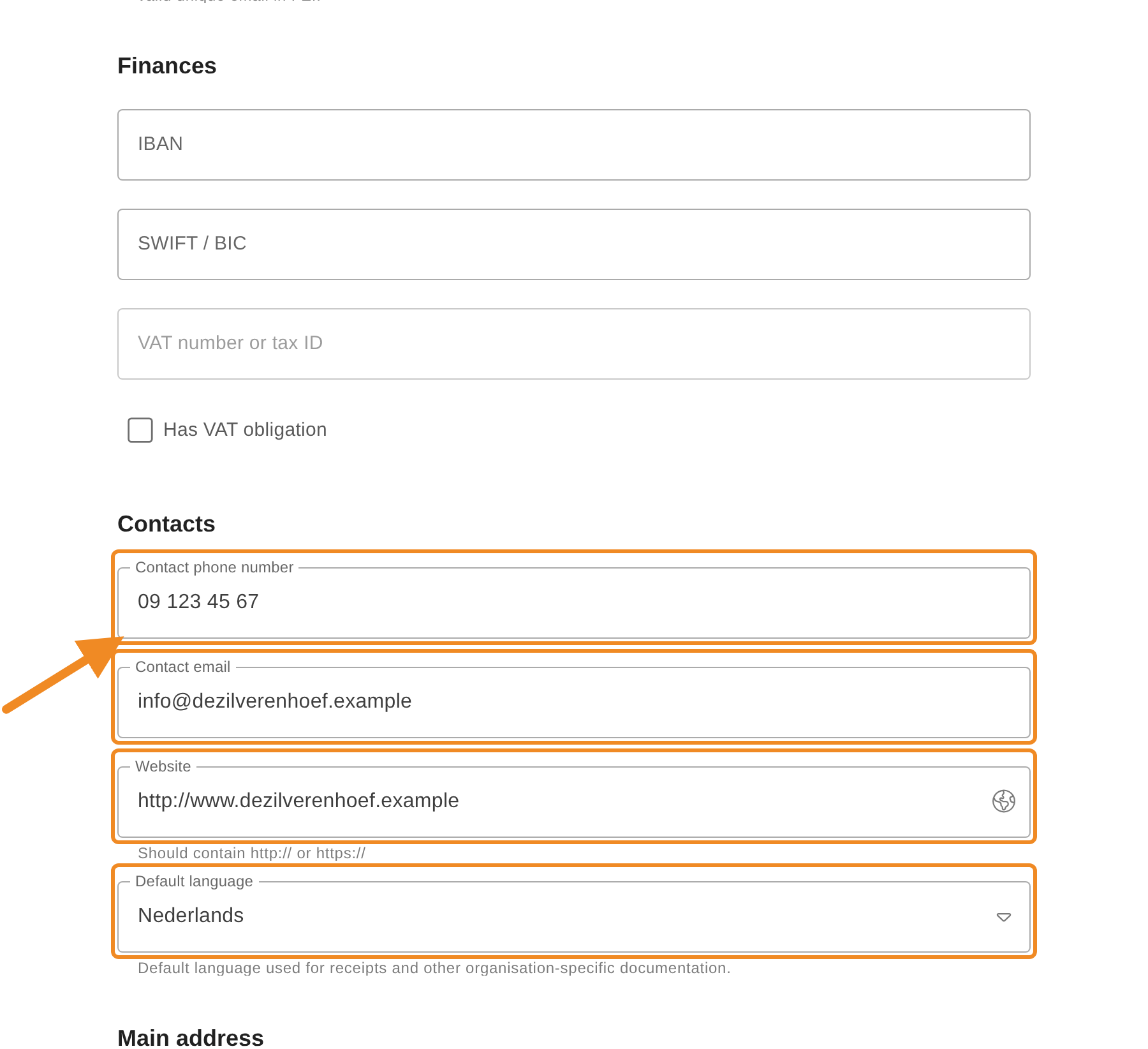
Step 8 — Check the contacts
Under “Contacts”, check and change if needed:
- “Contact phone number” and “Contact email”: how Paardensport Vlaanderen and members reach your club;
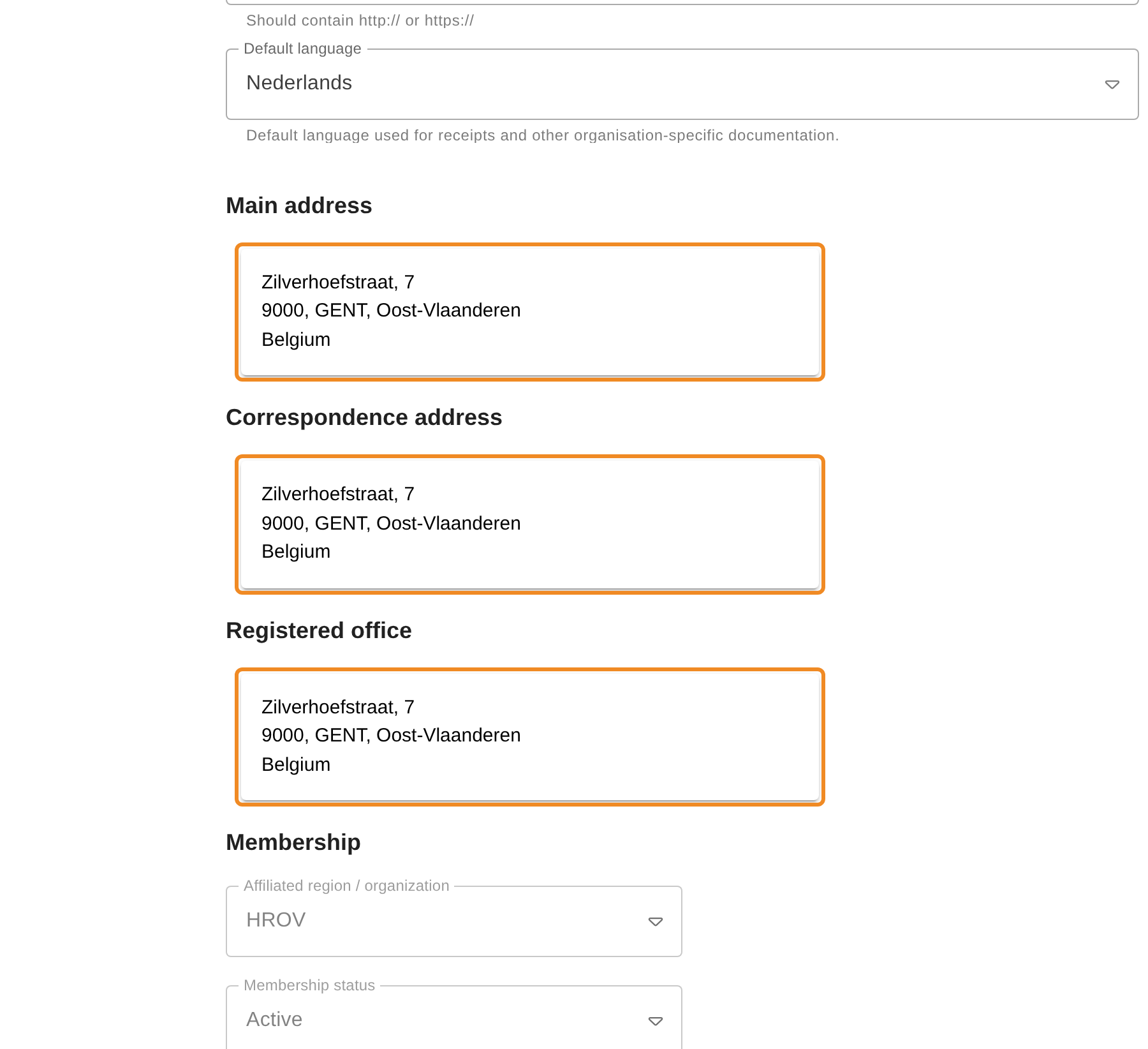
- “Website”: starts with http:// or https://;
- “Default language”: the language of your club’s proofs of payment and other documents.
Step 9 — Check the addresses
Your club has three addresses: “Main address”, “Correspondence address” and “Registered office”. They may be the same. To change them, contact the club administration of Paardensport Vlaanderen.
Step 10 — Save
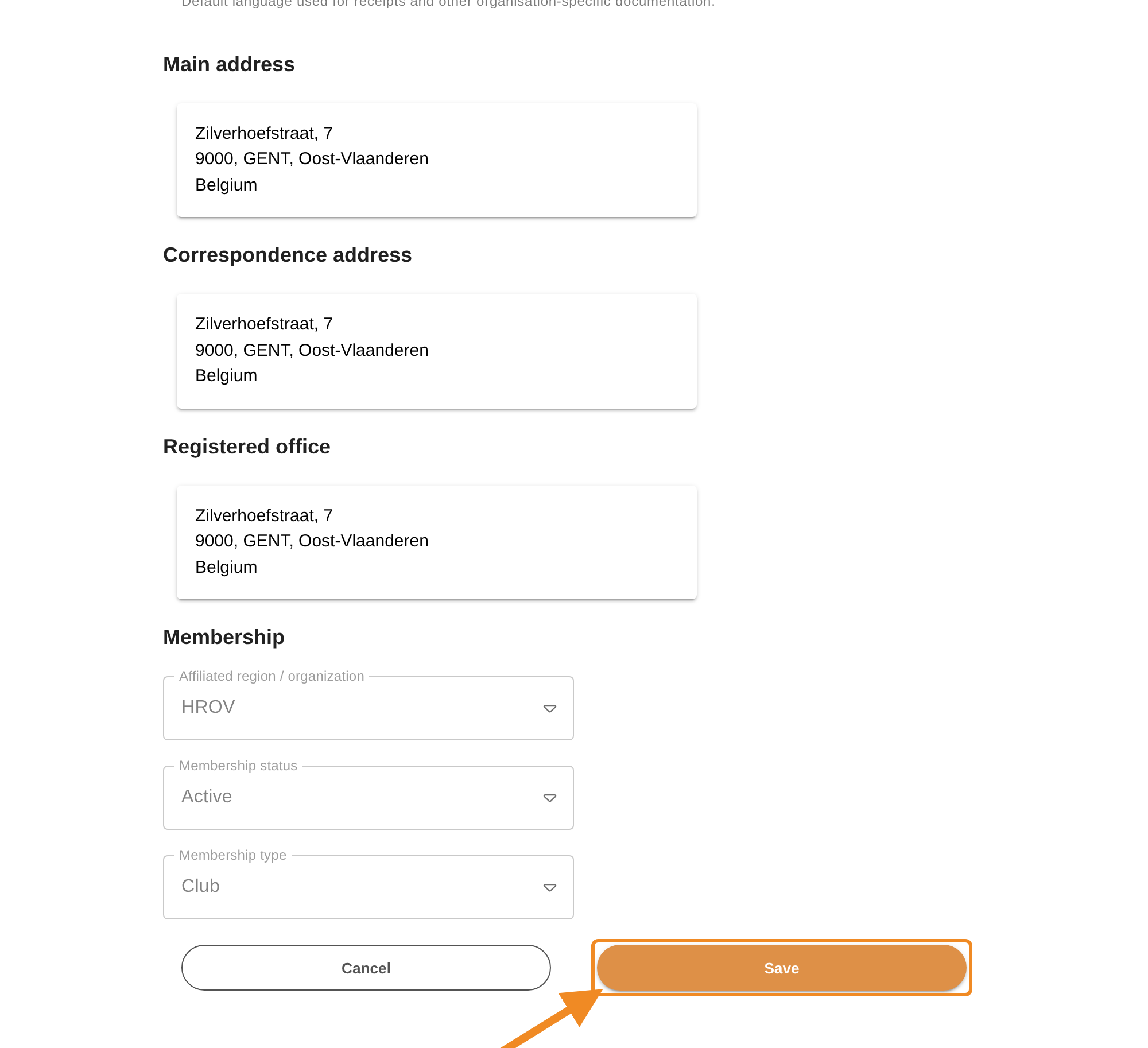
Click “Save” at the bottom of the form. Your changes are saved and your club page opens, with the new details.
To stop without saving, click “Cancel”. Nothing you changed is kept.
Step 11 — See the description on your club page
Your club page now shows the description, under “Introduction”. Everyone who opens your club page sees it, also people who are not logged in.
Part 2 — The logo
Step 12 — Open the logo
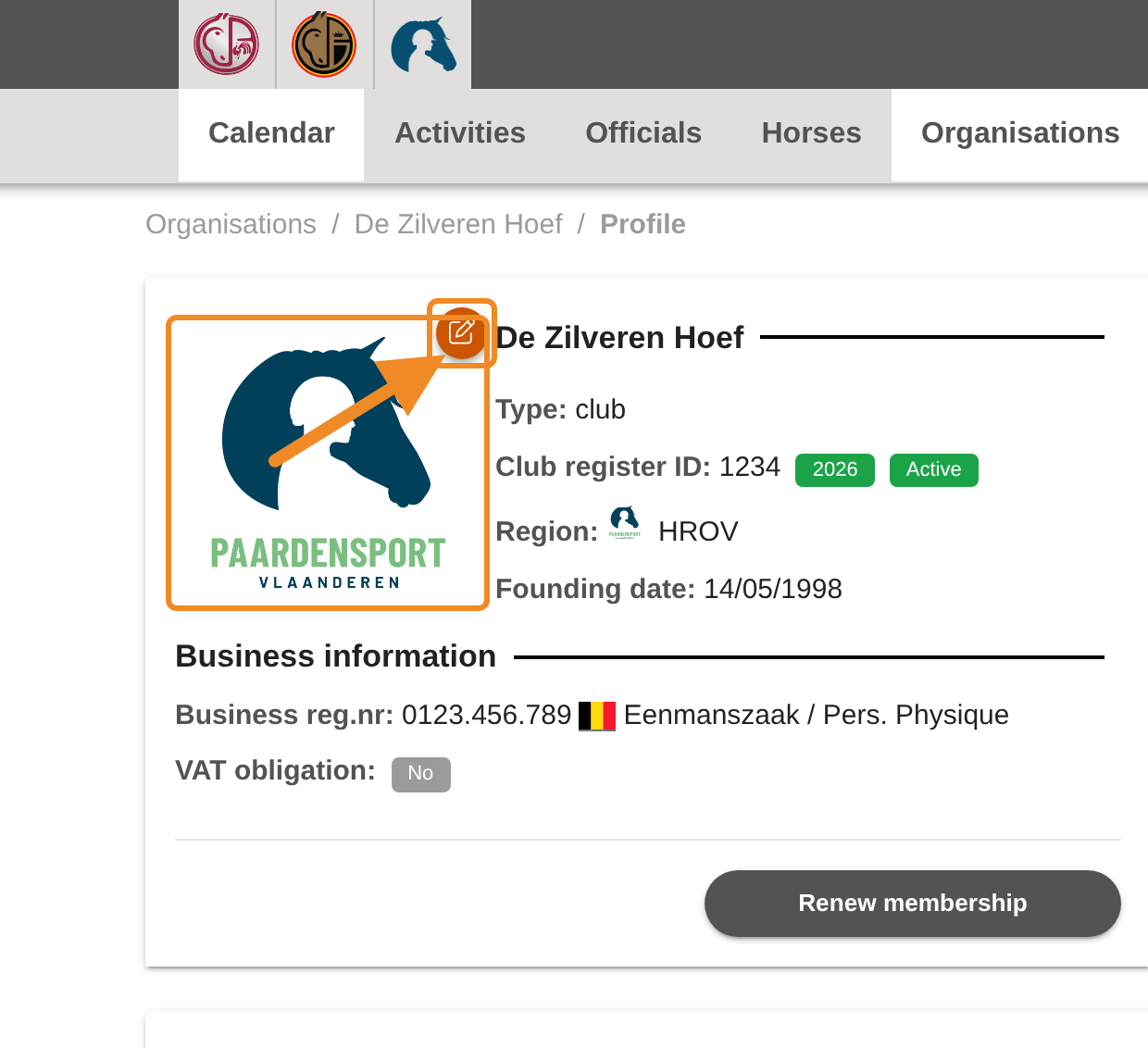
Until your club adds its own logo, your club page shows the logo of Paardensport Vlaanderen. Point at the logo with your mouse: a pencil icon appears. Click it.
Step 13 — Upload your logo
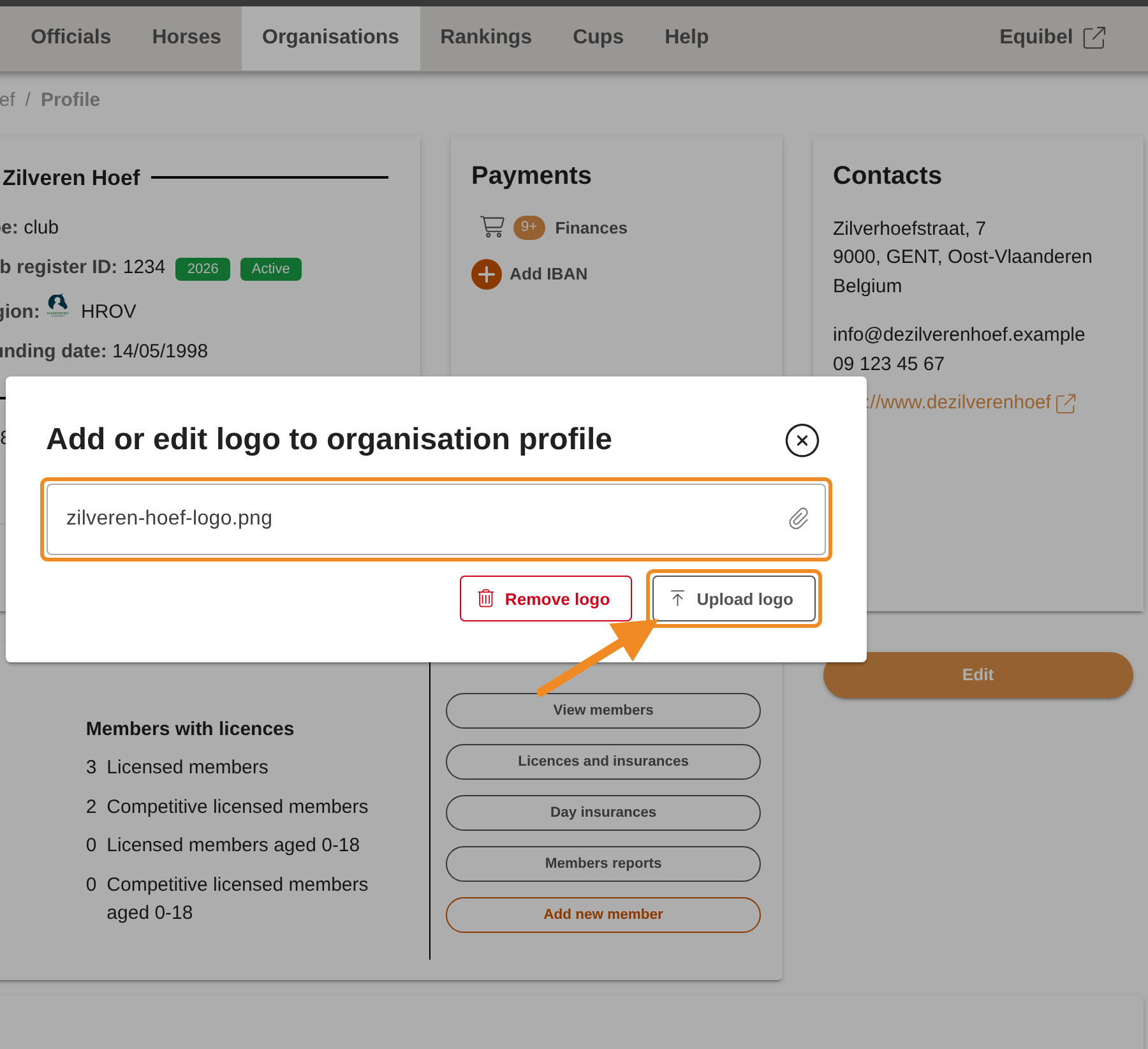
The “Add or edit logo to organisation profile” window opens. Click the field and choose the image file of your logo. Then click “Upload logo”.
To go back to the Paardensport Vlaanderen logo, click “Remove logo” in the same window.
Step 14 — See your logo
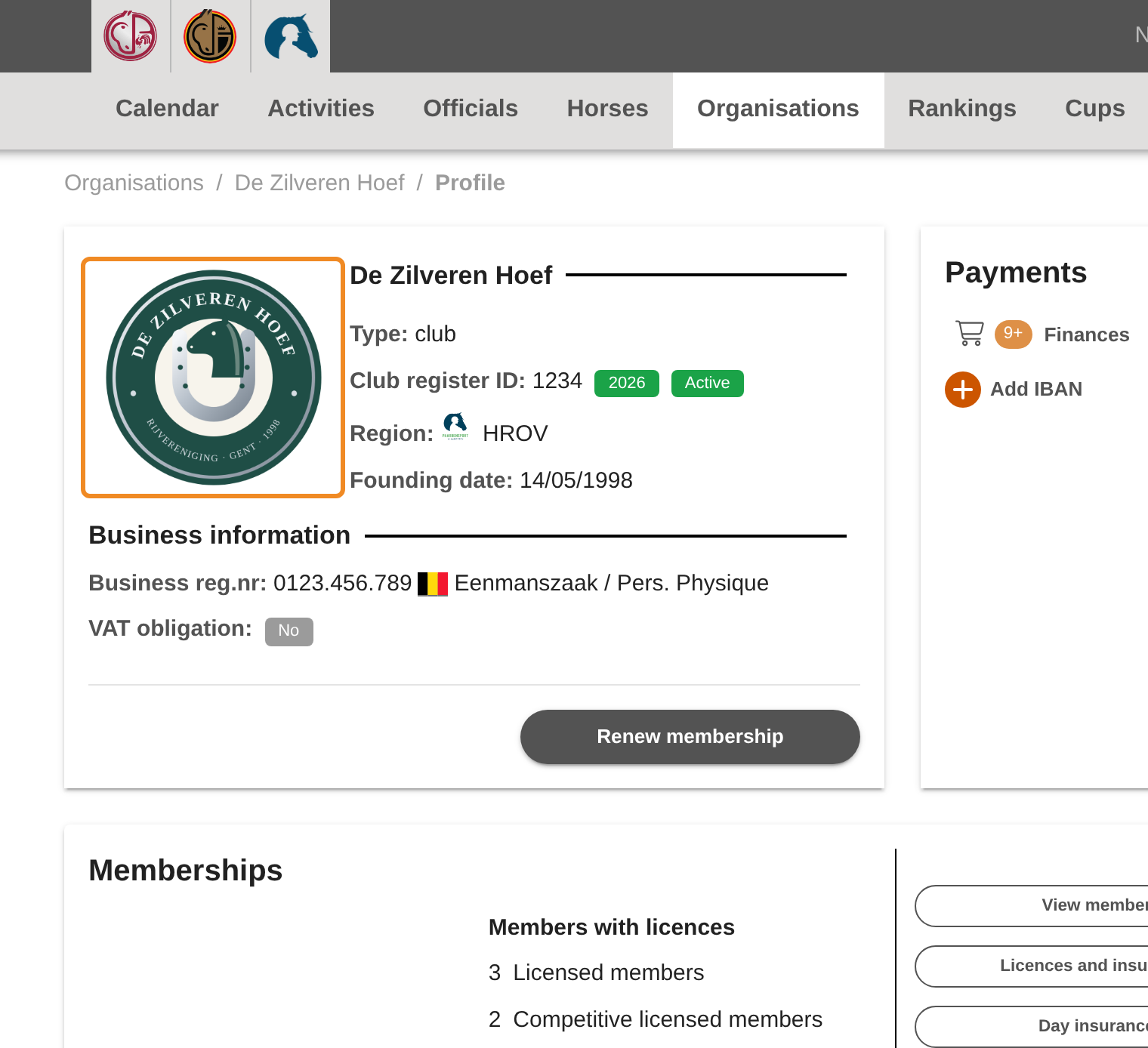
Your logo now shows on your club page. It may take a few seconds to appear.
Part 3 — Characteristics, staff and consents
Step 15 — Find the tabs
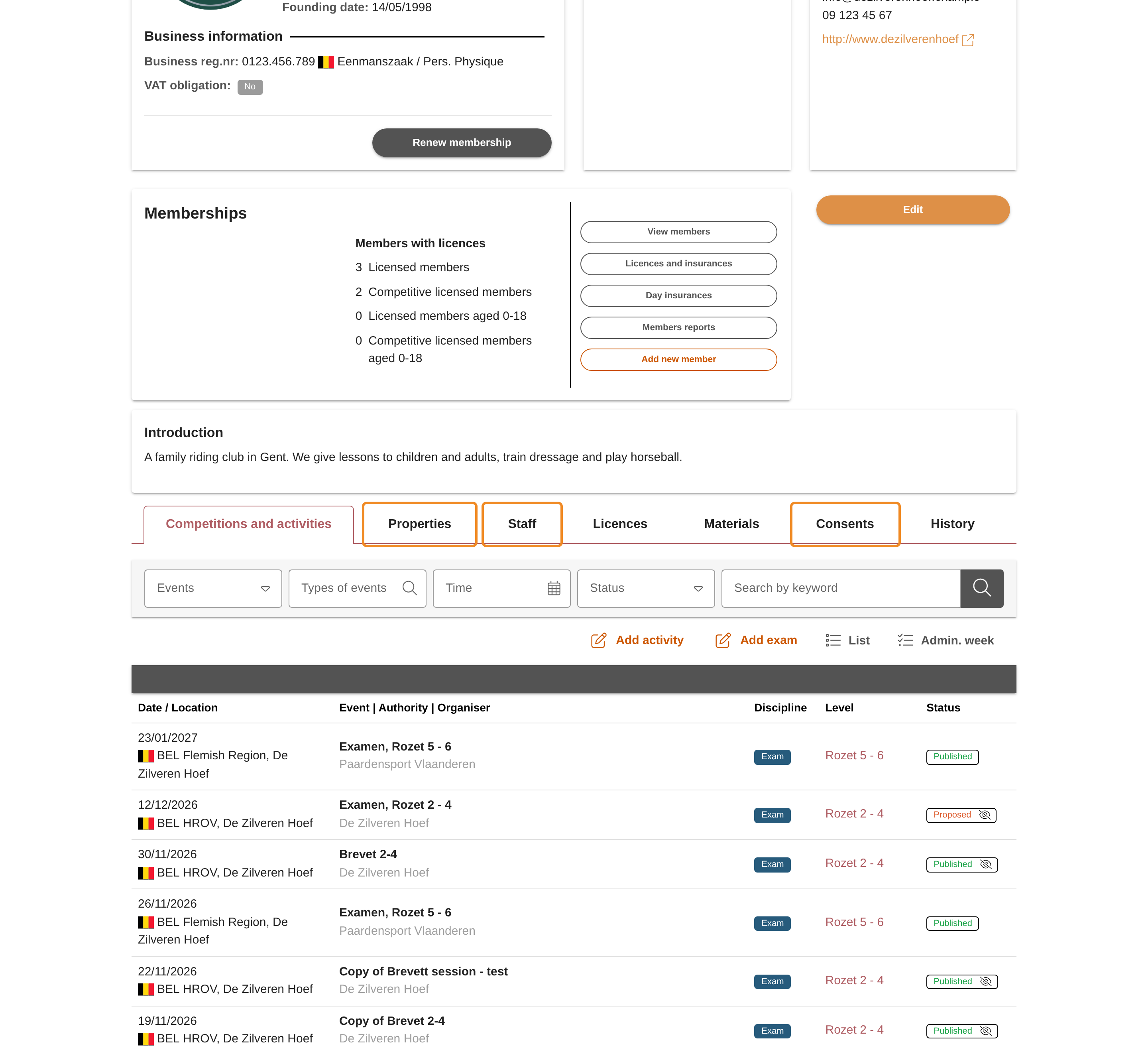
Below the club’s details, your club page has tabs. Three of them hold more of your club’s details: “Properties”, “Staff” and “Consents”.
Step 16 — Check your club’s characteristics
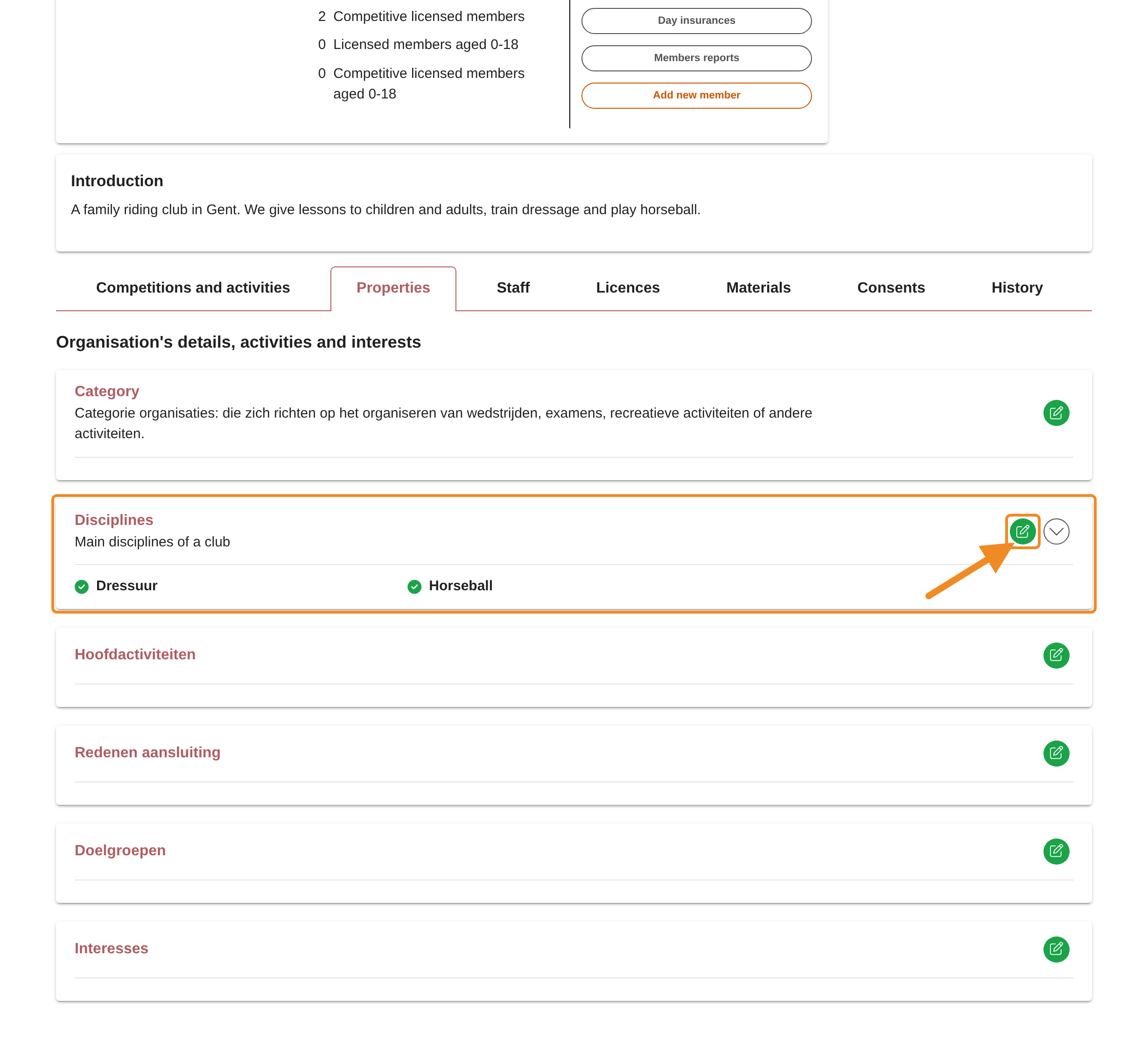
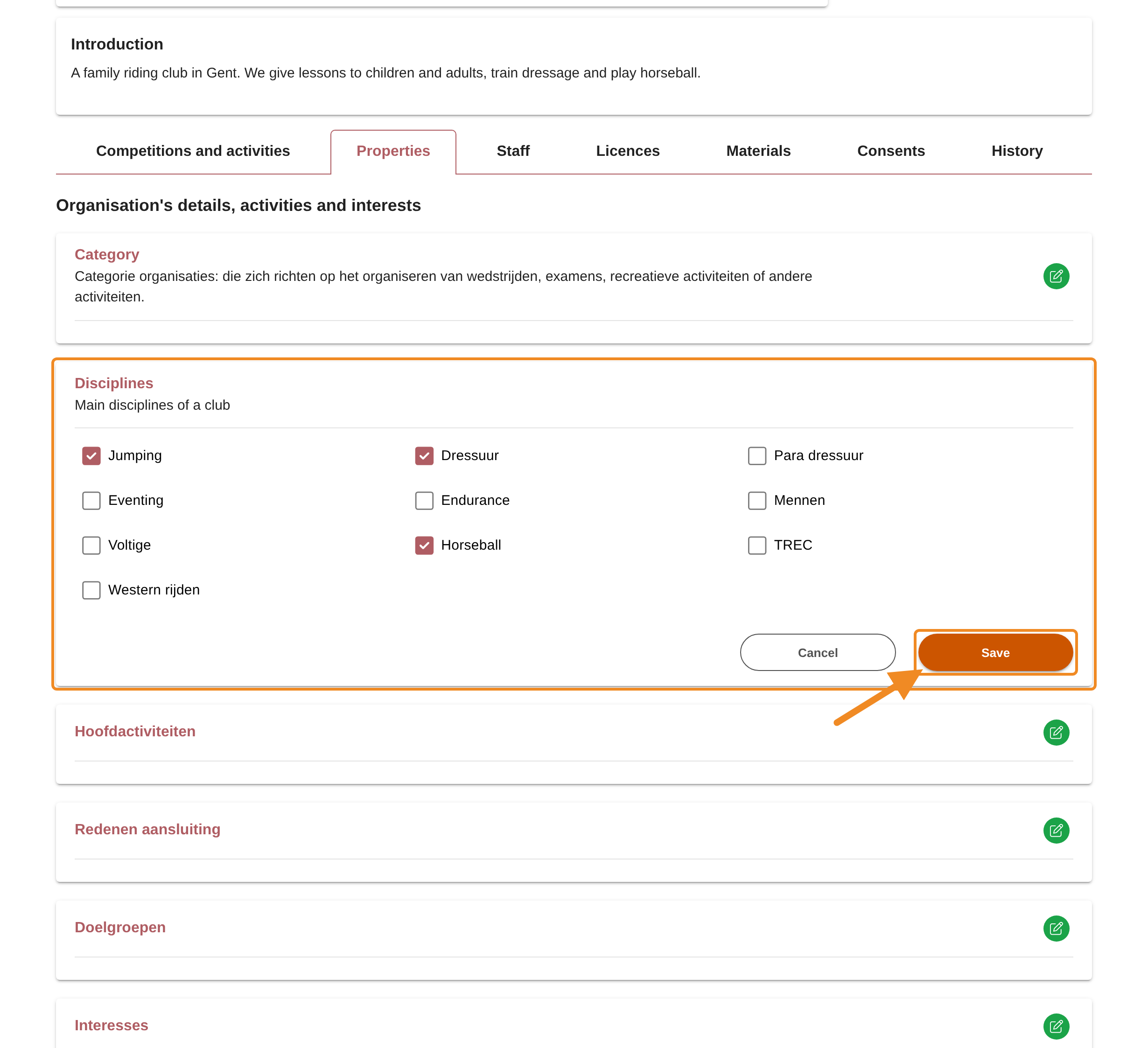
Click “Properties”. It shows what your club offers and is interested in, by group — for example the disciplines. Paardensport Vlaanderen uses them to inform and support clubs. To change a group, click its pencil icon.
Step 17 — Change a group
The group opens with a tick box for each choice. Tick or untick what applies to your club, then click “Save”. Do the same for the other groups if needed.
Step 18 — Add a staff function
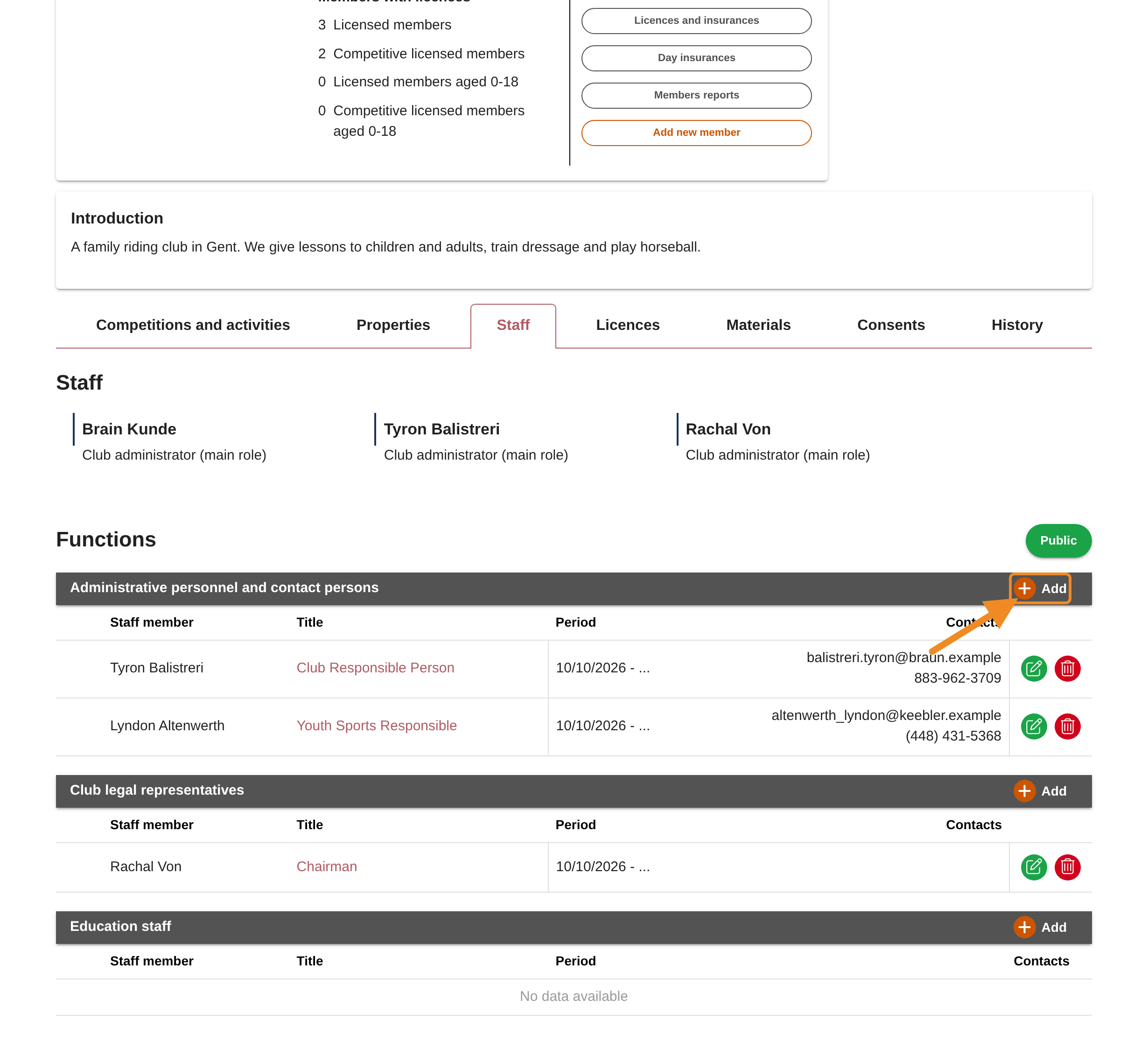
Click “Staff”. Under “Functions”, the people with a function in your club are listed by group: administrative staff and contact persons, the club’s legal representatives and the trainers. To add someone, click “Add” on the bar of the group.
To change or end someone’s function, use the icons at the end of their row.
Step 19 — Choose the person and the title
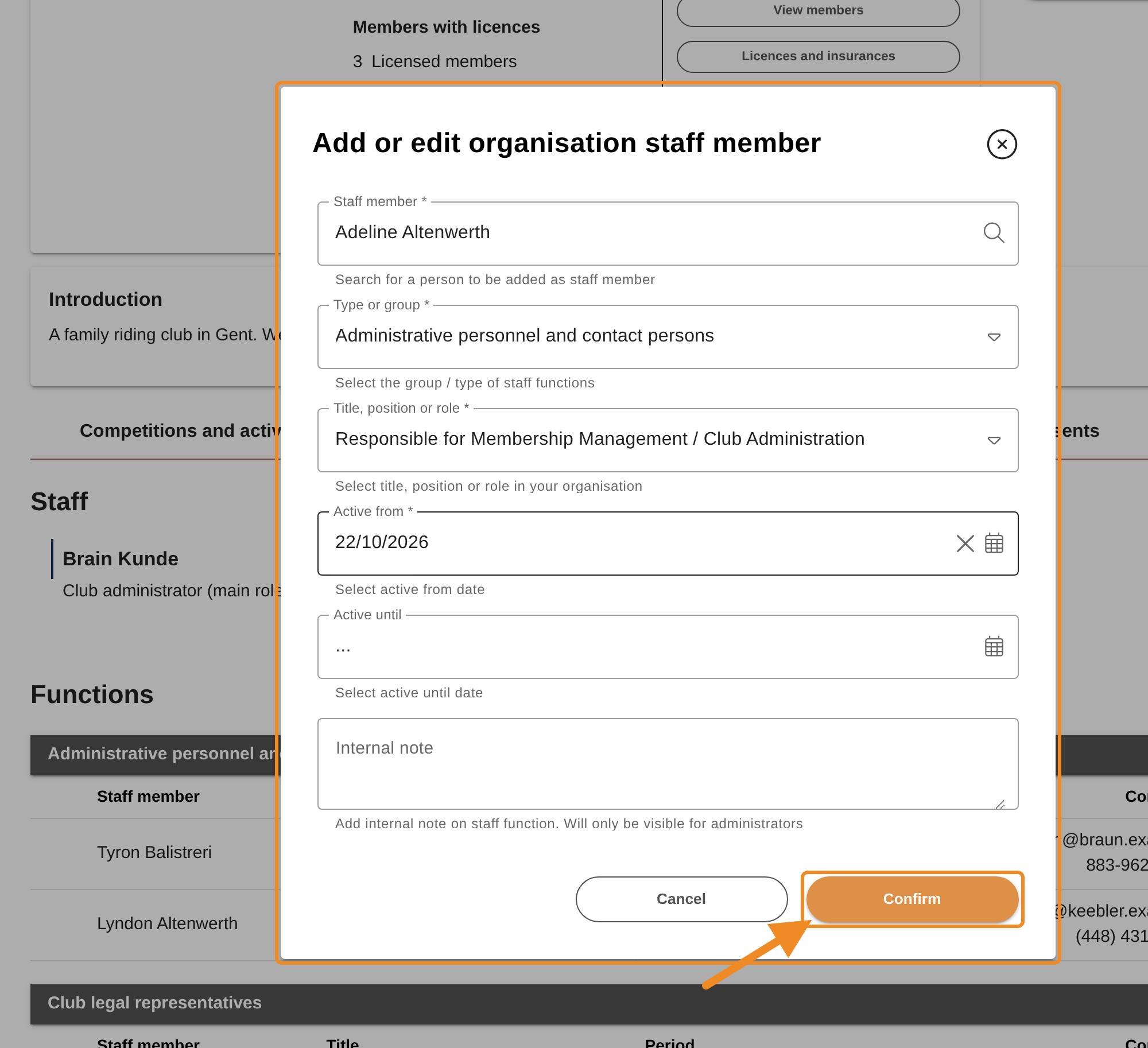
In the form, search for the person in “Staff member” and choose their “Title, position or role”. “Active from” is today; fill in “Active until” only when the function ends on a known date. Then click “Confirm”.
The person needs a profile in the platform. Search them by name.
Step 20 — Who can act for your club
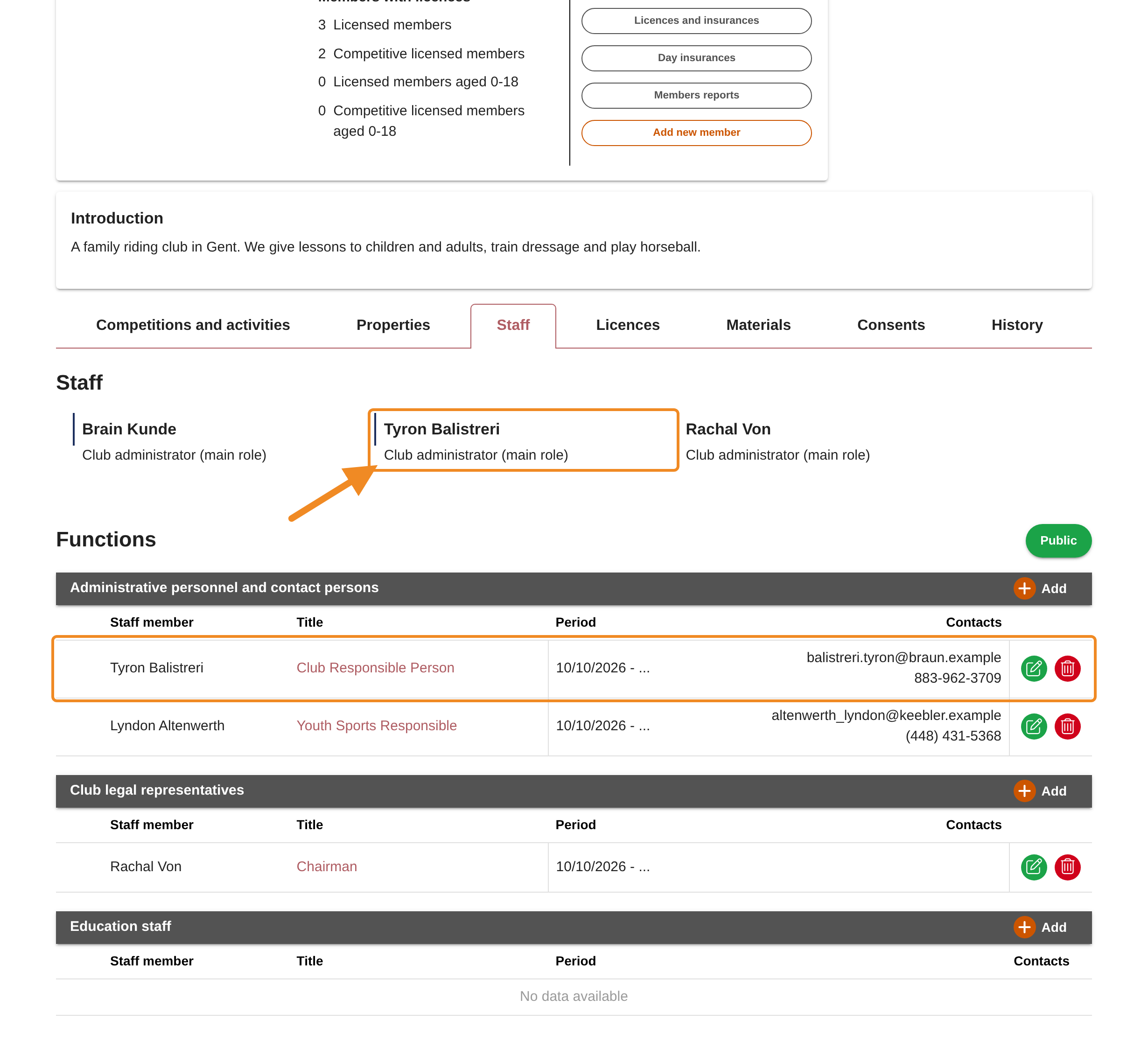
Some titles also make the person a club administrator of your club — for example Chairman, Club Responsible Person and Responsible for Membership Management / Club Administration. A club administrator acts on behalf of the club: they can change the club’s details, add and edit members, create the club’s events and renew the club’s membership.
The club administrators are listed under “Staff”, at the top of the tab, with their role. The dates are in their function’s row under “Functions”: the role ends at the start of the function’s “Active until” date, so the day before is their last day as club administrator. When you remove the function, they lose the role at once. So give these titles only to people who may act for your club.
Step 21 — Check your club’s consents
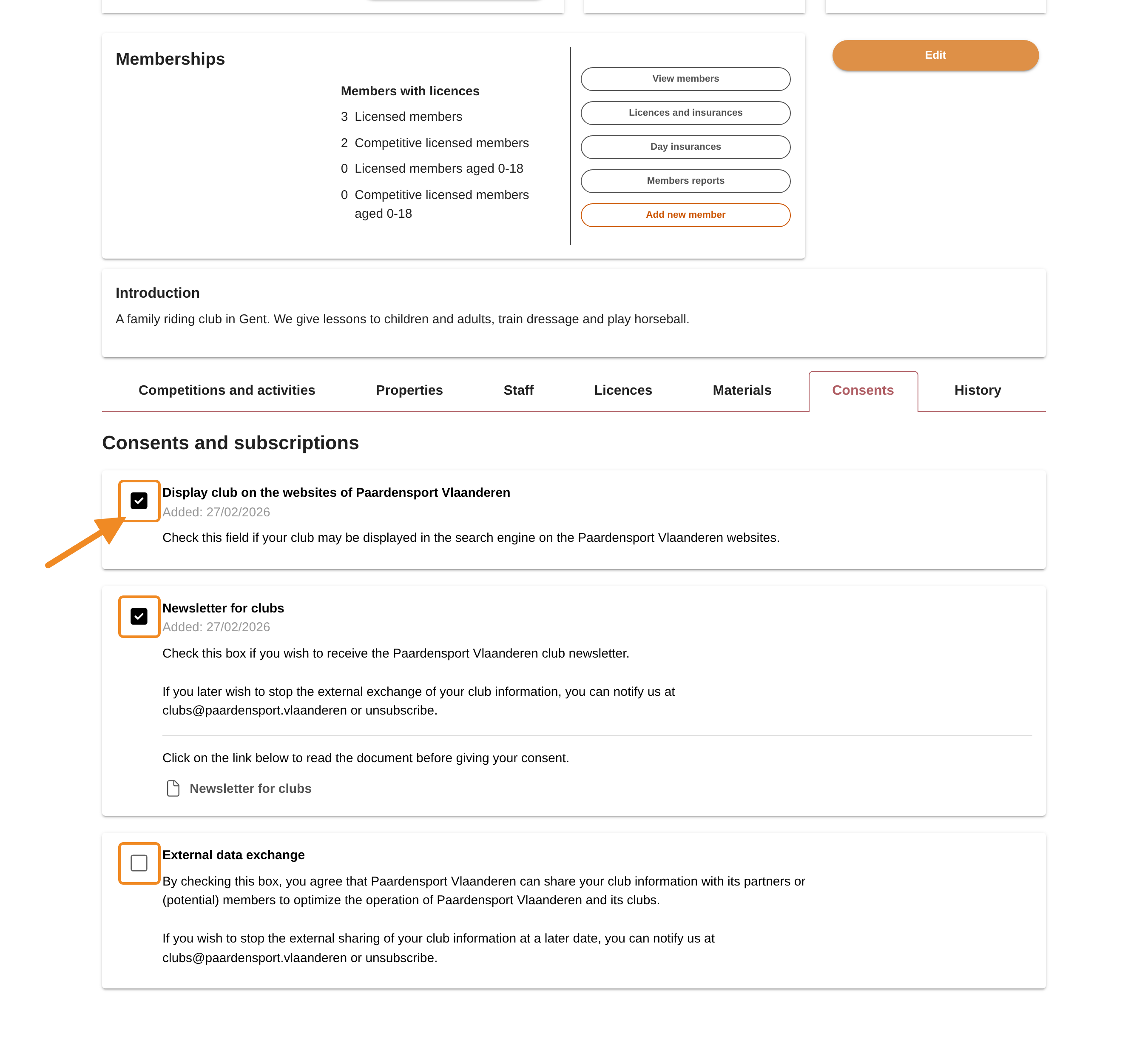
Click “Consents”. It lists what your club agrees to with Paardensport Vlaanderen — for example to be shown on the Paardensport Vlaanderen websites, or to receive the club newsletter. Tick or untick each one. A change is saved at once.
Good to know
- Renewing the membership also asks you to check these details. A change there is the same change as here. See How to Renew Your Club’s Membership.
- The bank account can be entered by the club only once. After that, a new IBAN goes through the club administration of Paardensport Vlaanderen. While your club has no IBAN, the “Payments” box on your club page shows “Add IBAN”, which opens the form at “Finances”.
If something goes wrong
| What you see | What to do |
|---|---|
| There is no “Edit” button on my club page | You are not a club administrator of this club. Ask a club administrator of your club, or contact the club administration of Paardensport Vlaanderen. |
| A field I need to change is grey | Only the club administration of Paardensport Vlaanderen can change that field. Contact them. |
| The form does not save and shows a message under a field | The value is not valid there, for example a website without http:// or https://. Correct it and click “Save” again. |
| My logo does not appear | Wait a few seconds and reload the page. |
Related articles: How to Renew Your Club’s Membership · How to Pay Your Club’s Orders