
How to Let Someone Else Pay with a Payment Link
Someone else can pay your club’s orders — your club’s accountant or treasurer, for example, who has no access to the system. You make a payment link for the orders they should pay and send it to them. They open the link, see what to pay and pay online, without logging in. The proof of payment is made out to your club.
Before you begin
You need:
- the club administrator role for your club;
- the email address of the person who will pay;
- about 5 minutes.
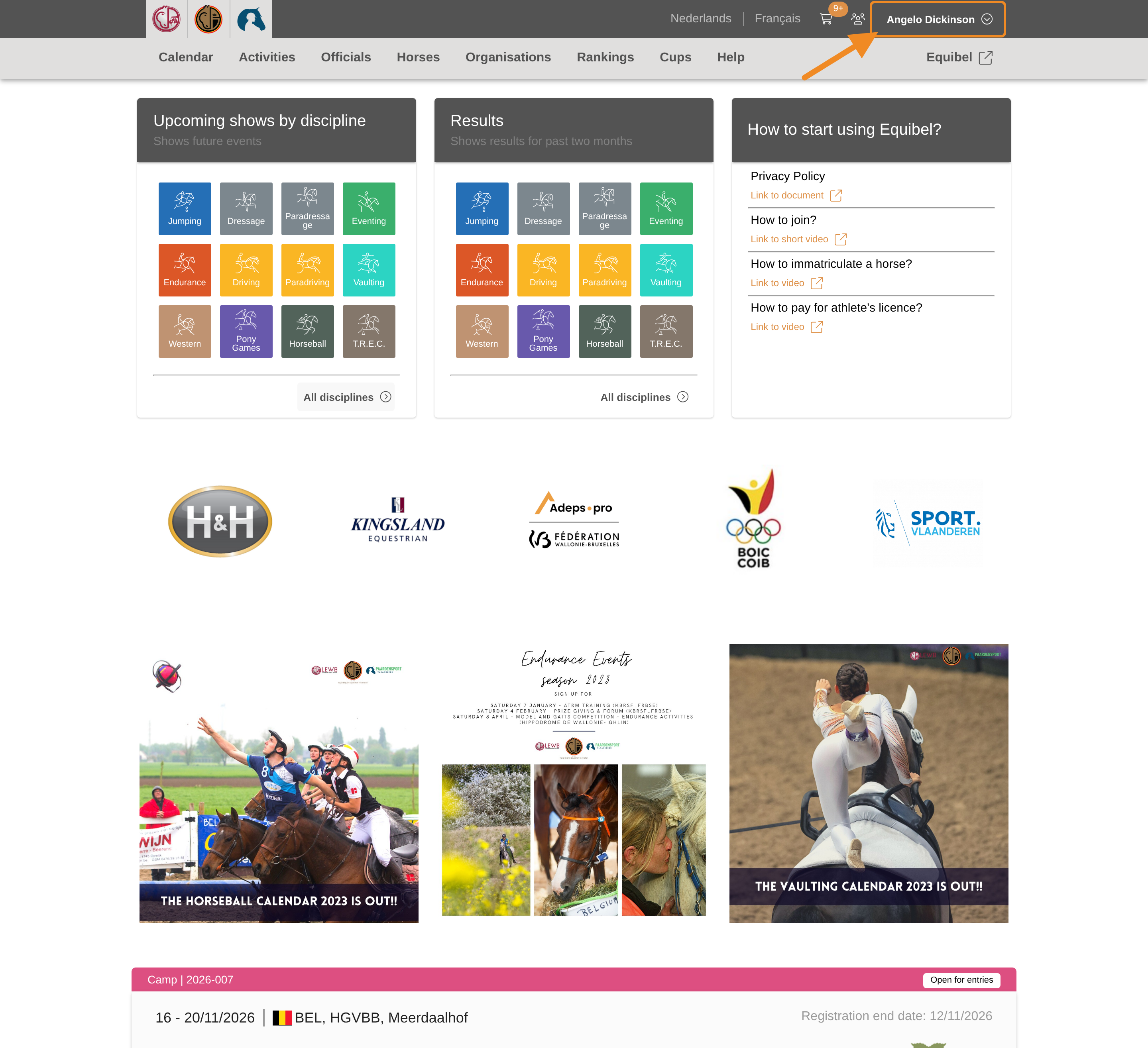
Step 1 — Open your profile menu
Click your profile button in the upper-right corner of any page.
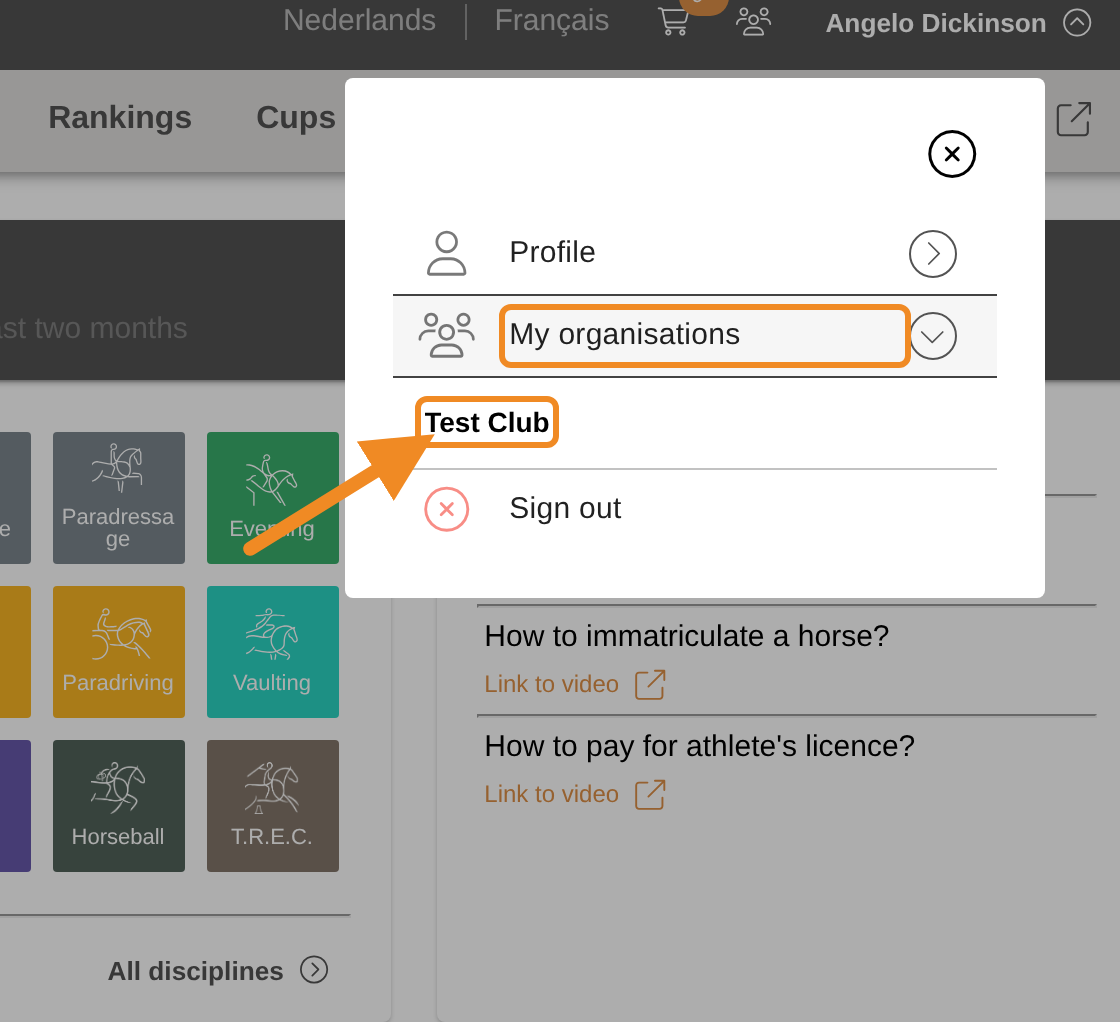
Step 2 — Open your club
Open “My organisations” and select your club.
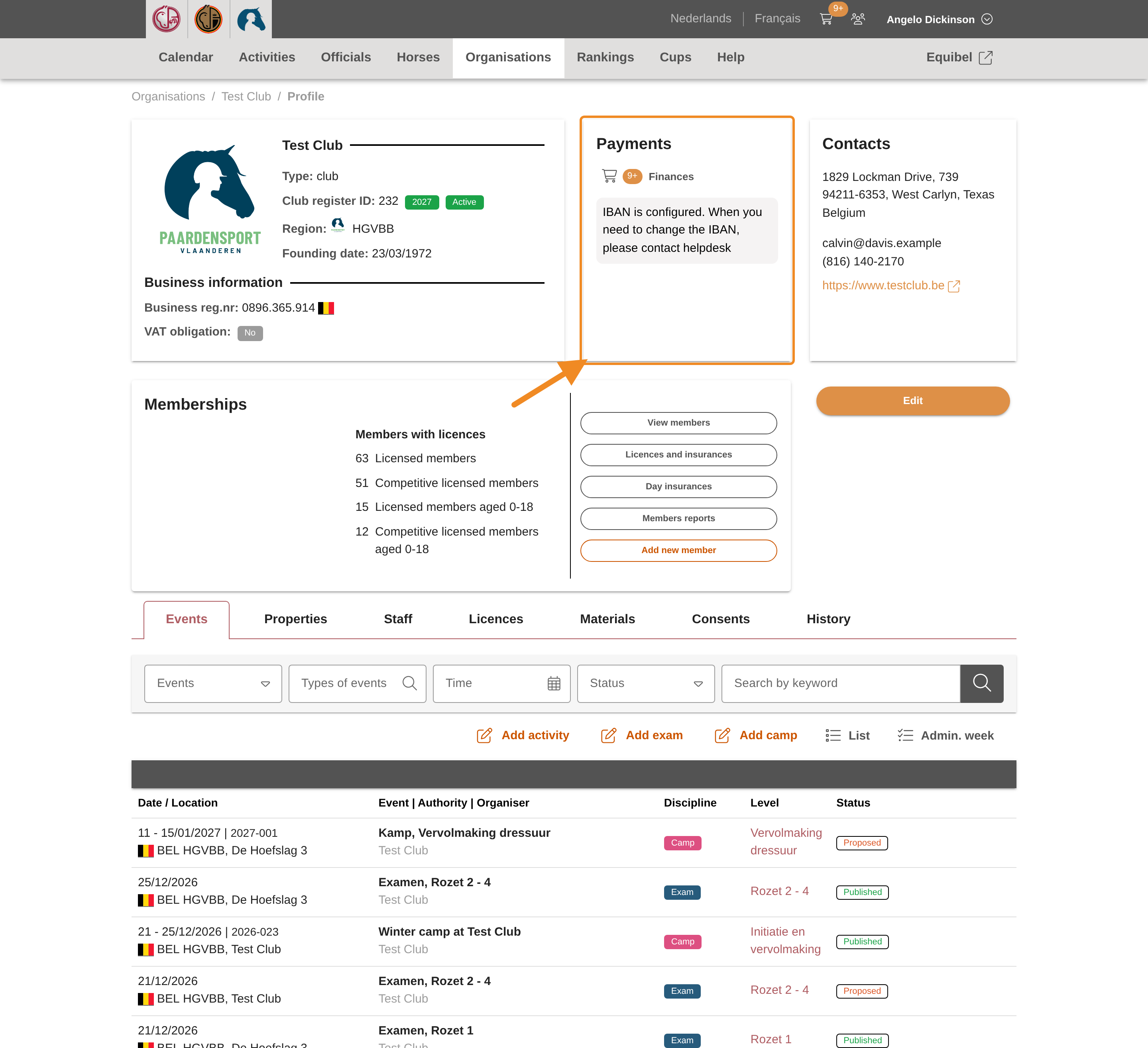
Step 3 — Find the Payments section
On your club page, find the “Payments” section.
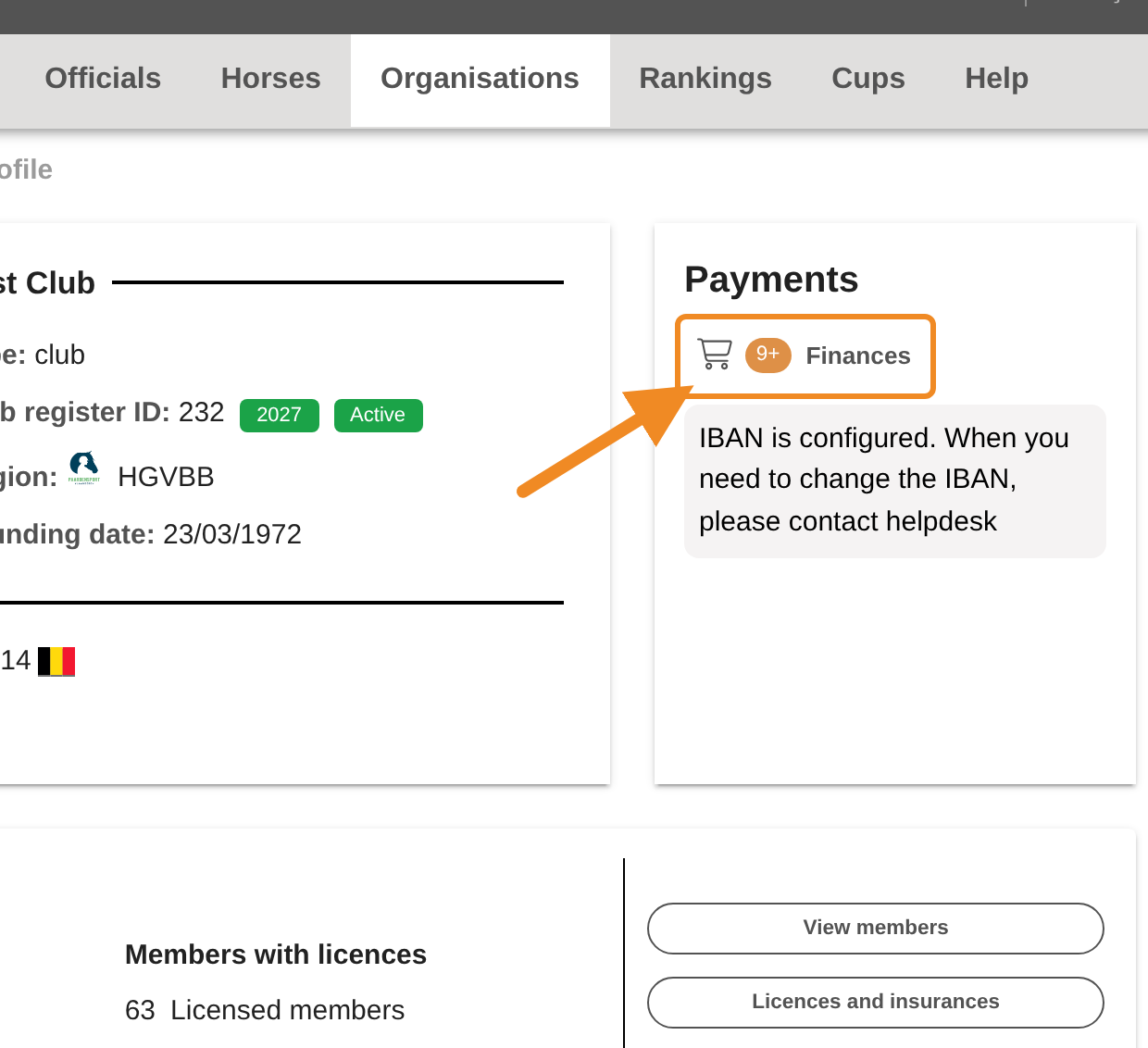
Step 4 — Open the shopping basket
Click “Finances”. Your club’s shopping basket opens.
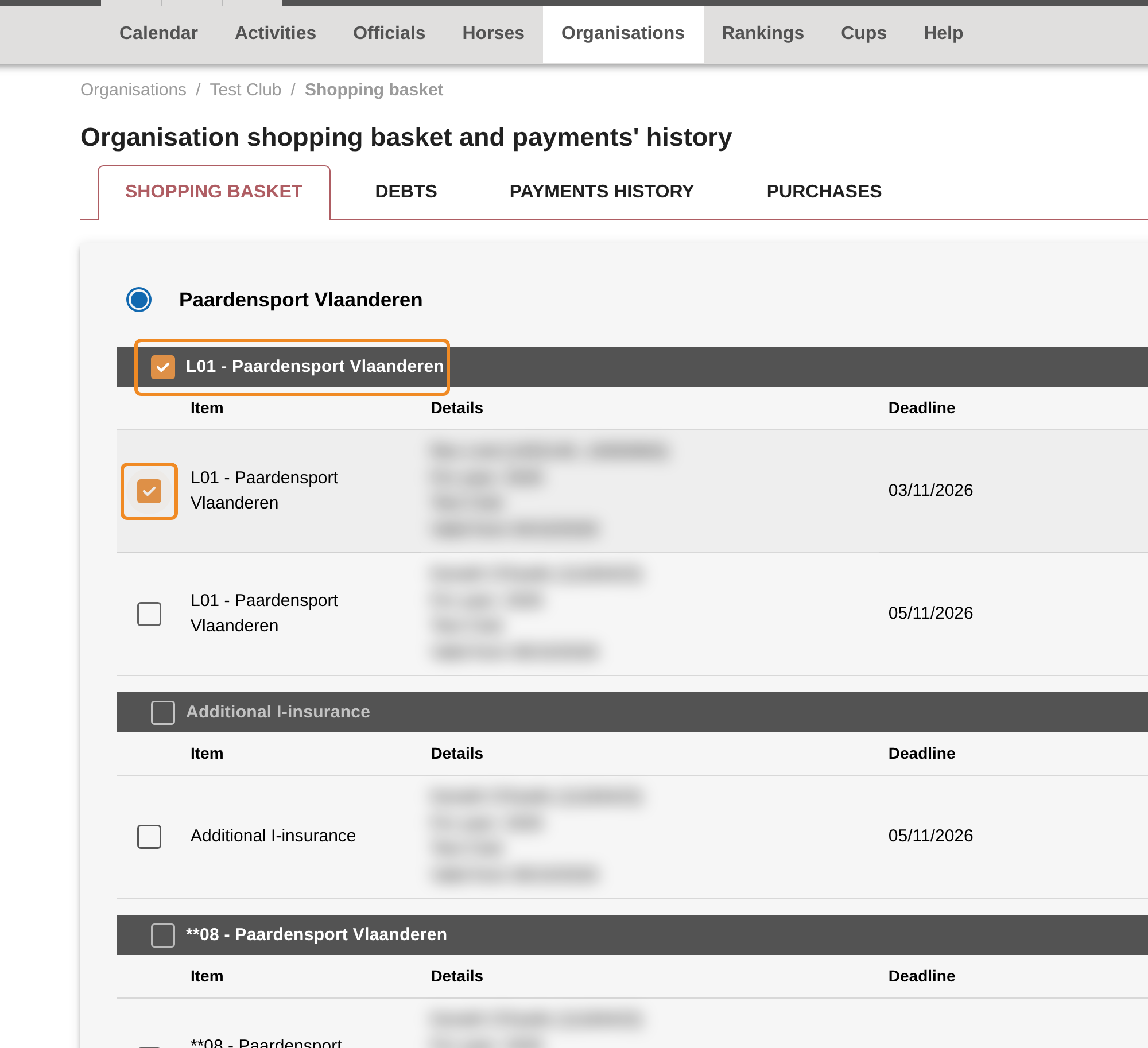
Step 5 — Choose the orders to pay
All your club’s open orders are ticked. Leave ticked only the orders the other person will pay, and untick the others. One link can hold one order or many.
- An order past its “Deadline” cannot be unticked: it has to be part of the link.
- An additional insurance goes with the licence it was ordered with. You cannot untick it on its own.
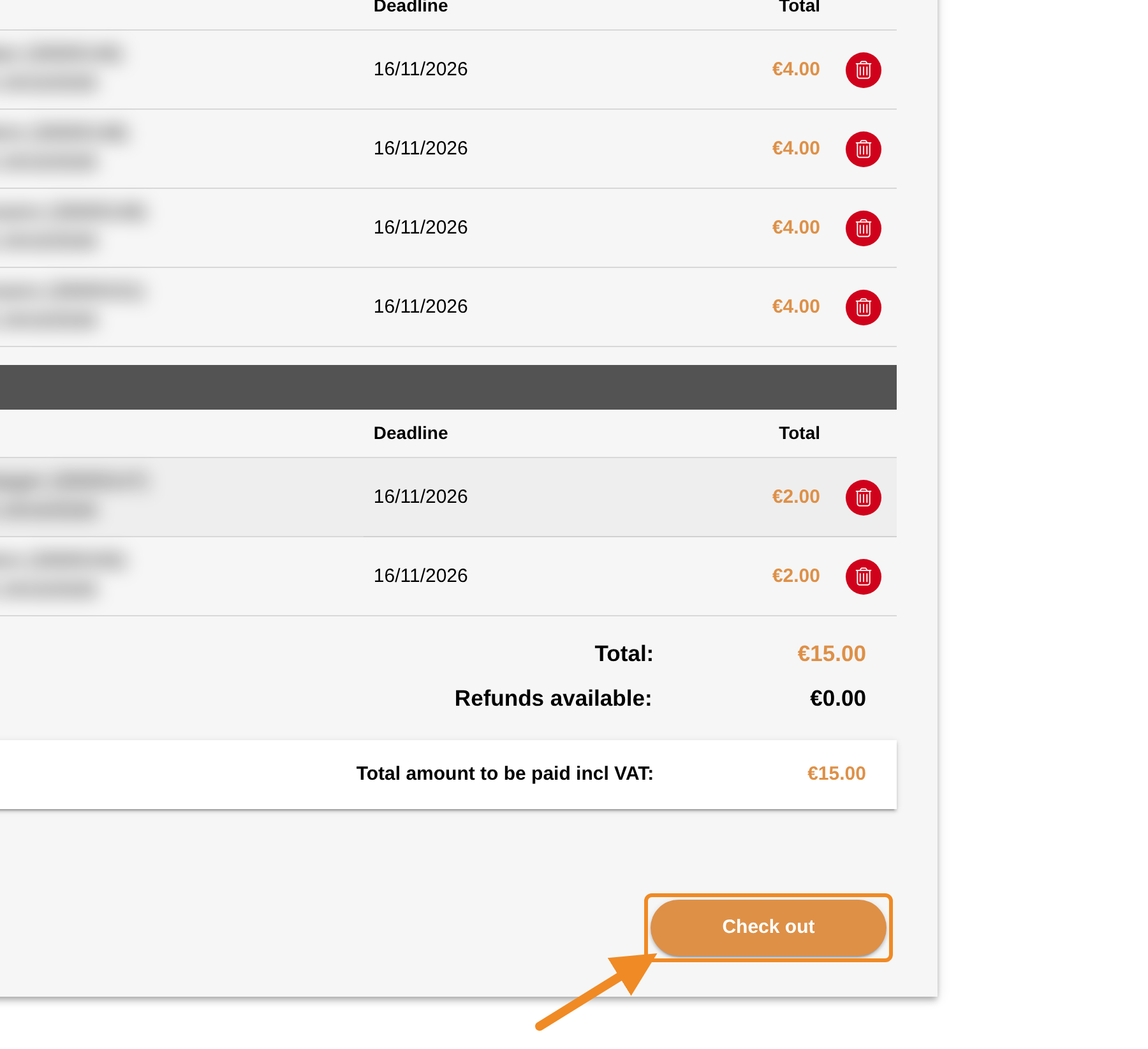
Step 6 — Check out
Check the total. Then click “Check out”.
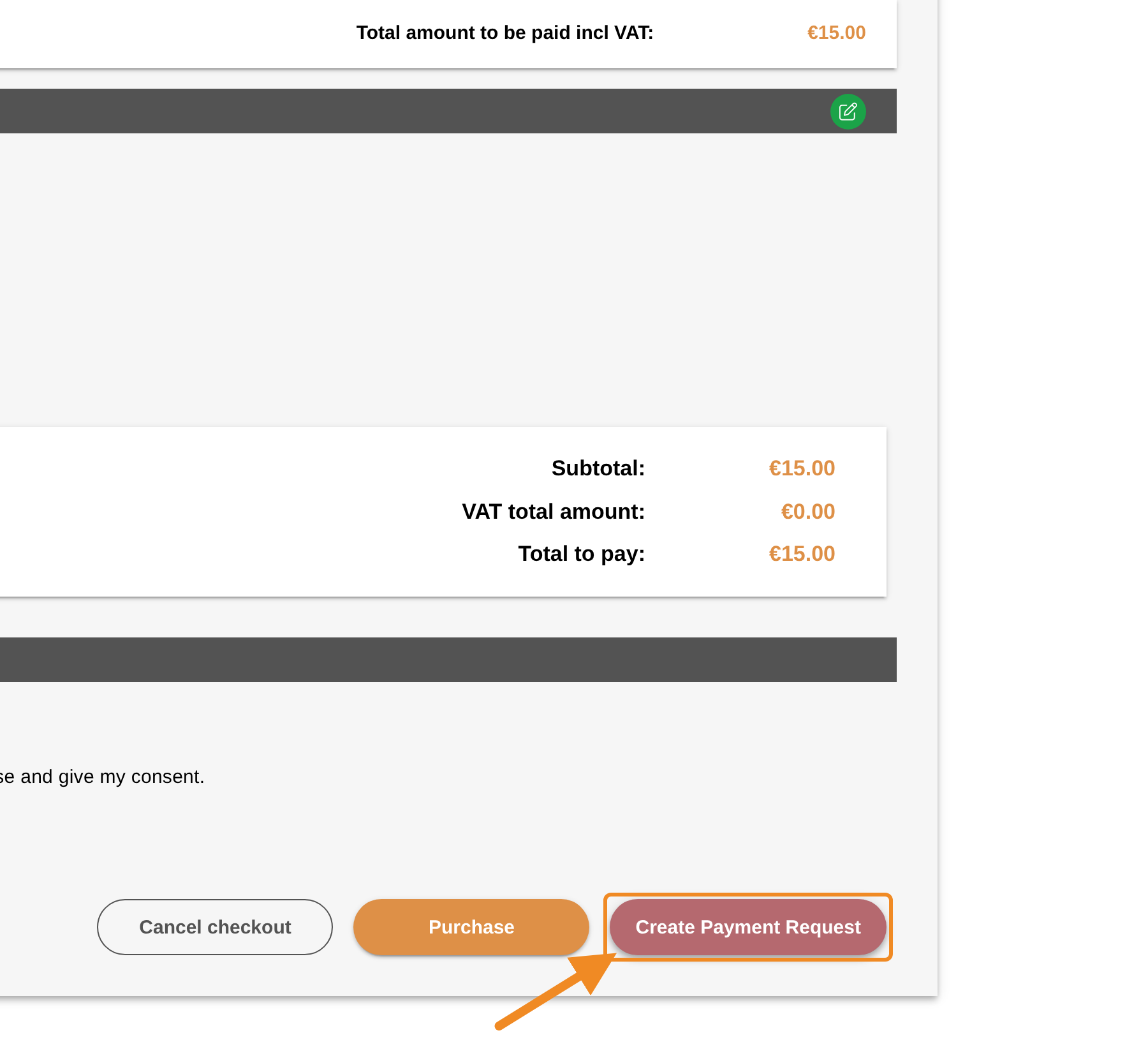
Step 7 — Create the link
Click “Create Payment Request”, next to “Purchase”. You do not need to tick the terms of use: the person who pays does that on the link’s page.
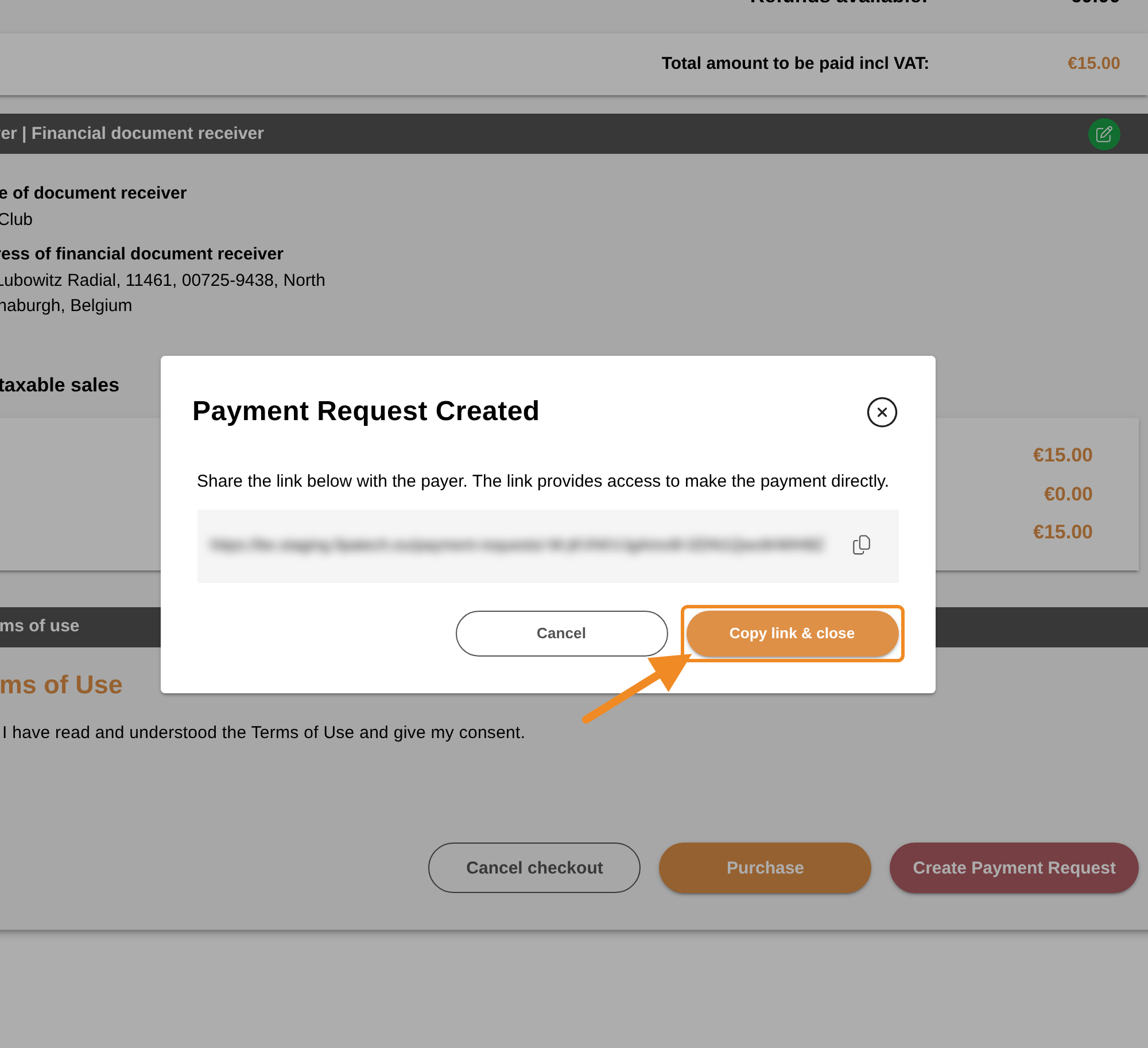
Step 8 — Copy the link and send it
The link appears in a window. Click “Copy link & close”: the link is copied and the window closes. Paste the link in an email to the person who pays.
Send the link only to that person. Anyone who has the link can see the orders, the names of the members they are for, and pay them.
Step 9 — What the person who pays sees
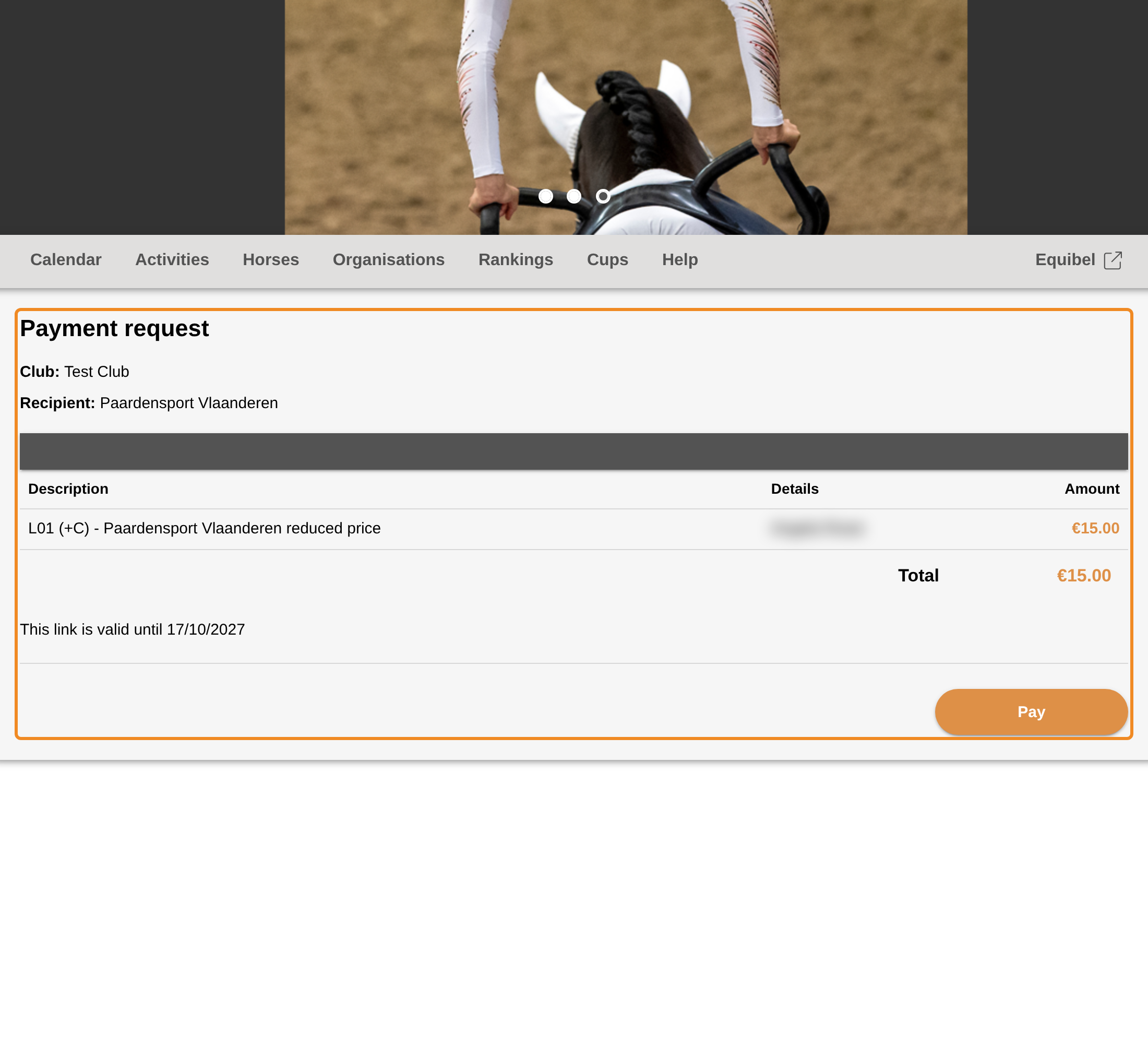
The person who pays opens the link. They do not need to log in. The page shows your club, the orders with the member each one is for, the total, and the date until which the link works.
Step 10 — Paying
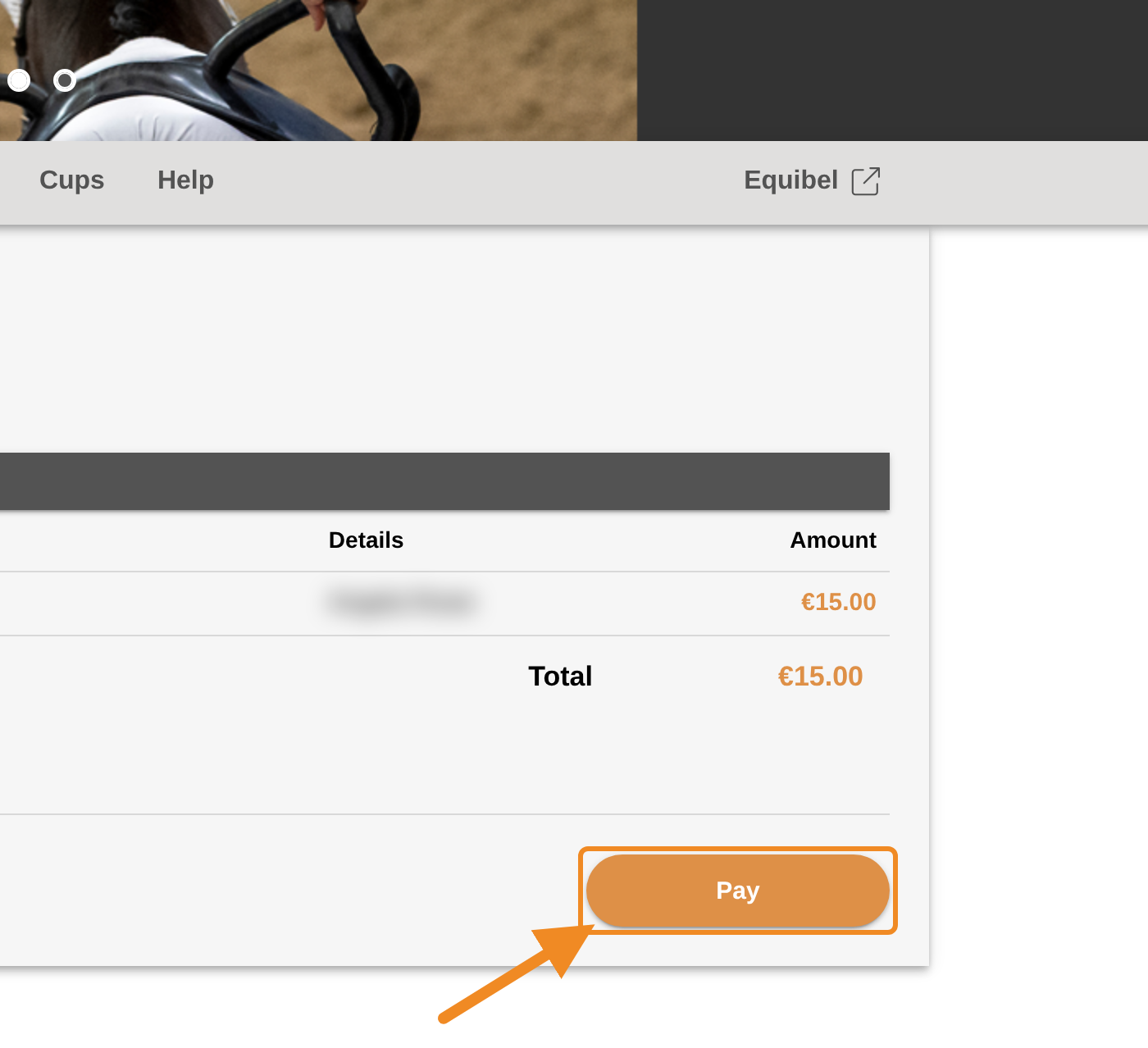
They click “Pay”, choose how to pay — Bancontact, a payment card or another way — and confirm the payment with their bank.
Step 11 — The proof of payment
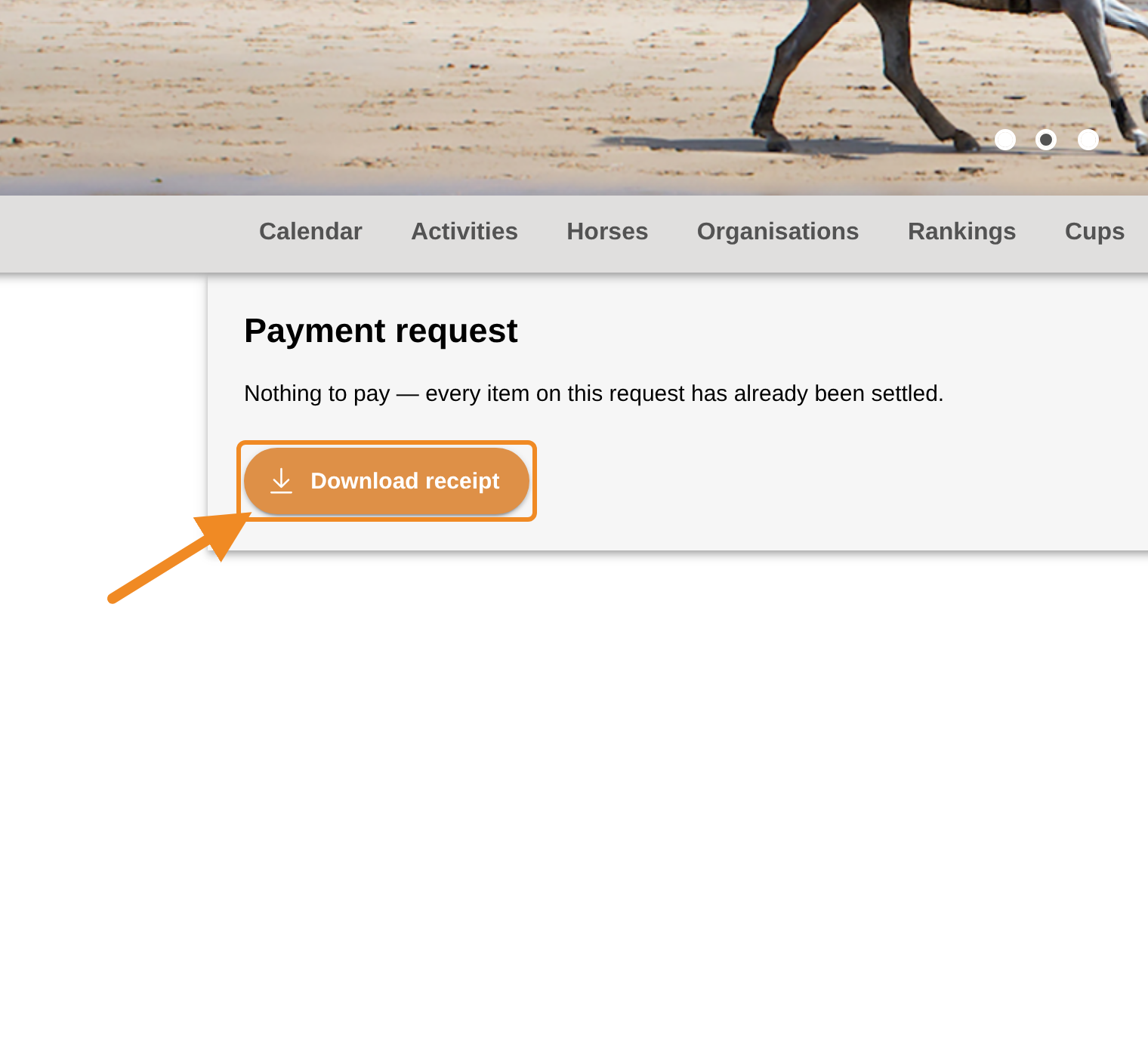
After paying, the page thanks them and offers the proof of payment to download. It is made out to your club, not to the person who paid. Opened again later, the link says “Nothing to pay — every item on this request has already been settled.” and still offers the proof of payment. You find the payment in your club’s basket too, on the “Payments history” tab, with the same proof of payment. See How to Pay Your Club’s Orders.
Good to know
- The orders stay in your basket until they are paid. You can still pay them yourself. A link never asks to pay an order twice: what is already paid disappears from it.
- A link cannot be changed. It holds the orders you ticked when you made it. For other orders, make a new link.
- How long a link works: until everything in it is paid, and at most 12 months.
- The 30-day payment term still counts. An order in a link that is still unpaid after 30 days is treated like any other unpaid order. See Unpaid Orders: Reminders and Debts.
- The page in Dutch or French: the person who pays switches language with the buttons at the top of the page.
If something goes wrong
| What you see | What to do |
|---|---|
| There is no “Create Payment Request” button | Click “Check out” first. If it is still missing, your role does not include payment links: contact the federation. |
| The person who pays sees “Nothing to pay — every item on this request has already been settled.” | Every order in the link is already paid. Nothing to do. |
| The person who pays sees “This payment link is no longer available.” | The link is more than 12 months old. Make a new link. |
| The person who pays sees “Payment request not found.” | The link is incomplete. Copy it again from your email and send it once more, or make a new link. |
Related articles: How to Pay Your Club’s Orders · Unpaid Orders: Reminders and Debts