
How to Order Day Insurance for a Group (CSV Import)
Day insurance covers a person who is not insured through a licence, for 1 to 5 days in a row — for example the guests at an introduction day of your club. To order it for many people at once, you fill in a spreadsheet with one row per person and import it. The system creates one order per row: there is no group policy, each person gets their own day insurance. The orders go to your club’s shopping basket. Your club does not have to pay them in advance: like licences and insurances, they can be paid within 30 days.
Ordering for one person? See How to Order Day Insurance for One Person.
Before you begin
You need:
- the club administrator role for your club;
- for each person: last name, first name, date of birth and gender;
- the dates each person must be covered (from today, at most 5 days in a row);
- a spreadsheet application, such as Excel or LibreOffice Calc;
- no more than 500 people per file.
The file has no column for a licence number. The system looks each person up by first name, last name and date of birth. When it finds no matching person, it adds a new person automatically when it creates the orders. So write each name exactly as it is spelled on the person’s licence or identity card, to avoid adding the same person twice.
Step 1 — Open your profile menu
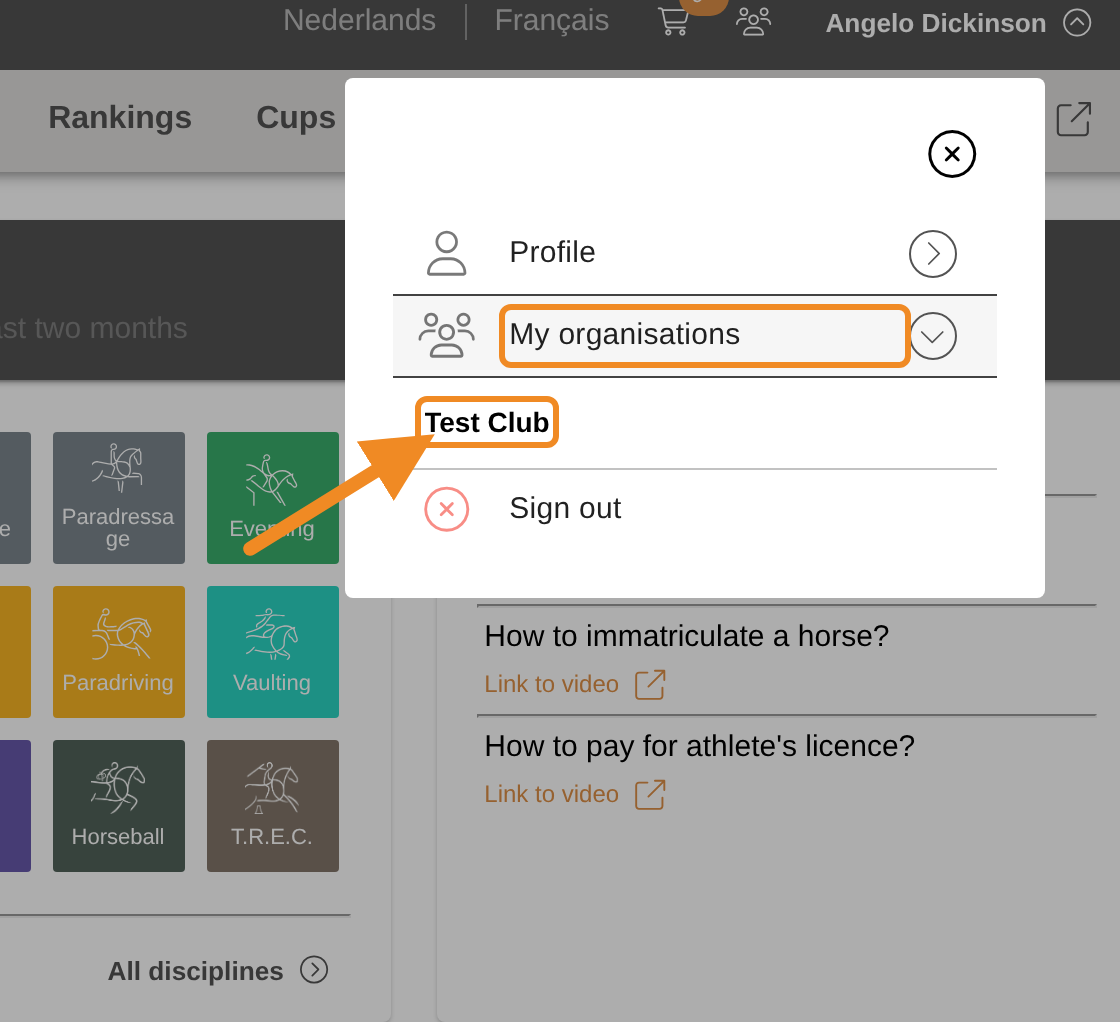
Click your profile button in the upper-right corner of any page.

Step 2 — Open your club
Open “My organisations” and select your club.
Step 3 — Find the Memberships section
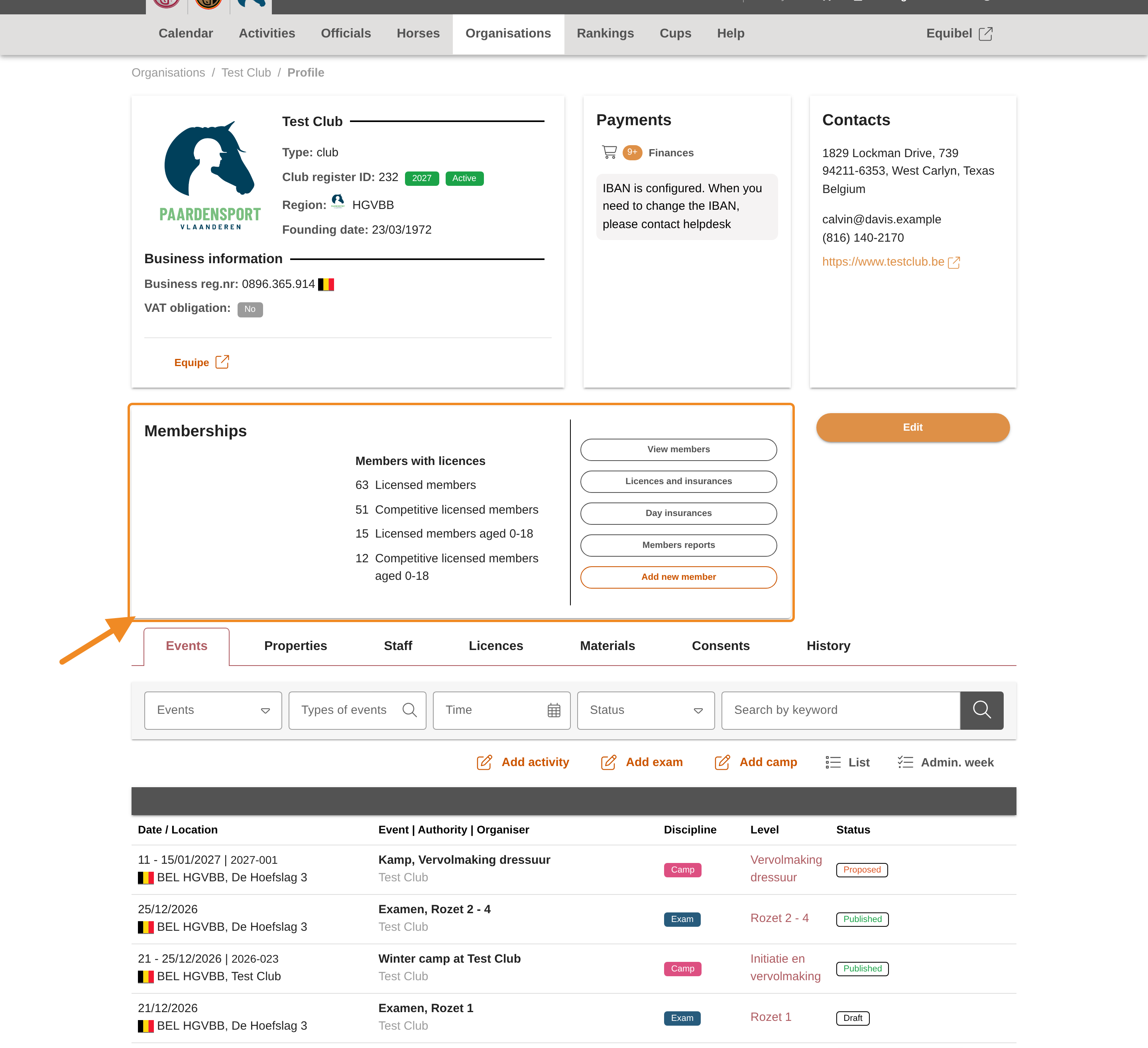
On your club page, find the “Memberships” section.
Step 4 — Open your club’s day insurance orders
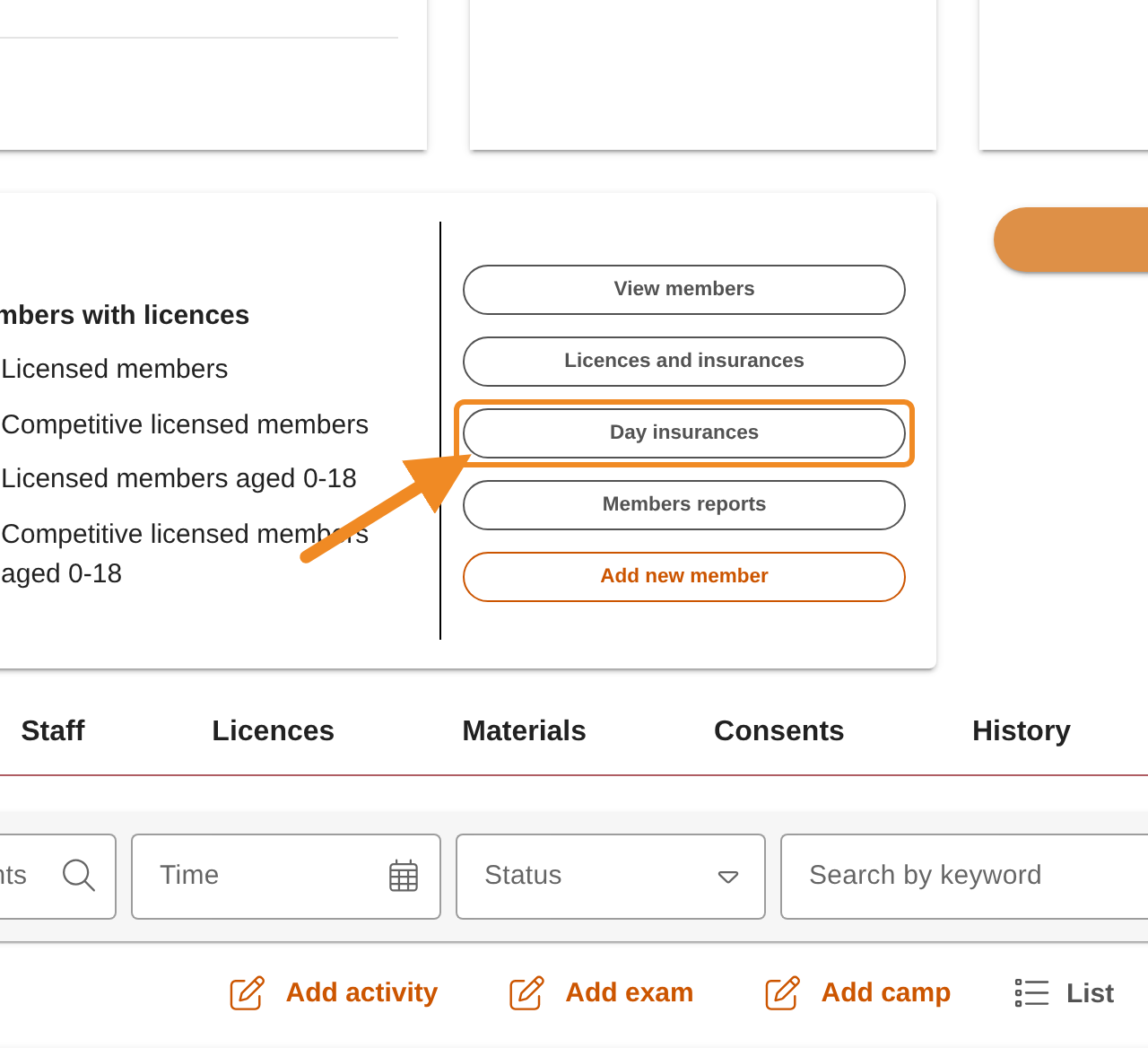
Click “Day insurances”. The “Orders of day insurances” page opens.
Step 5 — Find the list of orders
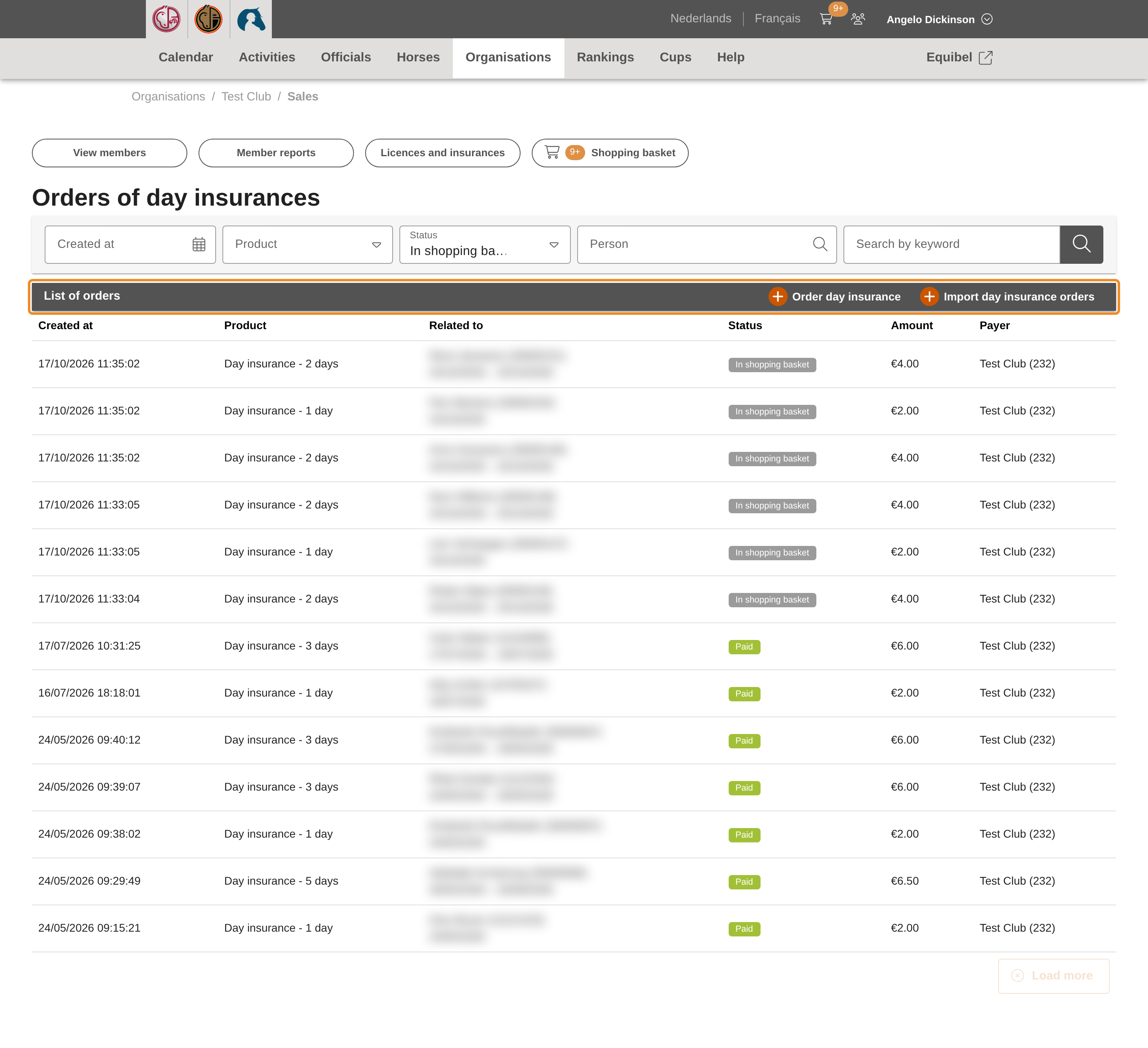
This page lists the day insurances your club has ordered before. Find the “List of orders” bar.
Step 6 — Open the import window
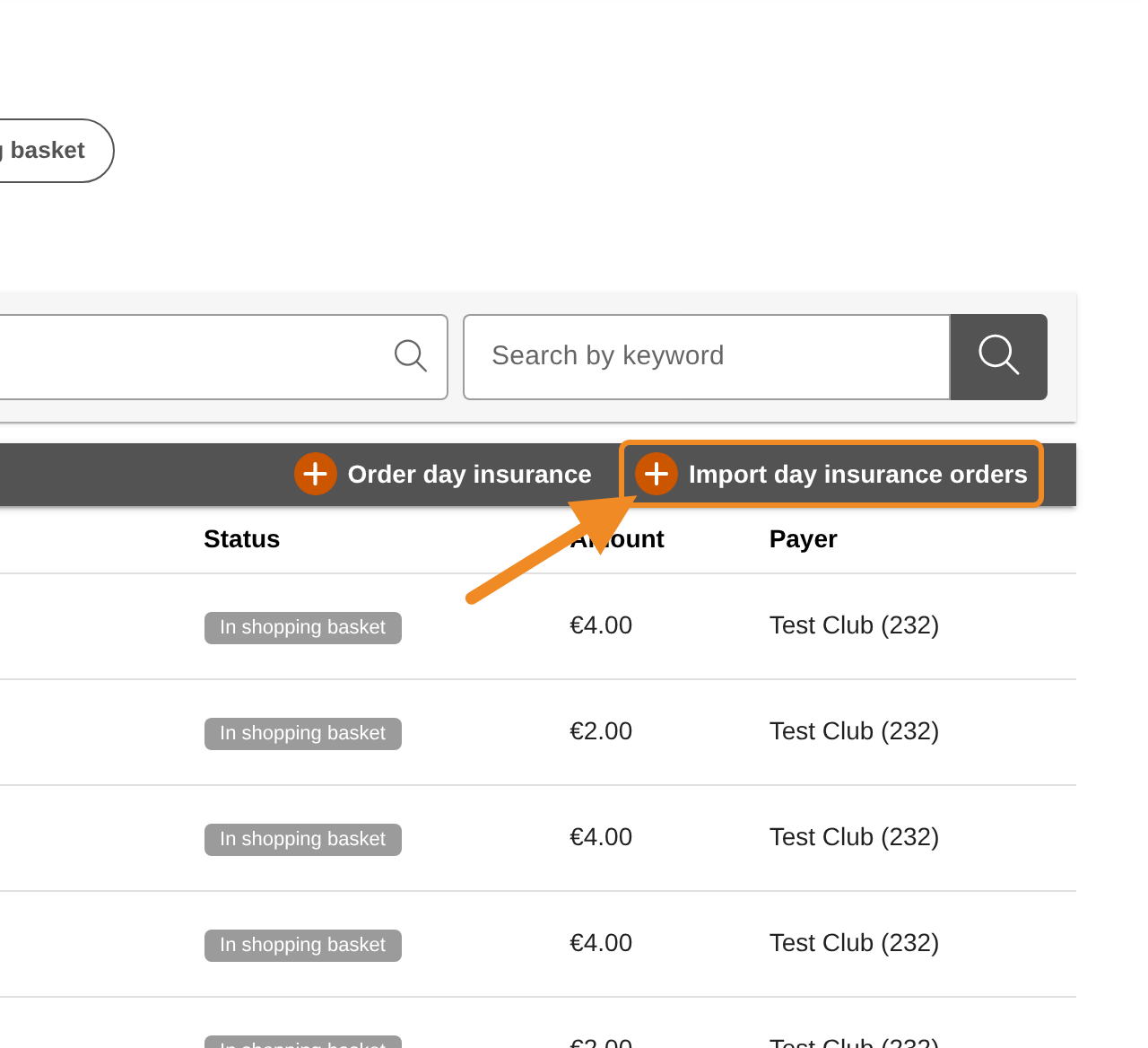
Click “Import day insurance orders”, on the right of the “List of orders” bar. The window “Import day insurance orders” opens.
Step 7 — Download the template
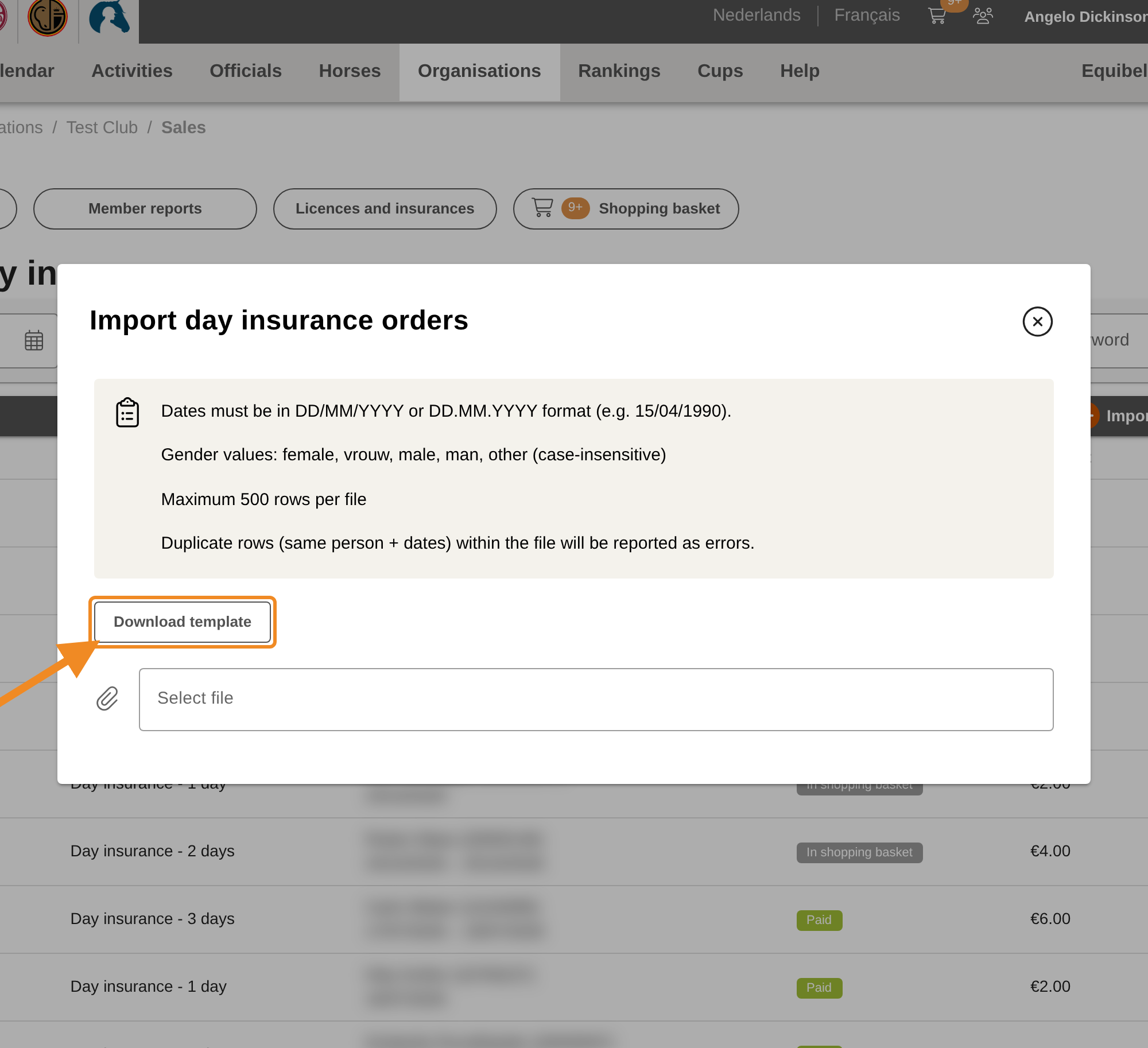
Click “Download template”. Your computer saves the file day-insurance-orders-template.csv: a CSV file with the six column names and no rows yet. The button is greyed out for a moment while the window opens.
The box above the button repeats the rules for the file.
Step 8 — Fill in one row per person
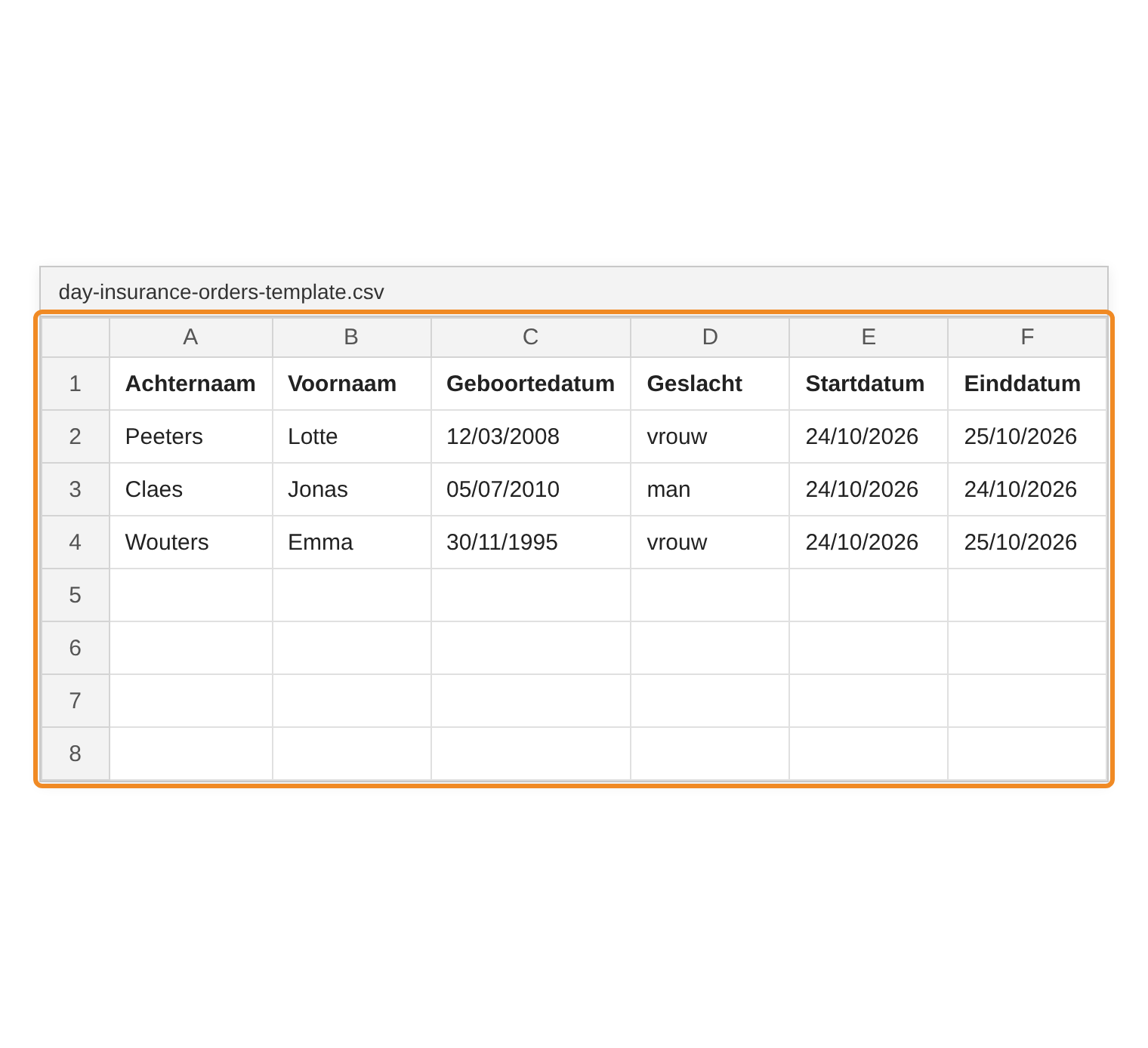
Open the template in your spreadsheet application and fill in one row per person, under the column names:
| Column | What to fill in | Example |
|---|---|---|
| Achternaam | Last name | Peeters |
| Voornaam | First name | Lotte |
| Geboortedatum | Date of birth | 12/03/2008 |
| Geslacht | Gender: male, female or other (man and vrouw work too) |
female |
| Startdatum | The first day of cover | 24/10/2026 |
| Einddatum | The last day of cover | 25/10/2026 |
- The column names are in Dutch. English names (Last name, First name, Date of birth, Gender, Start date, End date) work too, in any order.
- Write dates as day/month/year:
24/10/2026or24.10.2026. - The start date cannot be in the past. The cover is at least 1 day (same start and end date) and at most 5 days in a row.
- Names may contain letters, spaces, hyphens and apostrophes only.
- A person may appear more than once, for periods that do not overlap.
Step 9 — Save the file and choose it
Save the file as CSV UTF-8. In Excel: File → Save As, then choose CSV UTF-8 (Comma delimited) (*.csv) as the file type. Plain “CSV” is not enough when a name has an accent, such as é or ë.
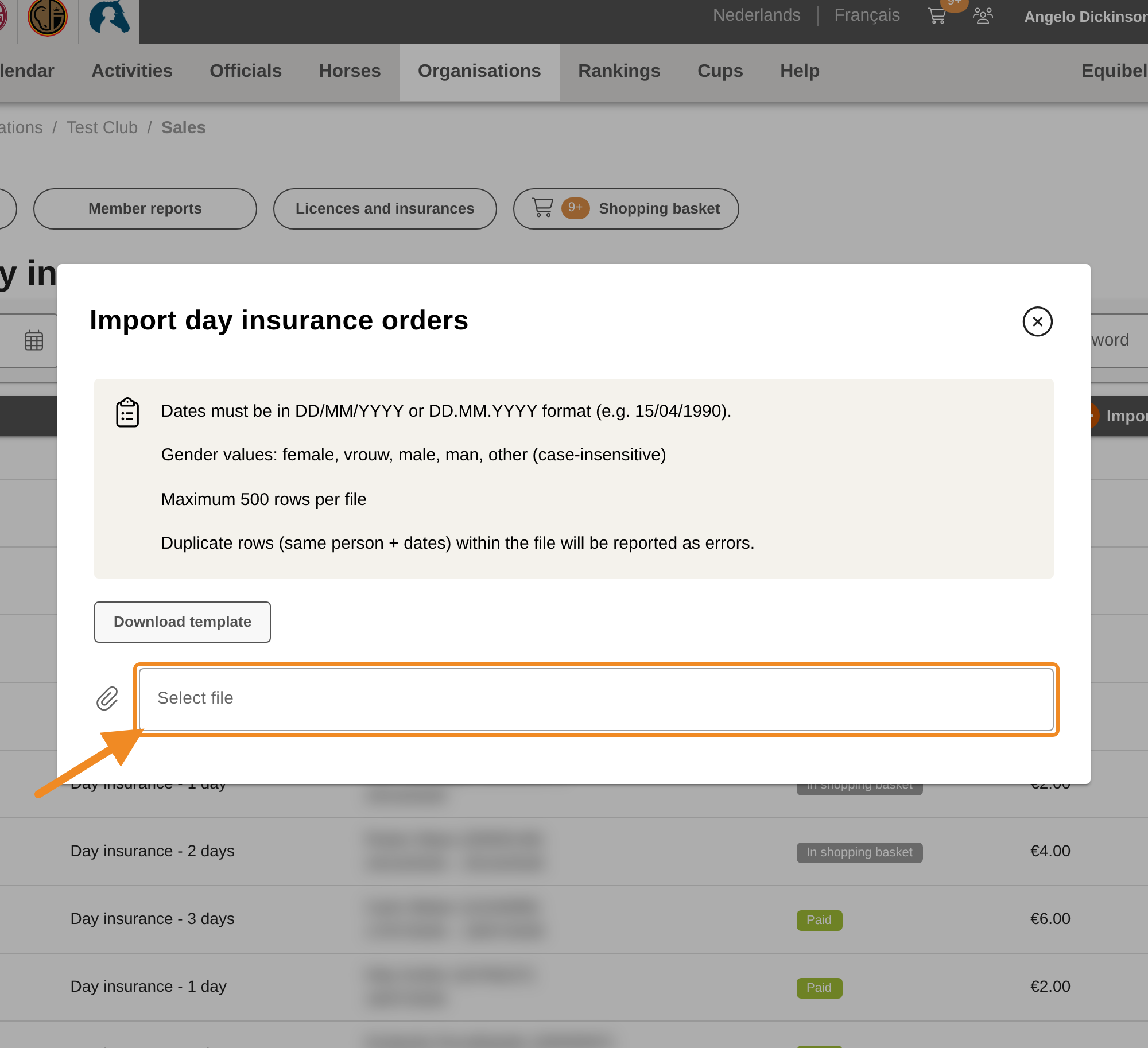
Back in the import window, click “Select file” and choose the file you saved. The system checks every row at once.
Step 10 — Check the summary
The window shows a summary of the file:
- “Total rows” — the number of people in the file;
- “Valid” — the rows that will be ordered;
- “Invalid” — the rows with a problem; the number is red when there is at least one;
- “Estimated total” — what your club will pay for the valid rows.
Under “Issues”, every row with a problem is listed with the person, what is wrong and the row number in your file. Those rows are skipped; the valid rows are ordered all the same. To order a skipped person, fix their row and import it in a new file later, or order for them one by one.
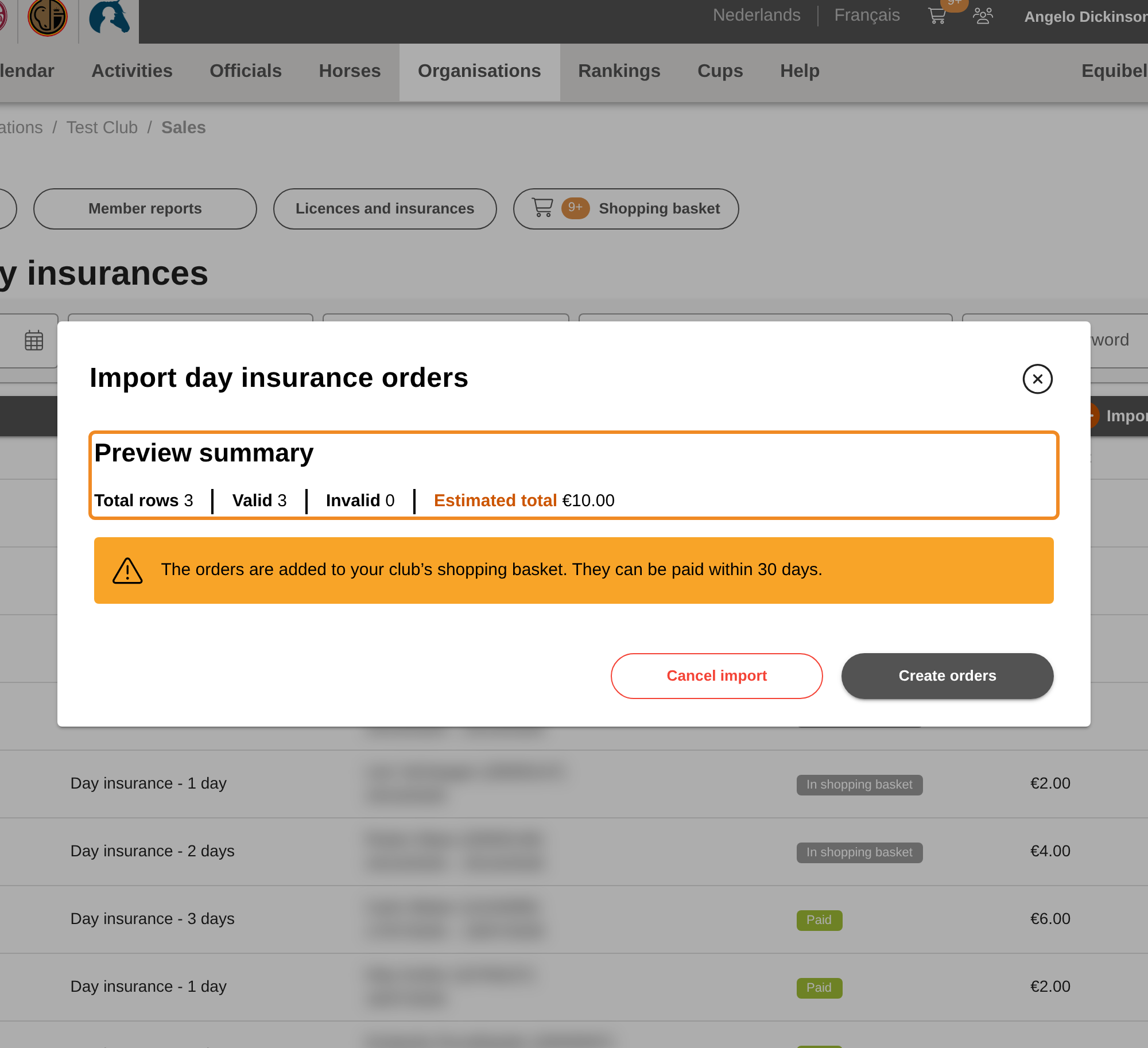
Step 11 — Create the orders
Click “Create orders”. The window shows how many orders have been created so far. You may close it: the orders are still created, and “Import day insurance orders” brings you back to where it is.
To stop instead — for example to fix rows first — click “Cancel import”. Nothing is ordered, and you can choose another file.
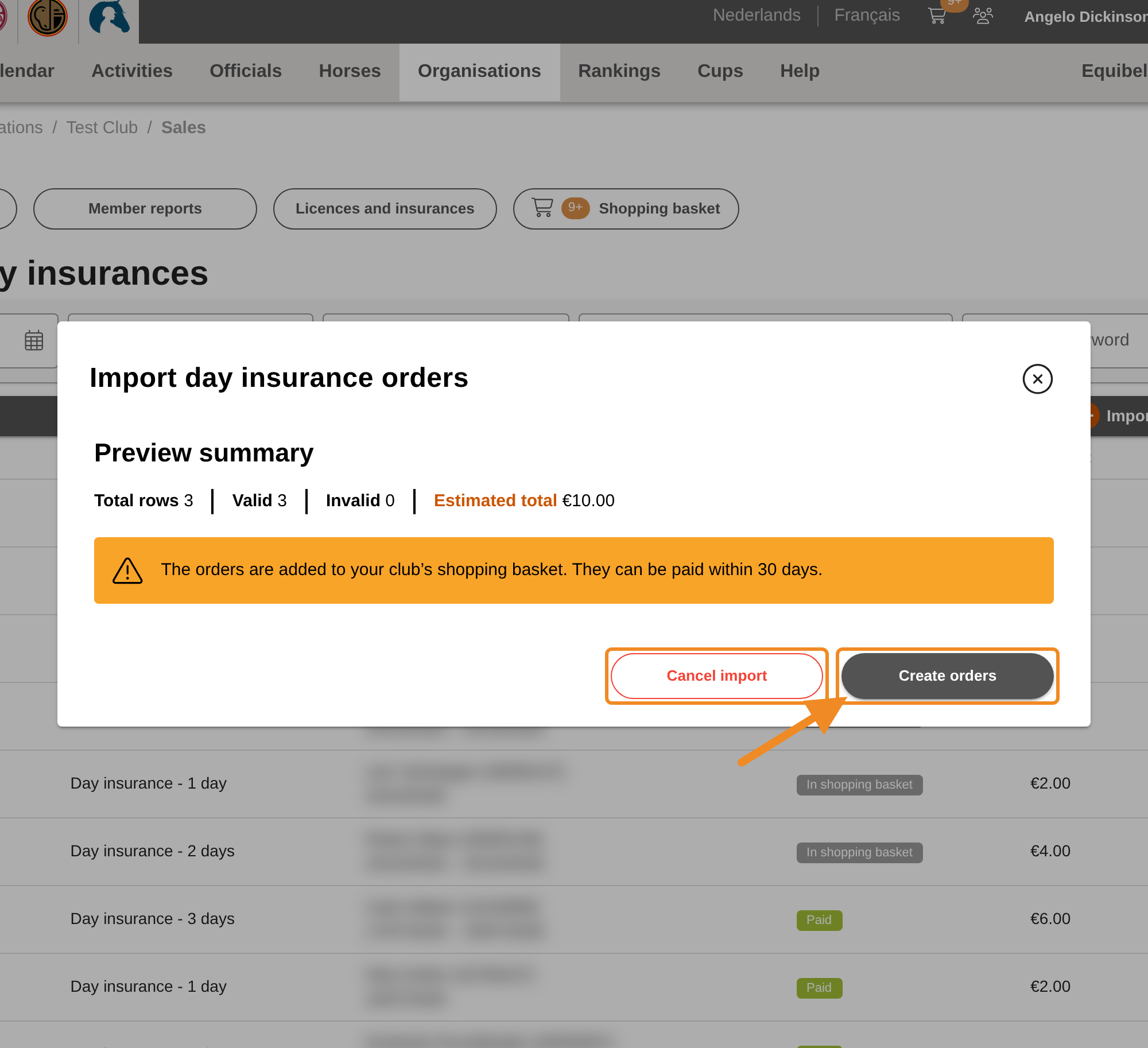
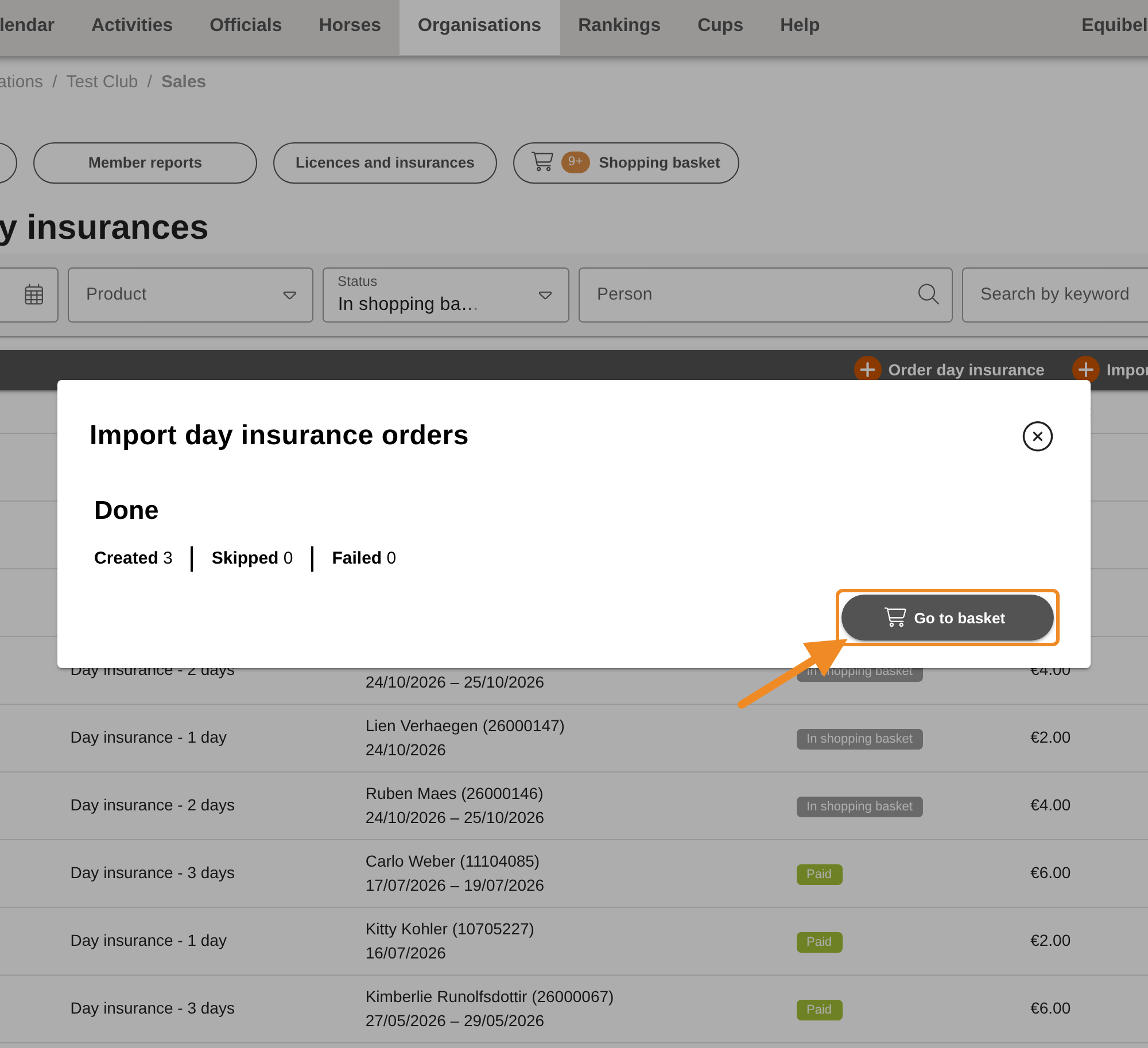
Step 12 — Go to the shopping basket
When the orders are created, the window shows “Done” with the number of orders “Created”, “Skipped” and “Failed”. Click “Go to basket”: your club’s shopping basket opens, with one order per person.
Your club does not have to pay the orders in advance. Like licences and insurances, they can be paid within 30 days of the order. Once they are paid, your club gets a proof of payment. See How to Pay Your Club’s Orders.
Good to know
- Closing the window: after the summary, closing the window keeps your place. When you click “Import day insurance orders” again, you come back to the same summary.
- Where to find the orders later: each order appears in the “List of orders” on the “Orders of day insurances” page. Each insurance appears on the person’s profile, on the “Licences” tab, under “Day insurances”.
- Cancelling: you can cancel an order that is not paid yet, as long as its start date has not passed. Open “Finances” (in the “Payments” section of your club page) and click the cancel icon on that order (its tooltip reads “Cancel as club administrator”). Your club pays nothing for it.
- Pay on time: an order not paid within 30 days is overdue. While your club has overdue orders or a debt, it cannot order day insurance. Pay those orders in your club’s shopping basket first.
If something goes wrong
| What you see | What to do |
|---|---|
| I don’t see “Import day insurance orders” | Your role does not include ordering day insurance. Contact the club administration of Paardensport Vlaanderen. |
| “Download template” stays greyed out, with a message that the template could not be loaded | Close the window and open it again, or reload the page. |
| All column names are in one cell when you open the template in Excel | Select column A, then Data → Text to Columns, choose Delimited and tick Comma. |
| “The file must be a .csv file” | Save the file as CSV UTF-8 (step 9) and choose it again. |
| “The file is not valid UTF-8. Re-save it as UTF-8 and upload again” | Save the file as CSV UTF-8, not as plain CSV (step 9). |
| A message that a required column is missing | A column name is missing or misspelled. Use the names from the template (step 8). |
| A message that the file has too many rows | Split the list into files of at most 500 people. |
| A row with the status “Invalid” | The message says what is wrong: an empty cell, a date not written as day/month/year, an unknown gender, a start date in the past, or more than 5 days. Fix the row. |
| A row with the status “Duplicate in file” | The same person appears twice for overlapping dates. Keep one row. |
| A row with the status “Already has insurance” | The person is already insured for some of these days, through a licence or an earlier day insurance order. No new order is needed. |
| A row with the status “No matching product” | No day insurance exists for that number of days. Contact the club administration of Paardensport Vlaanderen. |
| Every row says “The club has overdue debts and cannot place new orders until they are paid.” | Pay your club’s overdue orders under “Finances”, then import the file again. |
| “Skipped” is more than 0 after the orders are created | Those people got an order some other way between the summary and “Create orders”. Check the “List of orders” and order the missing people one by one. |
Related articles: How to Order Day Insurance for One Person · How to Pay Your Club’s Orders