
How to Register a New Club
A new club joins Paardensport Vlaanderen by sending a registration application on the clubs' platform of Paardensport Vlaanderen. You fill in one form with two pages: the club's details first, then its people and choices. At the end you pay the club's yearly fee online. Paardensport Vlaanderen reviews the application, and when it approves it, the club is created on the platform and you become its club administrator.
Before you begin
You need, for the club:
- its name, its legal form and founding date, and, for a club registered as a legal entity (such as a VZW), its official name and registration number in the business registry (KBO);
- its IBAN and BIC code, and its VAT number if the club is subject to VAT;
- its email address, phone number, website (if any) and main address;
- the first name, last name, email address, phone number and date of birth of each contact person, official and trainer you will name.
Filling in the form takes about 20 minutes.
Step 1 — Open the registration form
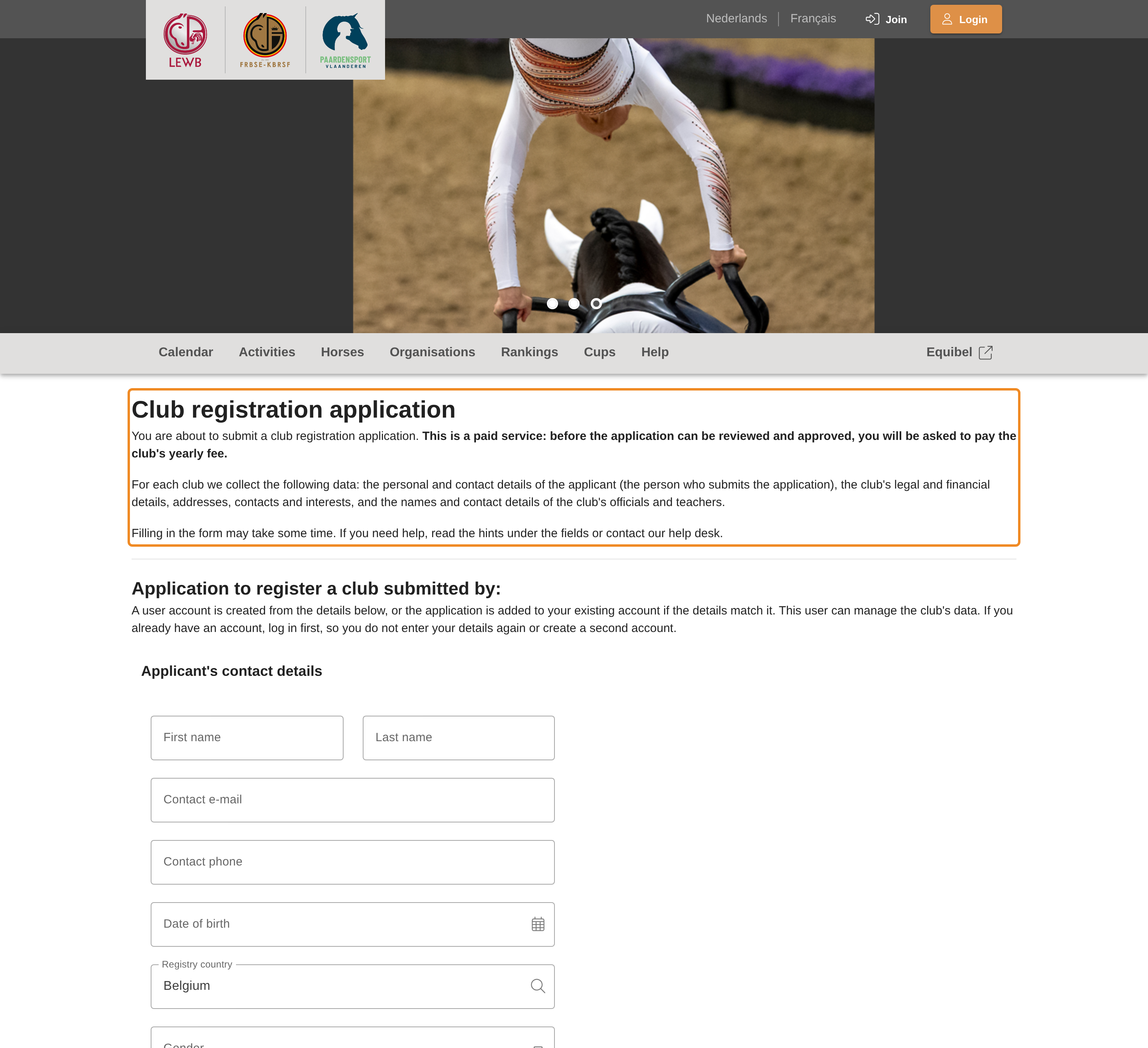
Go to the page Aanvraag clublidmaatschap on the Paardensport Vlaanderen website, scroll down and click Aanvraagformulier. The page “Club registration application” opens. You do not need to be signed in. Read the introduction: registering is a paid service, and at the end you pay the club's yearly fee.
Step 2 — Already have an account? Sign in first
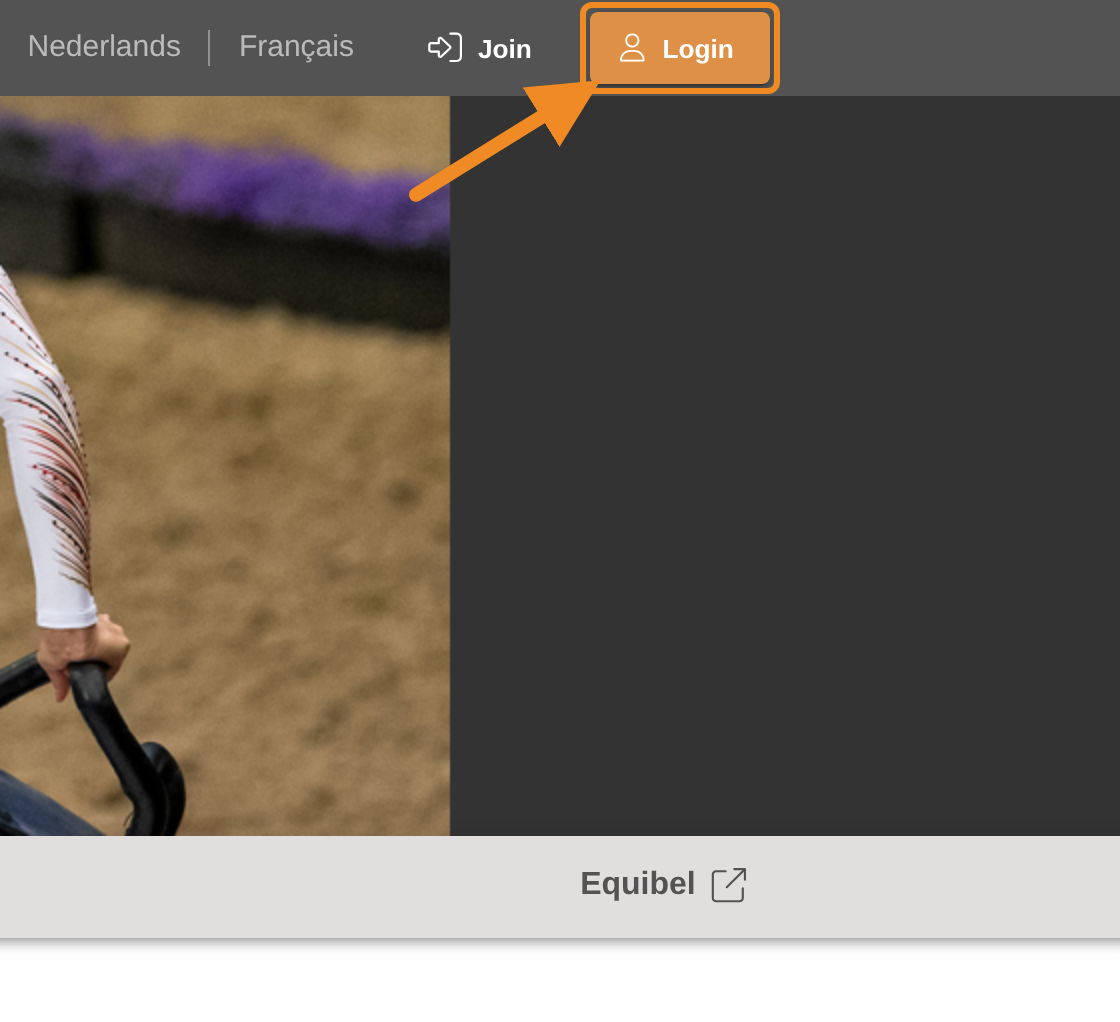
If you already have an account on the platform (for example as a rider), click “Login” in the upper-right corner first, then click the Aanvraagformulier link on the Paardensport Vlaanderen page again. The form adds the club to your existing account. If you register without signing in, the platform creates a new account from the details you enter. So sign in first, to avoid a second account being created for you.
Step 3 — Enter your own details
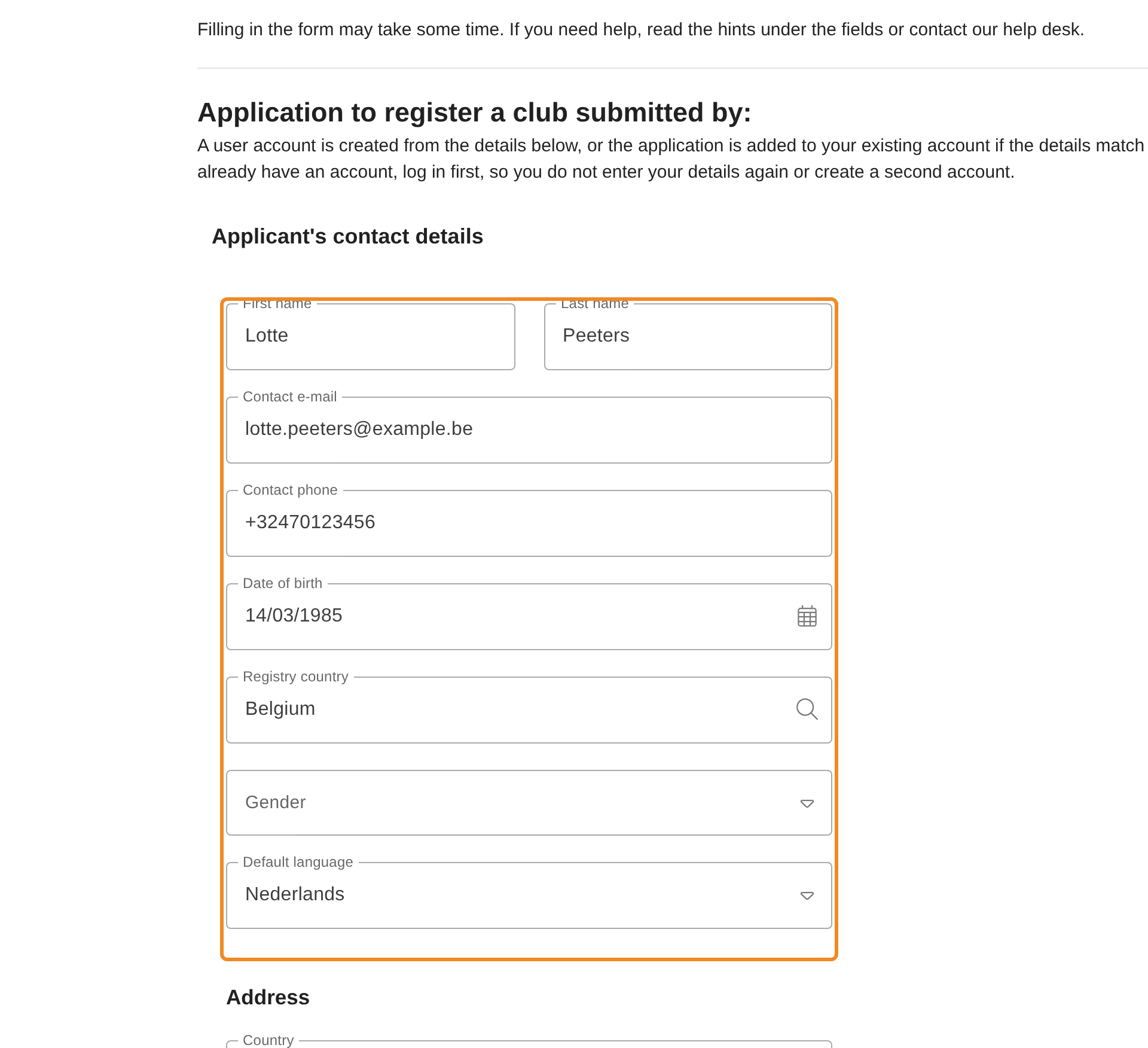
Under “Application to register a club submitted by:”, enter your own first name, last name, email address, phone number and date of birth. You are the applicant: once the club is approved, you manage it on the platform.
Step 4 — Enter your address and save
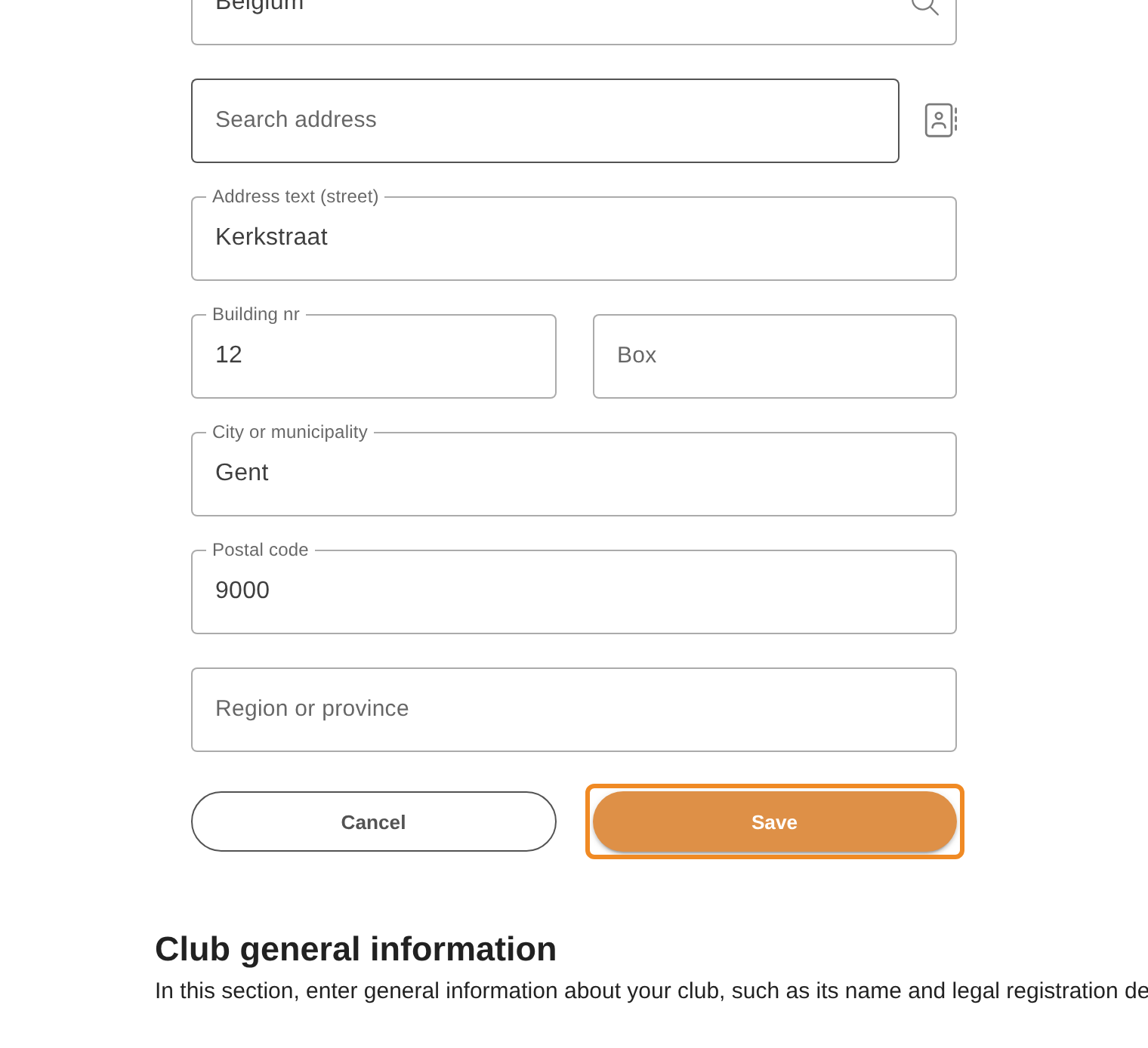
Enter your address, then click “Save” at the bottom of this section. Until you save it, you cannot go on to the second page.
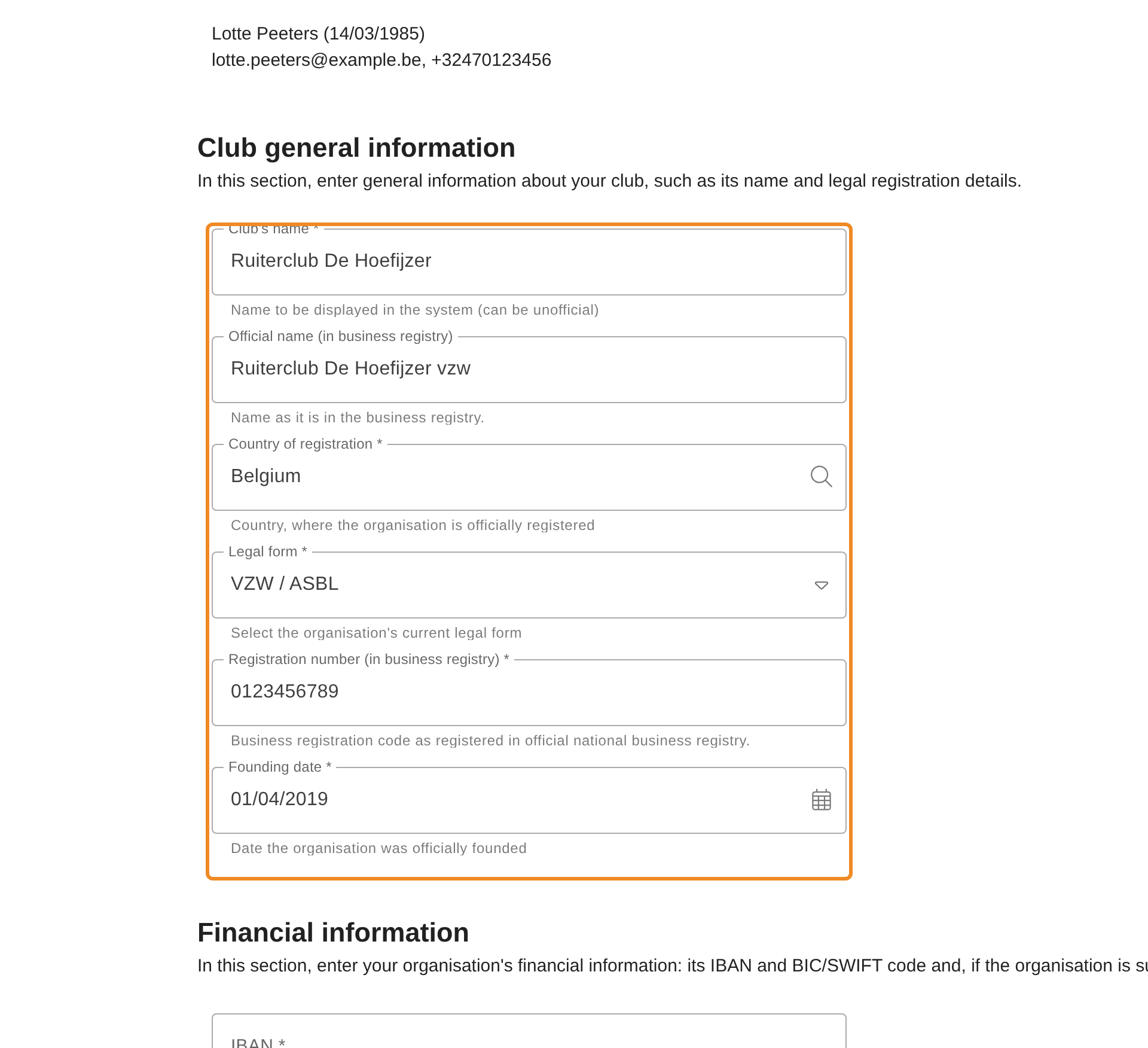
Step 5 — Club general information
Under “Club general information”, enter:
- “Club's name”: the name the platform shows (it may be informal);
- “Official name (in business registry)”: the name as it is in the business registry;
- “Legal form”: for example VZW. A club that is not registered as a legal entity chooses “Feitelijke vereniging / Ass. de fait”: the registration number is then not asked;
- “Registration number (in business registry)”: the club's number in the business registry (KBO);
- “Founding date”: the date the club was officially founded.
“Country of registration” is already set to Belgium.
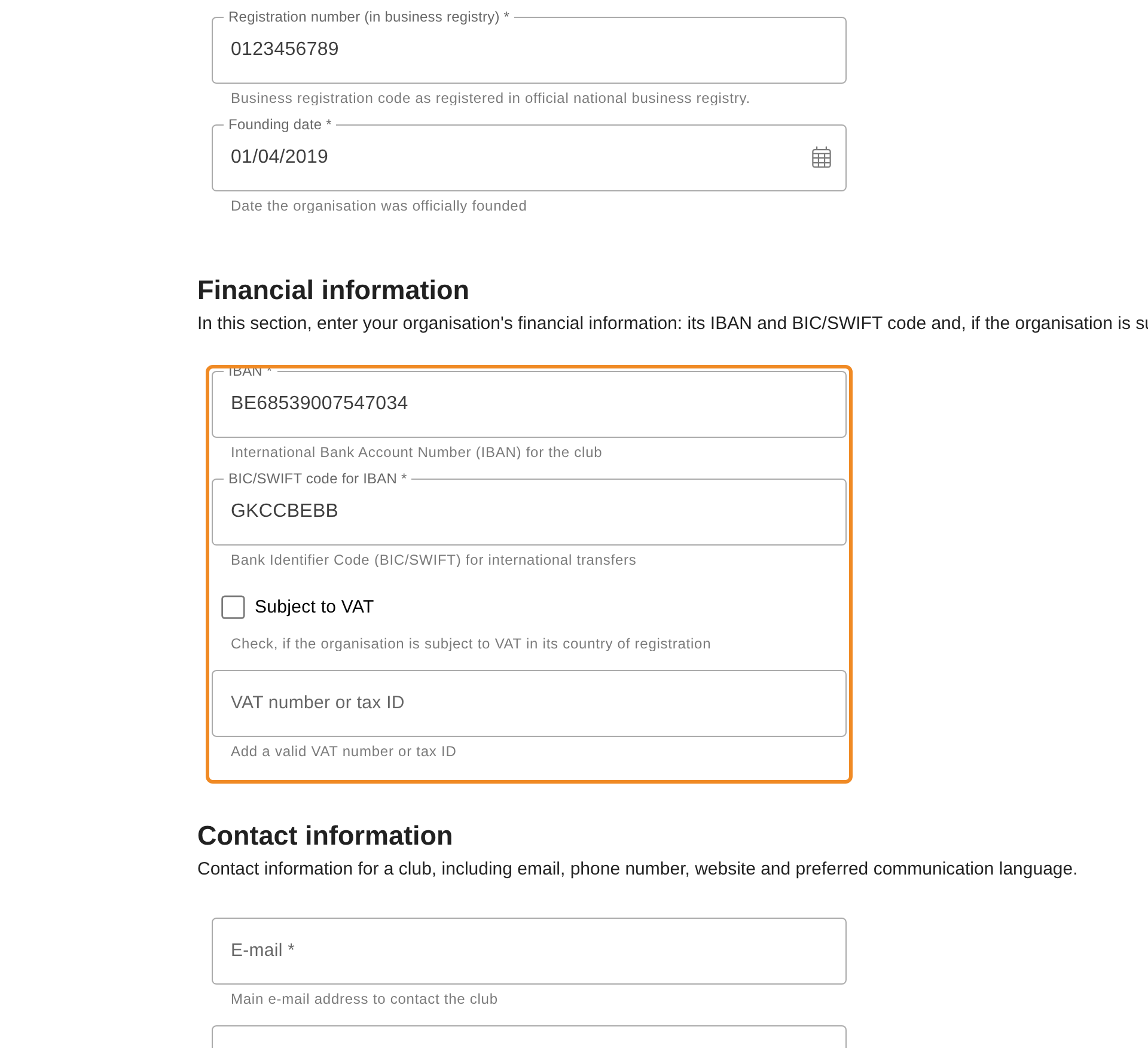
Step 6 — Financial information
Under “Financial information”, enter the club's “IBAN” and “BIC/SWIFT code for IBAN”. Tick “Subject to VAT” only if the club is subject to VAT, and then enter its “VAT number or tax ID”.
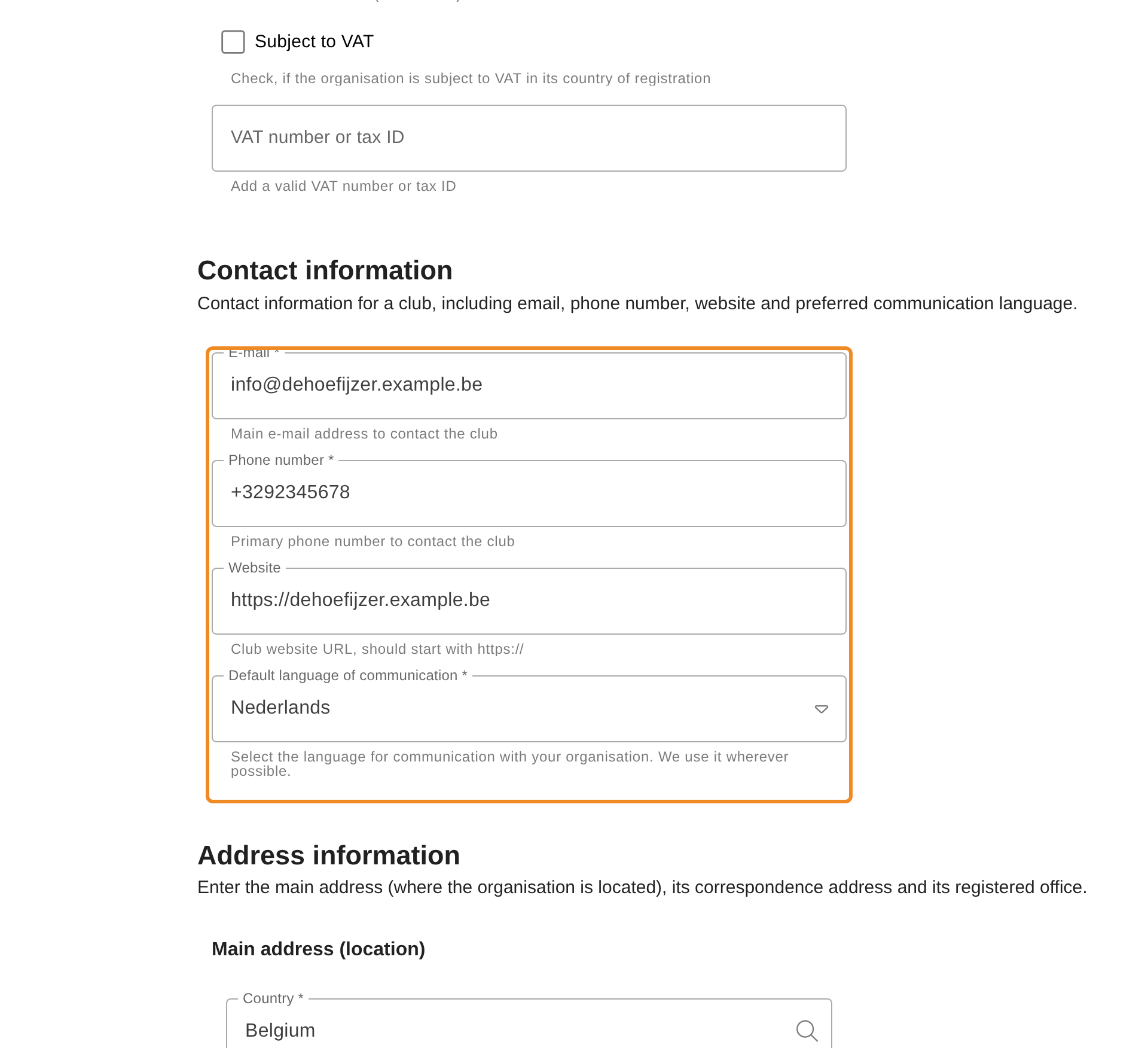
Step 7 — Contact information
Under “Contact information”, enter the club's “E-mail” and “Phone number”, and its “Website” if it has one (starting with https://). The “Default language of communication” is set to Dutch; change it if the club prefers another language.
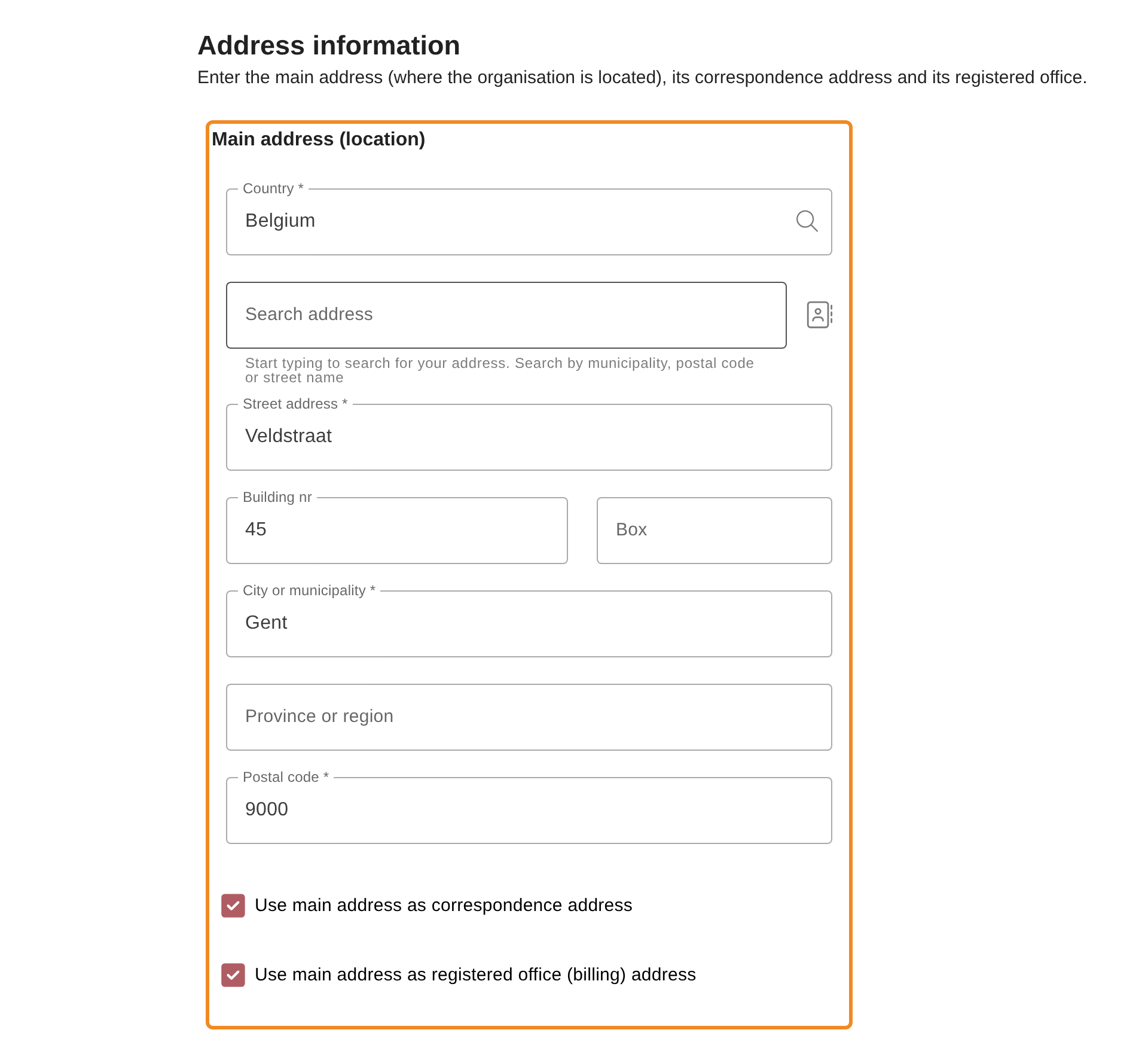
Step 8 — Address information
Under “Address information”, enter the club's “Main address (location)”: the place where the club is. You can type in the search field and pick the address from the list.
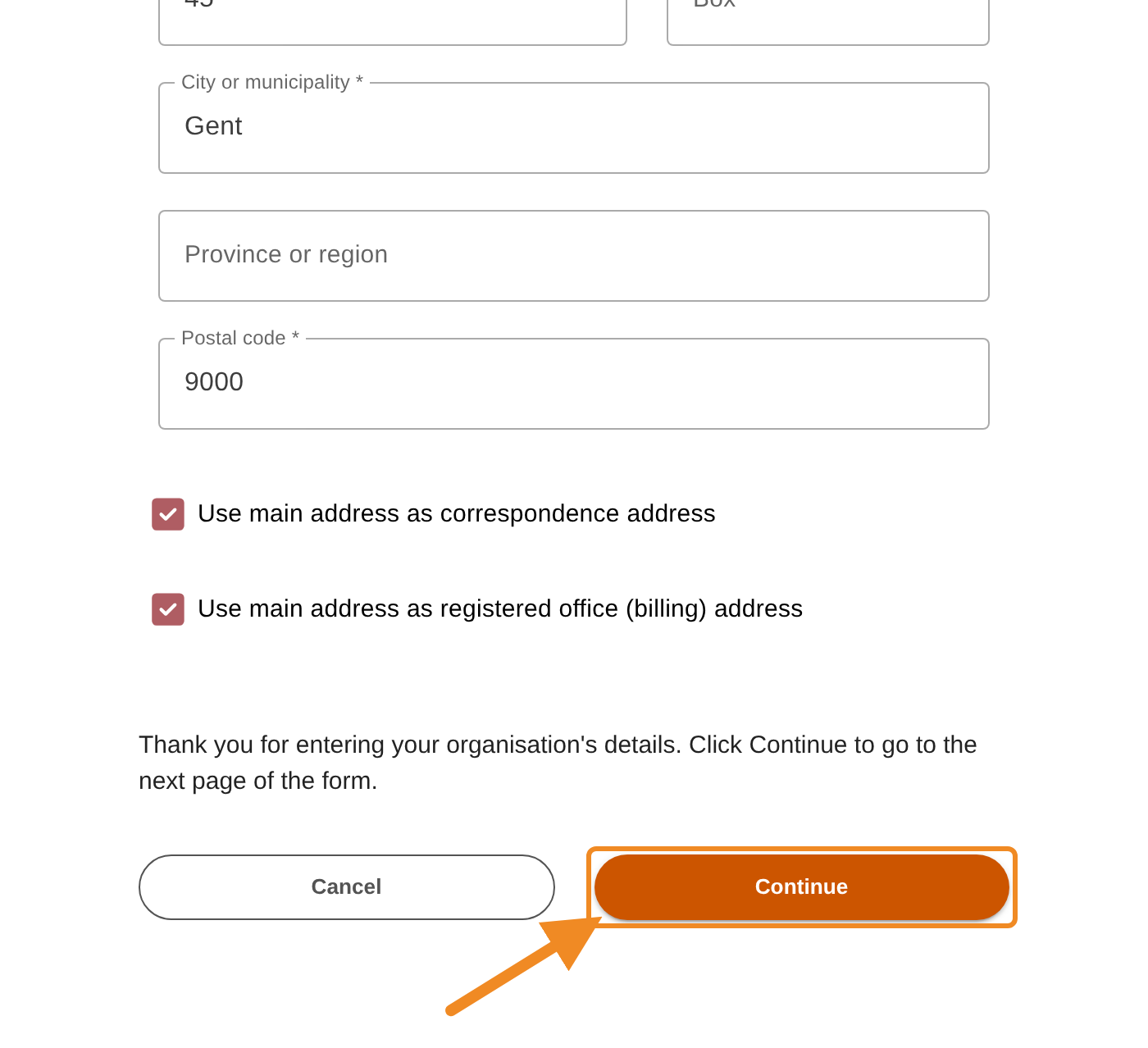
The two boxes below it are ticked: the main address is also used as the correspondence address and as the registered office. Untick a box only if that address is different, and enter the other address.
Step 9 — Go to the second page
Click “Continue”. If a required field is missing, it shows in red: fill it in and click “Continue” again. The second page of the form opens.
Step 10 — Characteristics and facilities
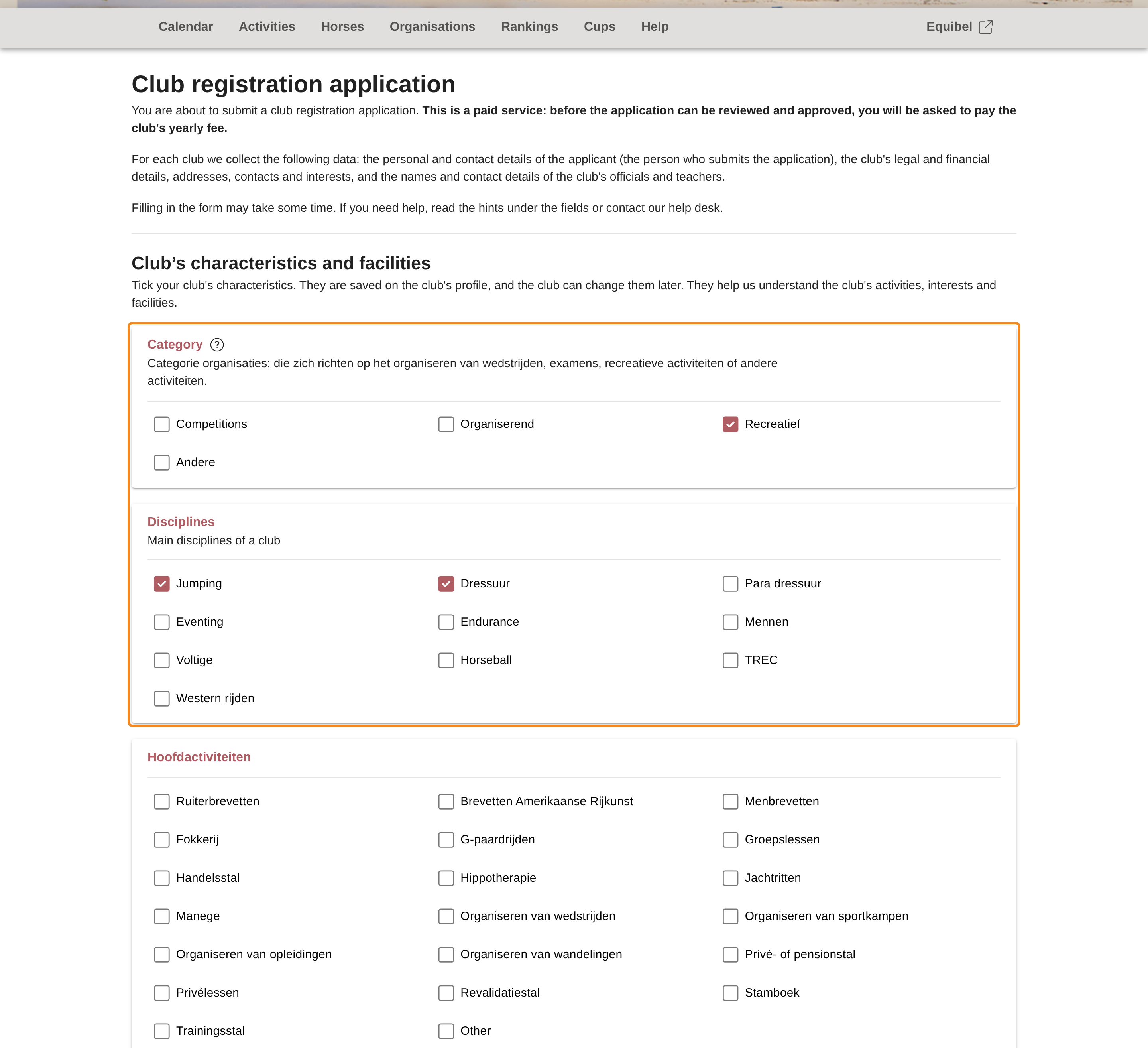
Under “Club’s characteristics and facilities”, tick everything that describes your club: its category, disciplines, main activities, reasons for joining, target groups and interests. They are stored on the club's profile, and you can change them later.
Step 11 — Contact persons, officials and trainers
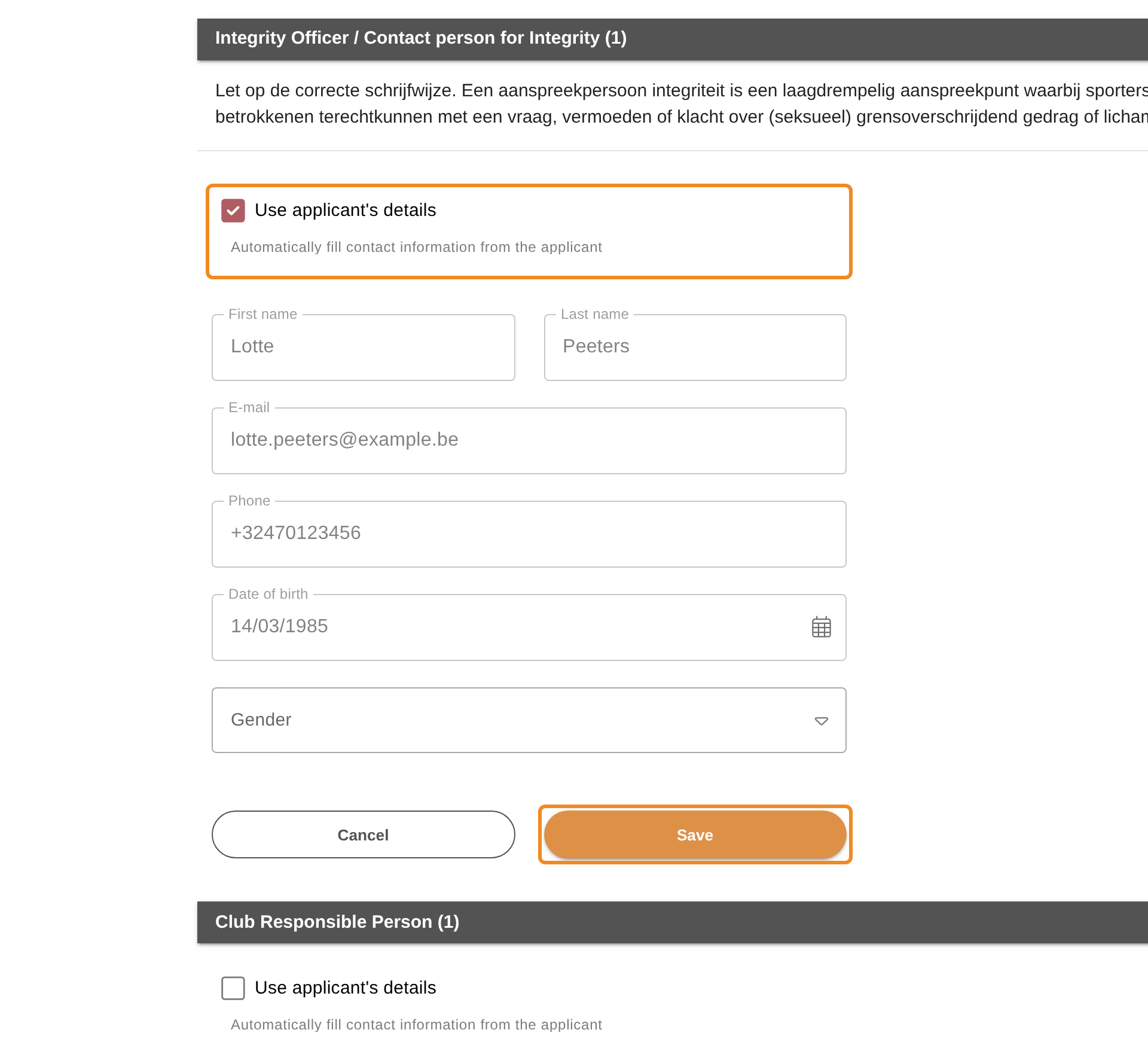
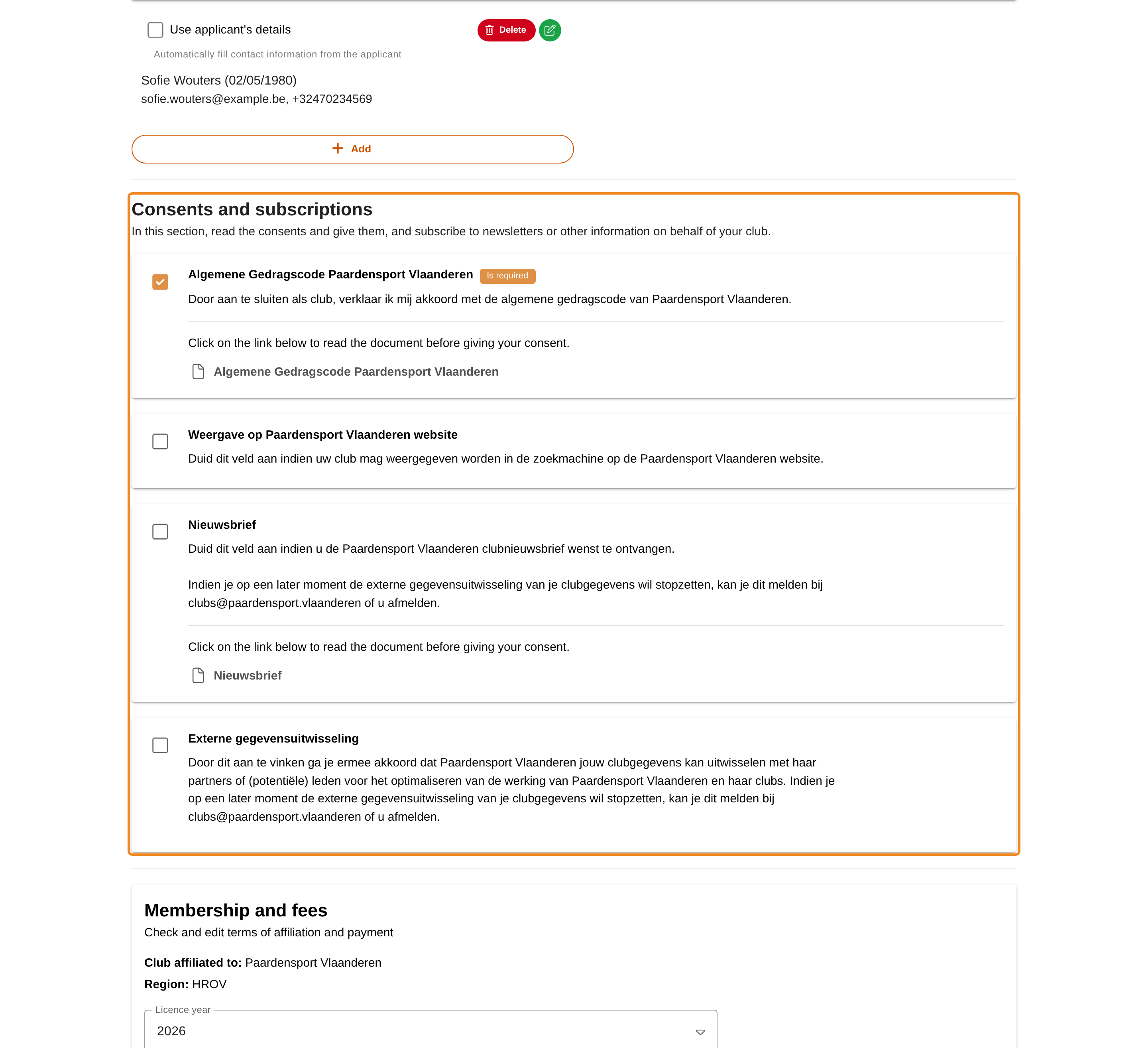
Under “Club’s contact persons, officials and teachers”, each role has its own block. For each role, fill in the person's first name, last name, email address, phone number, date of birth and gender, and click “Save” in that block. If you hold the role yourself, tick “Use applicant's details”: your own details are filled in.
A block shows the number of people the role needs. The platform creates an account for each person you name, once the club is approved.
Step 12 — More than one person in a role
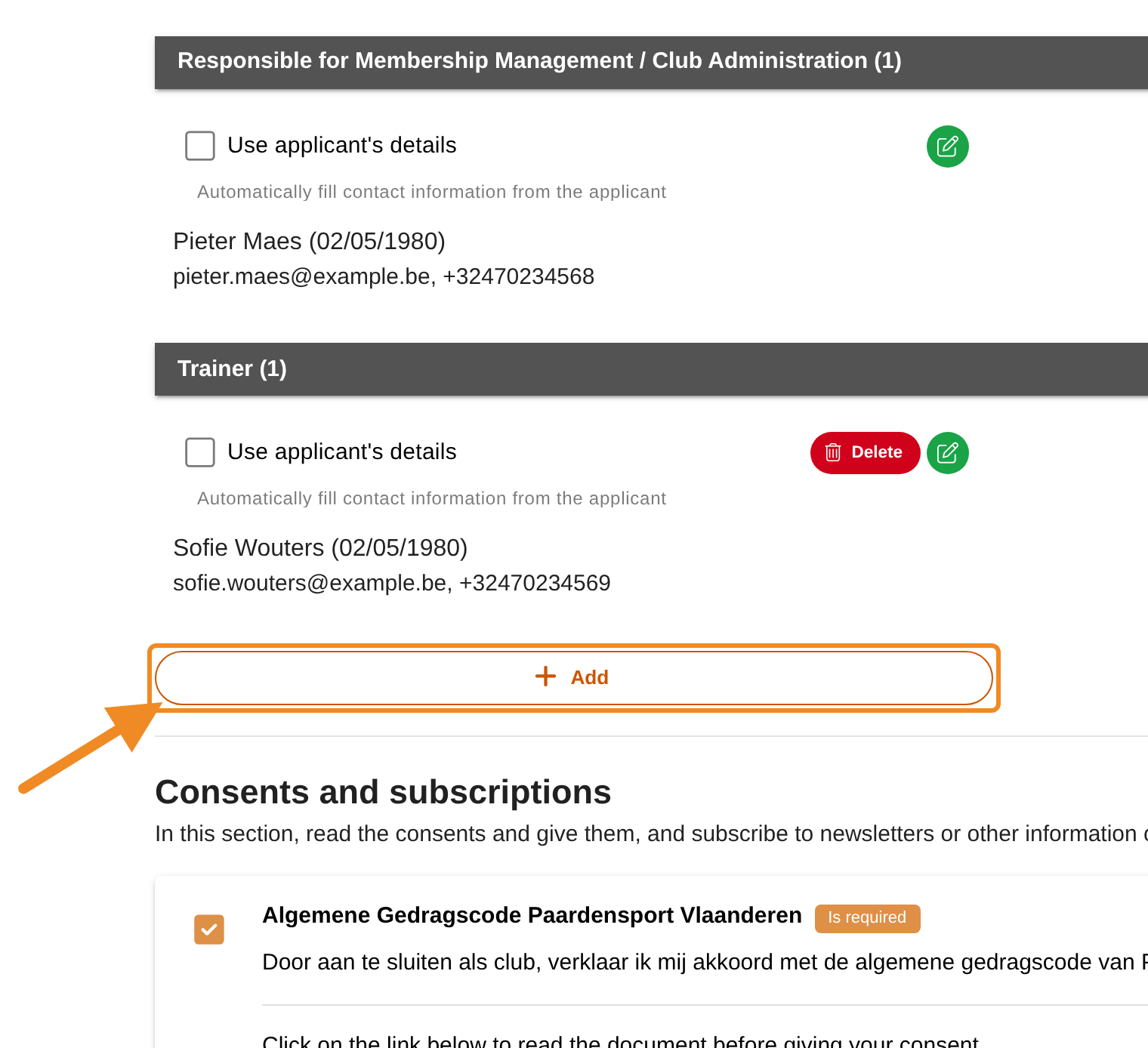
For a role that can have several people, such as trainers, click “Add” under that role to add the next person, and save it like the first.
Step 13 — Consents and subscriptions
Under “Consents and subscriptions”, read each statement and tick the ones the club agrees to. Open the linked document to read it in full. A compulsory consent, such as Paardensport Vlaanderen's general code of conduct, must be ticked, or the application cannot be sent.
Step 14 — Membership and fees
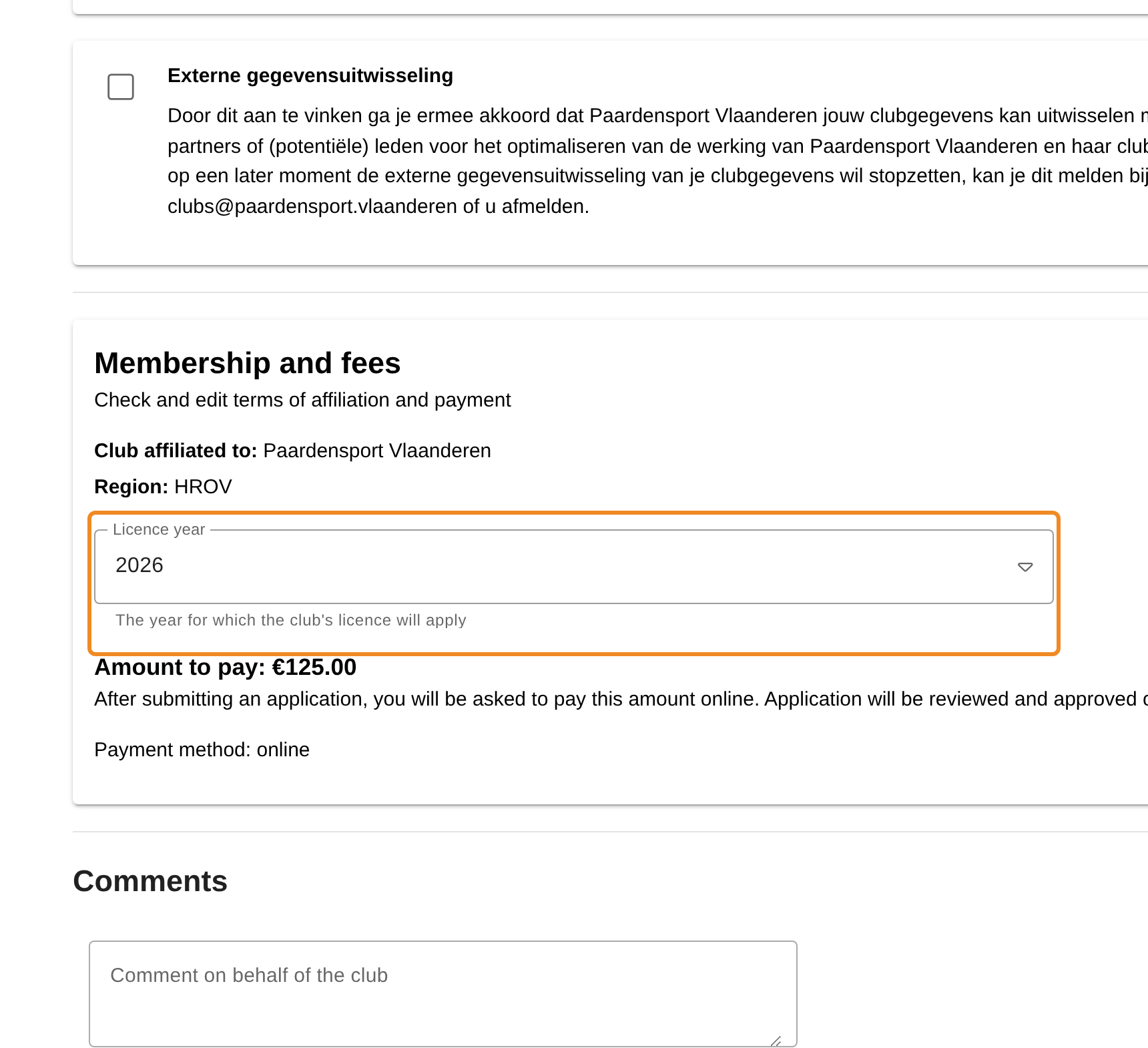
Under “Membership and fees”, check:
- the federation the club joins and its region, which the platform takes from the club's postal code;
- the “Licence year”: the year the club's membership is for;
- the amount to pay.
Step 15 — Send the application
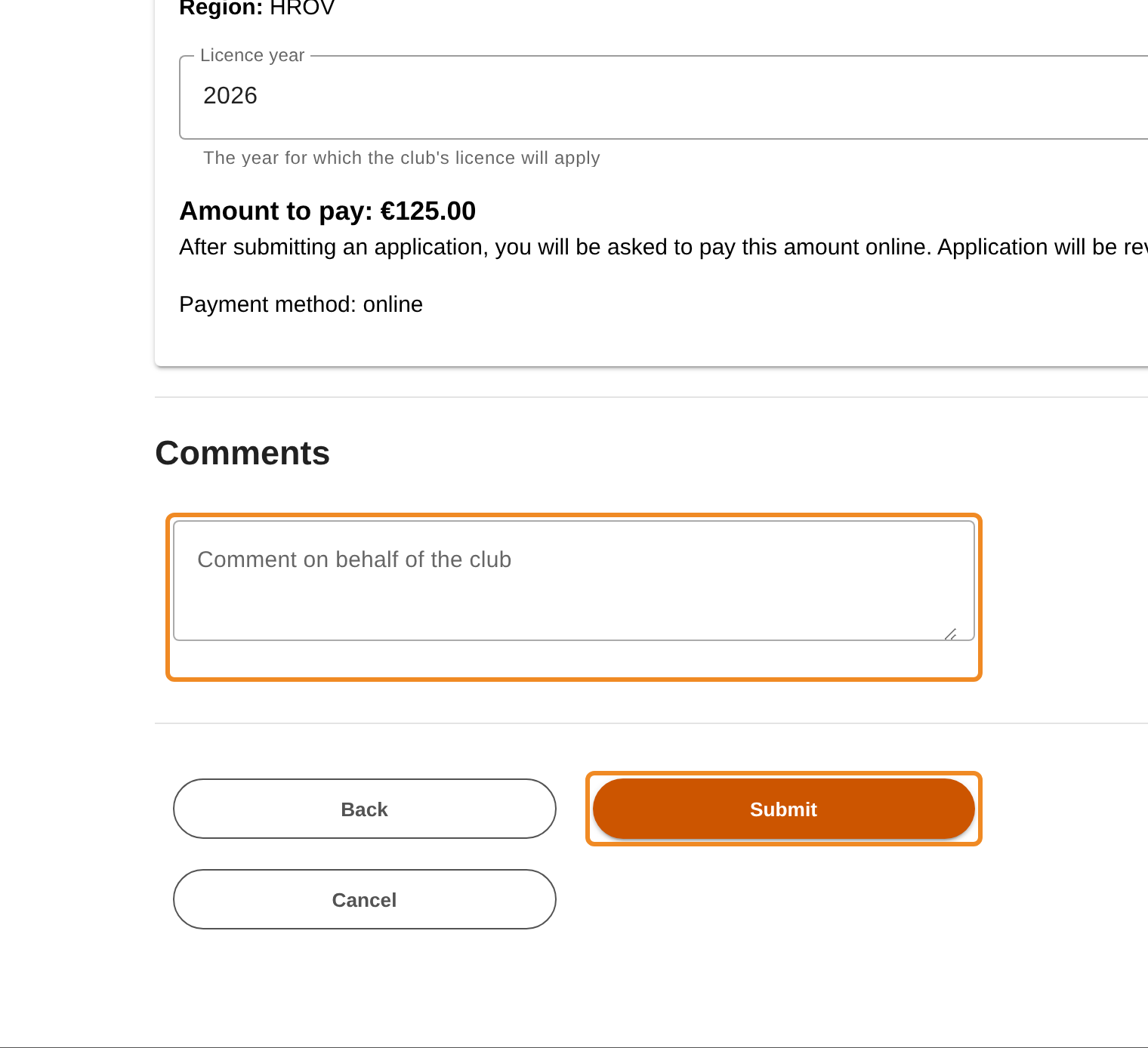
If you want to tell the federation something, write it under “Comments”. Then click “Submit”. To change something on the first page, click “Back” first.
Step 16 — Pay the fee
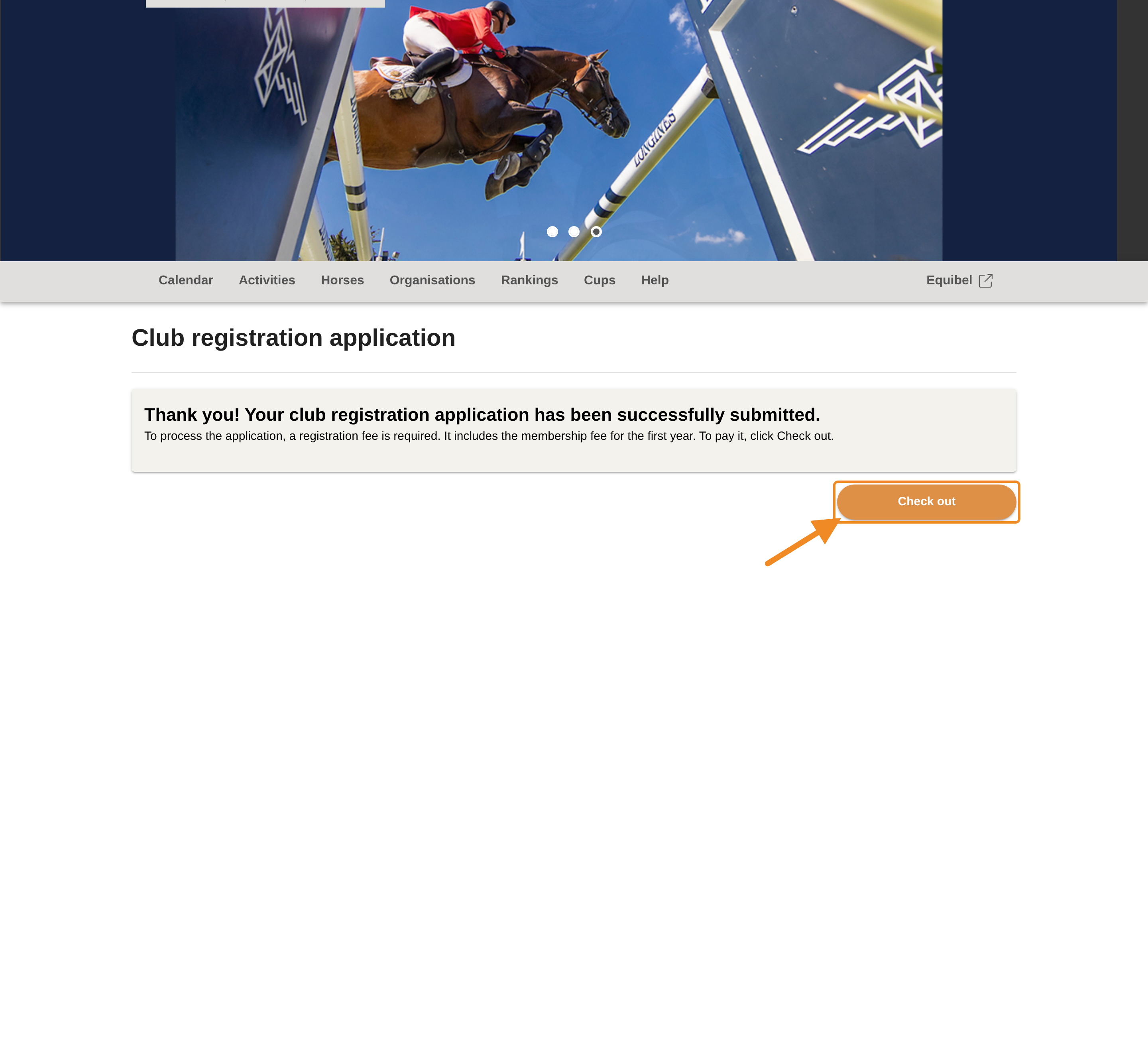
The confirmation “Thank you! Your club registration application has been successfully submitted.” appears. Click “Check out” and pay the amount online. You get a proof of payment. The federation reviews the application only after the payment.
What happens next
- Paardensport Vlaanderen reviews your application once it is paid.
- You get an email when it is approved, with more information about the next steps.
If something in the application must be corrected, Paardensport Vlaanderen lets you know by email what to change. Once you change it, the application goes back for review.
Good to know
- When it is approved: the club is created on the platform with its membership for the year, and you become its club administrator. Your club is then under “My organisations” in your profile menu.
- Accounts for the people you name: the platform links each contact person, official and trainer to an existing account when one matches, and creates a new account otherwise.
- Fill it in at once: the form does not keep a draft. If you leave the page before you click “Submit”, you start again.
If something goes wrong
| Problem | What to do |
|---|---|
| “Continue” cannot be clicked | Click “Save” at the bottom of the section with your own details first. |
| A field is red after “Continue” or “Submit” | Fill in the field. On the second page, check that every role block is saved and the compulsory consents are ticked. |
| I left the page before paying | Sign in with the account of step 3 and open your shopping basket from your profile menu. If you registered without signing in, contact the federation. |
| I do not know the club's registration number | Look it up in the Crossroads Bank for Enterprises (KBO). A club that is not registered as a legal entity has none: choose “Feitelijke vereniging / Ass. de fait” as “Legal form”, and the number is not asked. |
Related articles: How to Renew Your Club’s Membership · How to Pay Your Club’s Orders