
How Examiners Hear About Exam Sessions, Apply and Get Selected
As an examiner for Paardensport Vlaanderen you hear about new exam sessions by email. You apply for the positions you want, and Paardensport Vlaanderen selects the examiners. The system tells you by email when your candidacy changes.
The emails you get
Every Tuesday morning (around 8:00): new exam sessions. The email lists every exam session that opened for candidacies in the past week and is still open. For each session you see its name, the exam category, the dates, the venue and a link to the session. A week without new sessions sends no email.
You get this email when you hold an examiner qualification for exams (and, where a position asks for one, represent the right region). Your licence plays no part. Being told about a session does not mean you qualify for each of its positions: the form tells you when you apply.
Every morning (around 9:00): changes to your candidacies. When the status of one of your candidacies changes — for example from “candidacy” to “selected” — you get one email the next morning. It lists every change since the day before, per session and position. A day without changes sends no email.
Before you begin
You need:
- an account in the system, signed in;
- an examiner qualification for exams on your profile;
- for exams: a compensation option for exams and a matching default payout contact on your profile. Without them you cannot send your candidacy (step 9).
Apply from the weekly email
Step 1 — Open a session from the email
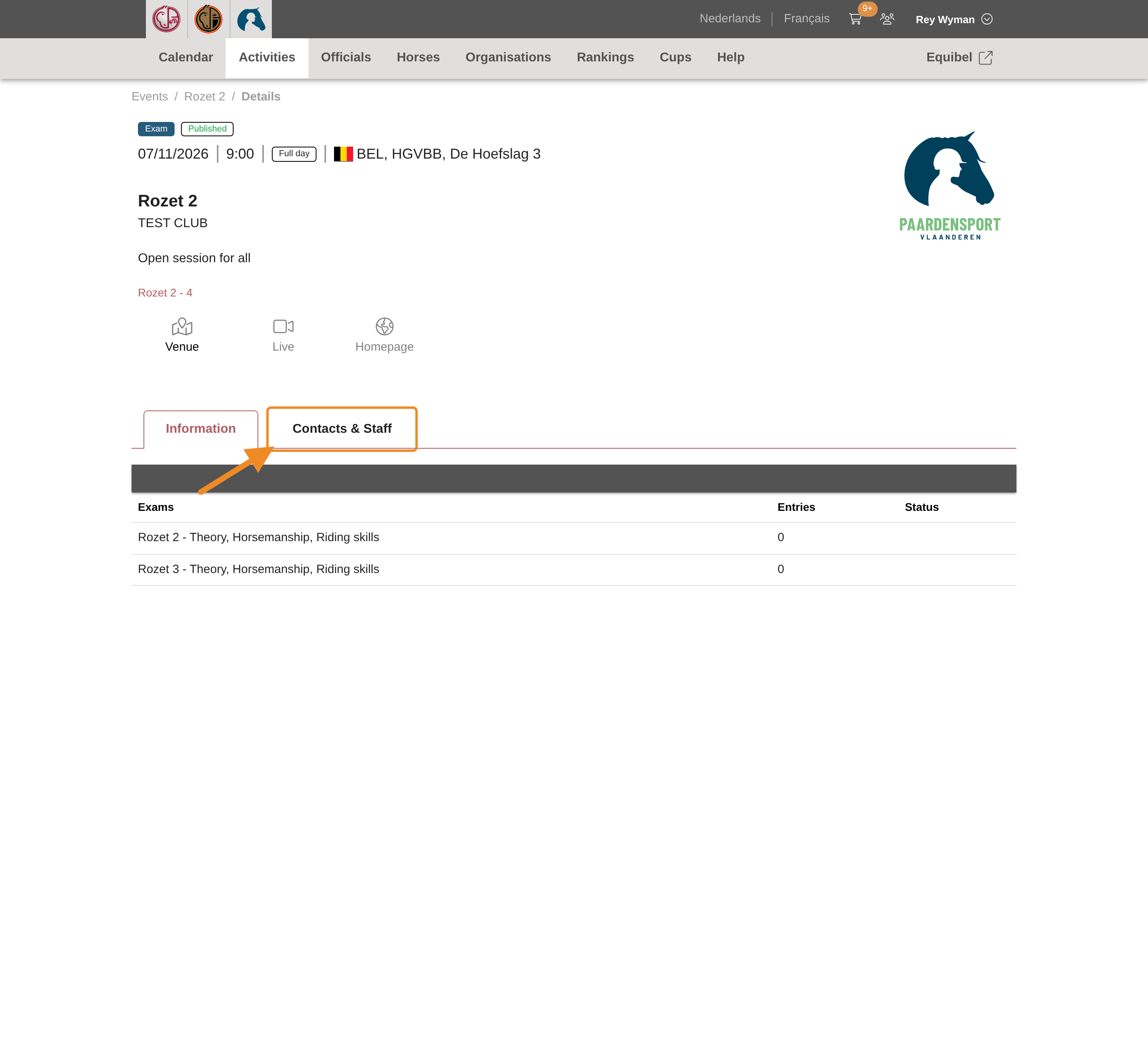
In the Tuesday email, click the session you want. The session’s page opens. Click its “Contacts & Staff” tab.
Step 2 — Click Apply
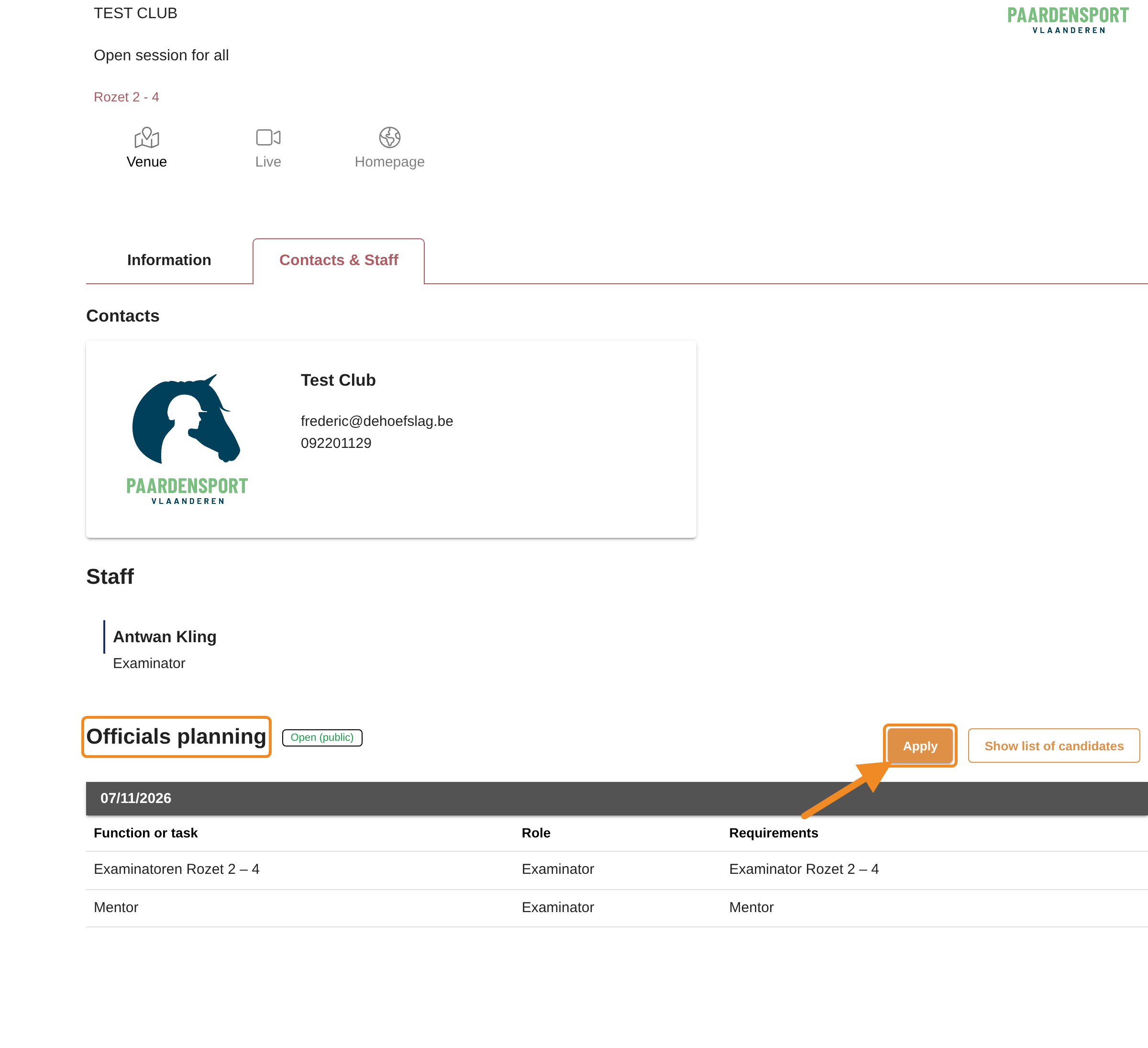
Under “Officials planning” you see the positions to fill, with the requirements for each. Click “Apply”. The candidacy form opens: continue with step 8.
Or look for sessions yourself
Step 3 — Open your menu
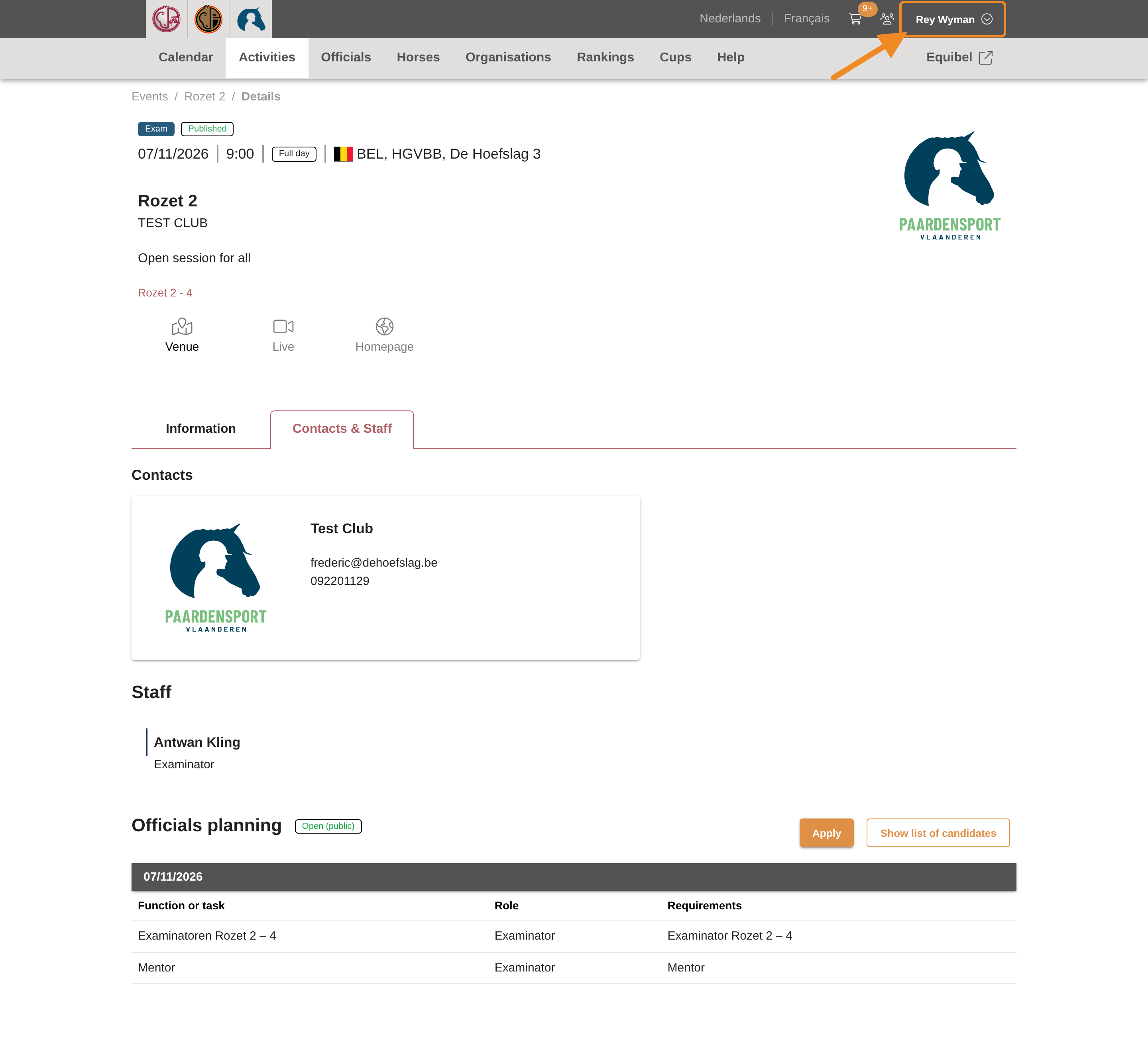
Click your name in the upper-right corner of any page.
Step 4 — Open your profile
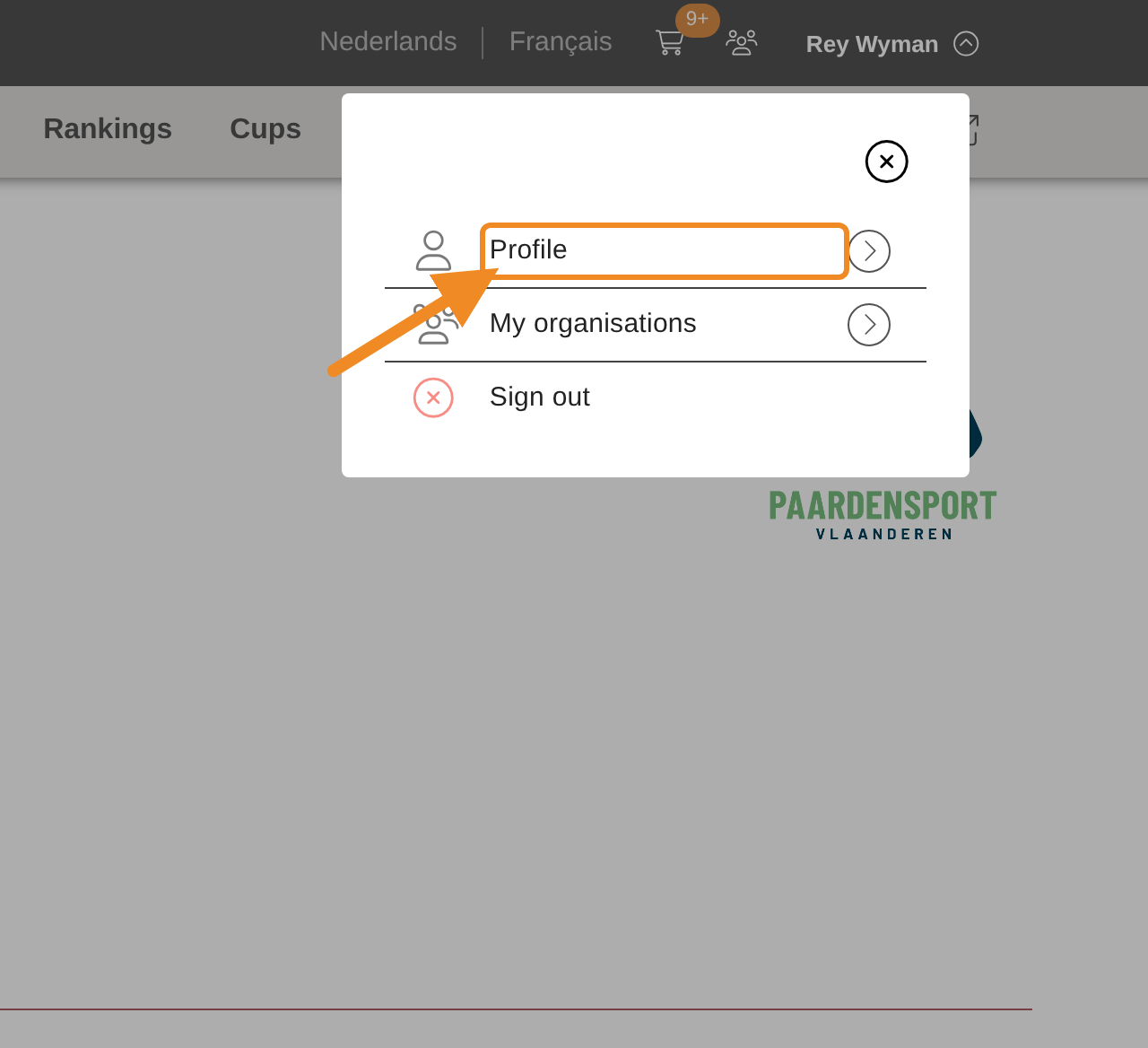
Click “Profile”.
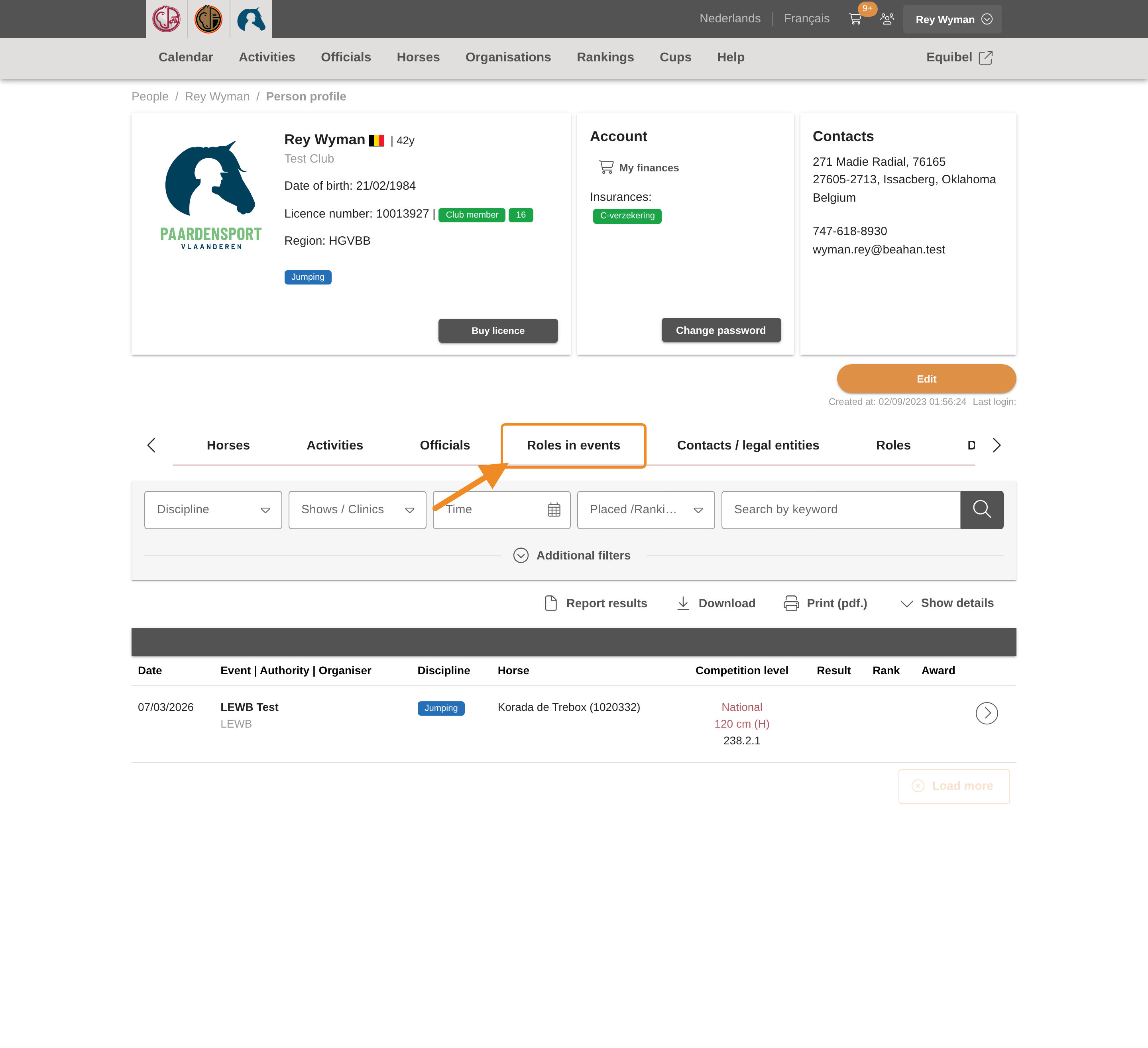
Step 5 — Open Roles in events
On your profile, open the “Roles in events” tab.
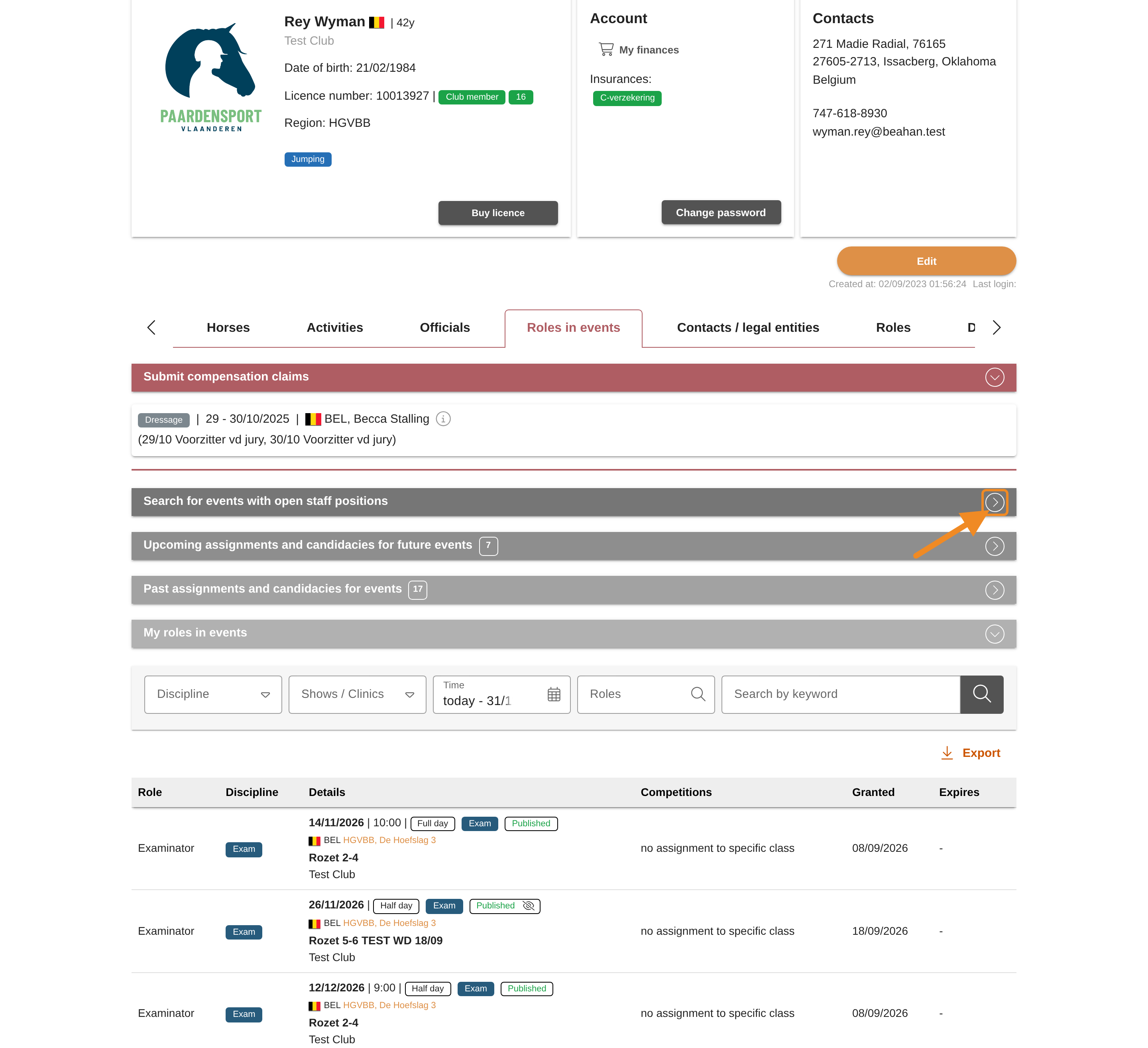
Step 6 — Find the open sessions
Click the bar “Search for events with open staff positions” to open it. It lists the events with positions you qualify for, from today to the end of the year. To see only exams, choose the exam categories under “Types of events”. You can also change the dates or choose “Regions”.
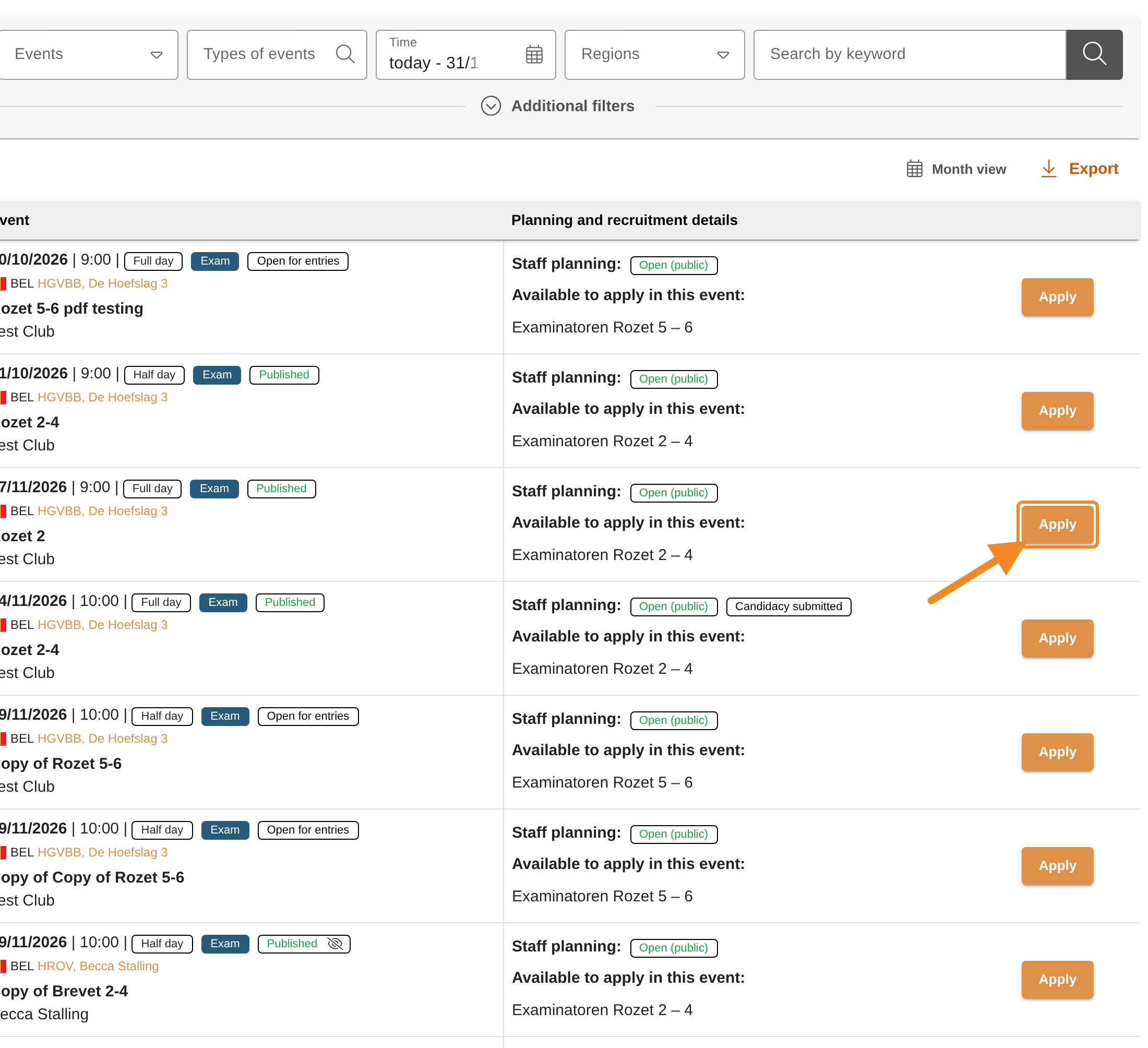
Step 7 — Choose a session
Each row shows the session and, under “Available to apply in this event:”, the positions open to you. A session where you already applied shows “Candidacy submitted”. Click “Apply” next to the session you want.
Send your candidacy
Step 8 — Choose the positions
The form lists the session’s positions per day. Tick each position you want. If you like, type a note for the organiser in the box under it. You can change the note until Paardensport Vlaanderen decides on your candidacy.
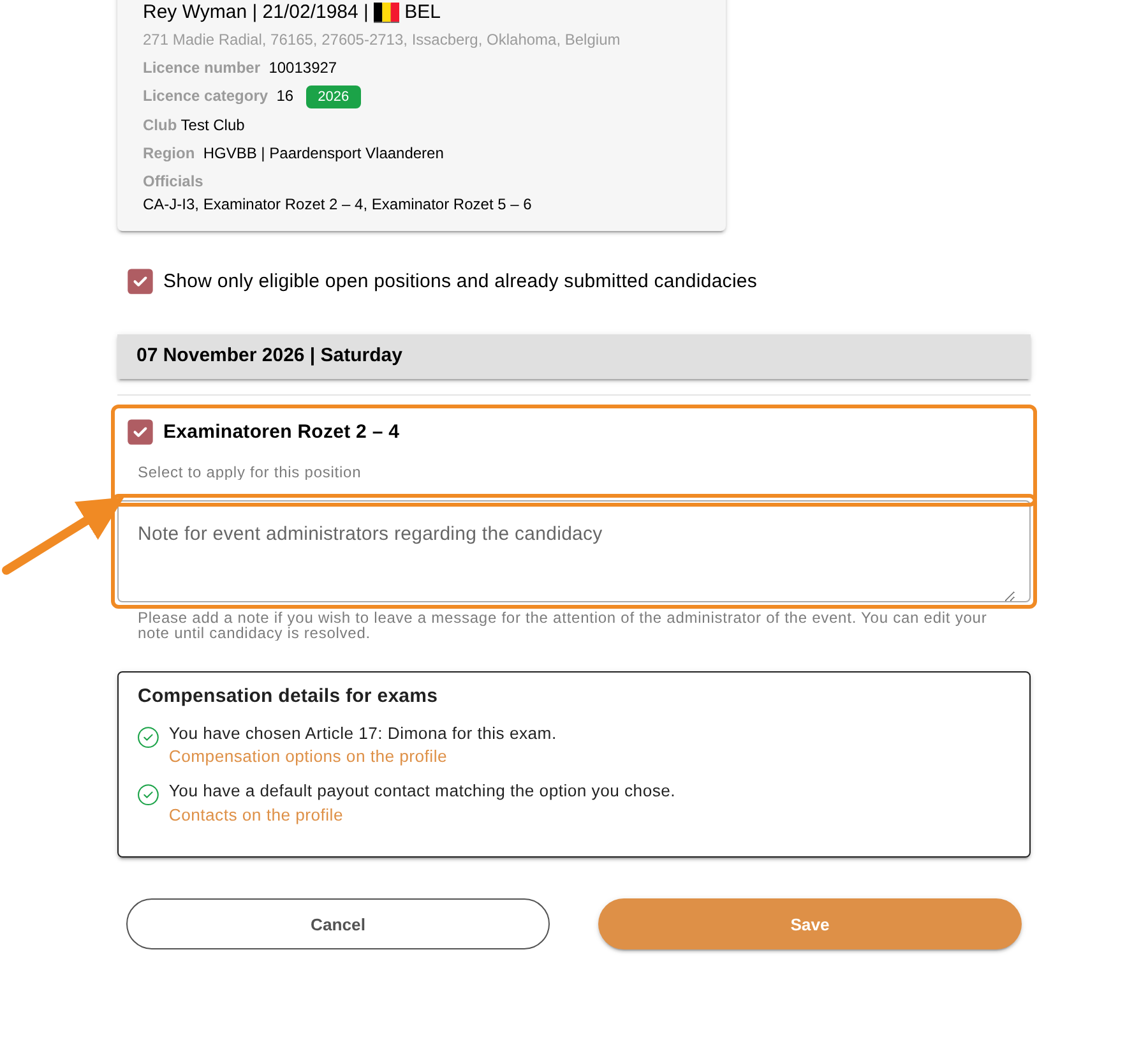
Step 9 — Check your compensation details
Under “Compensation details for exams” both lines must show a green check: your compensation option for exams, and a default payout contact that matches it. If a line shows an error, follow its link (“Compensation options on the profile” or “Contacts on the profile”). Your profile opens in a new tab, so the form stays as you left it. Fix the detail, come back to this tab: the form checks again by itself (or click “Check again”).
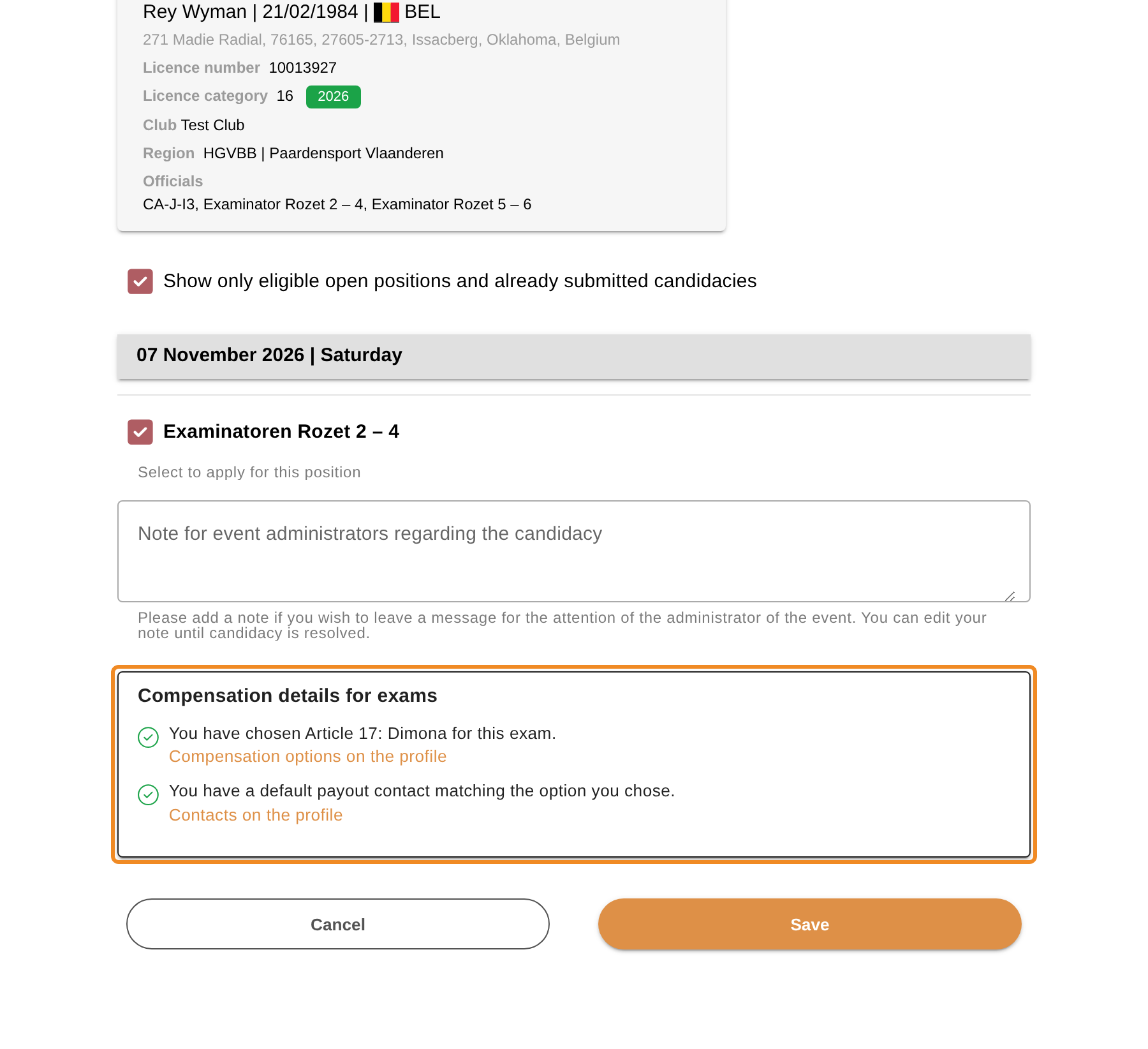
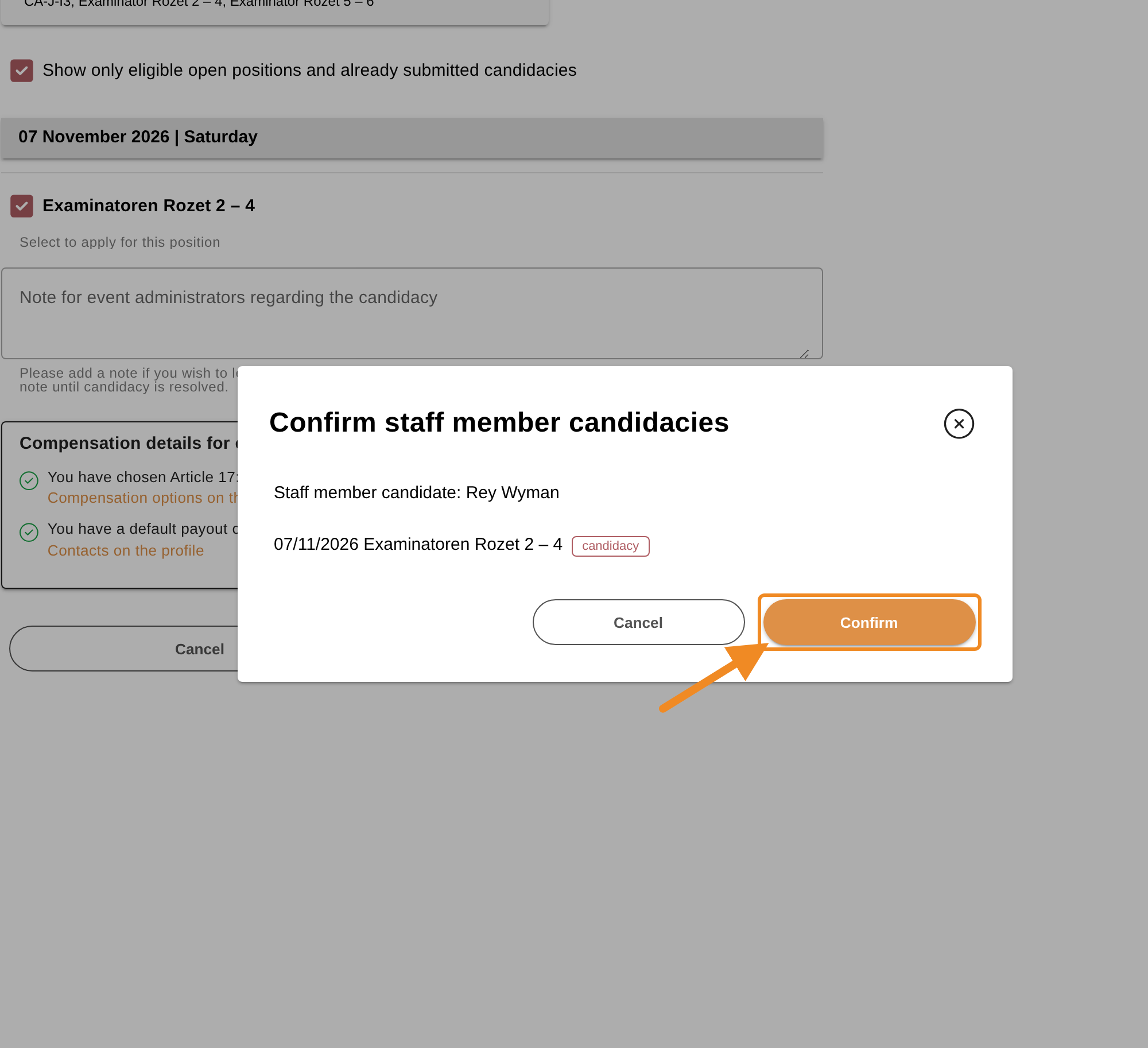
Step 10 — Save and confirm
Click “Save”. A window lists the positions you chose. Check them, then click “Confirm”. Your candidacy is sent to Paardensport Vlaanderen, with the status “candidacy”.
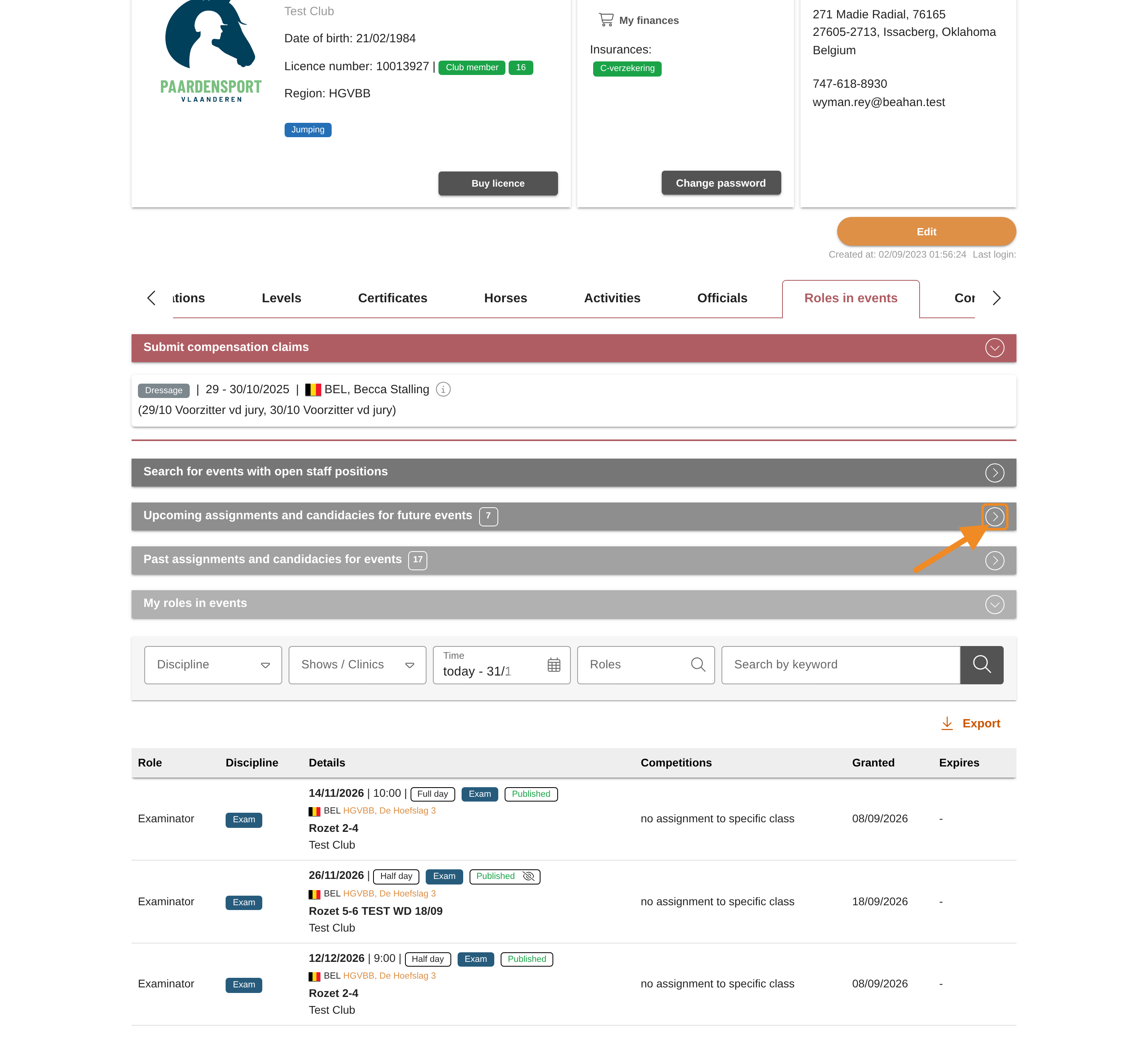
Follow the outcome
Step 11 — Open your candidacies
To follow your candidacies, open “Upcoming assignments and candidacies for future events” on the “Roles in events” tab of your profile.
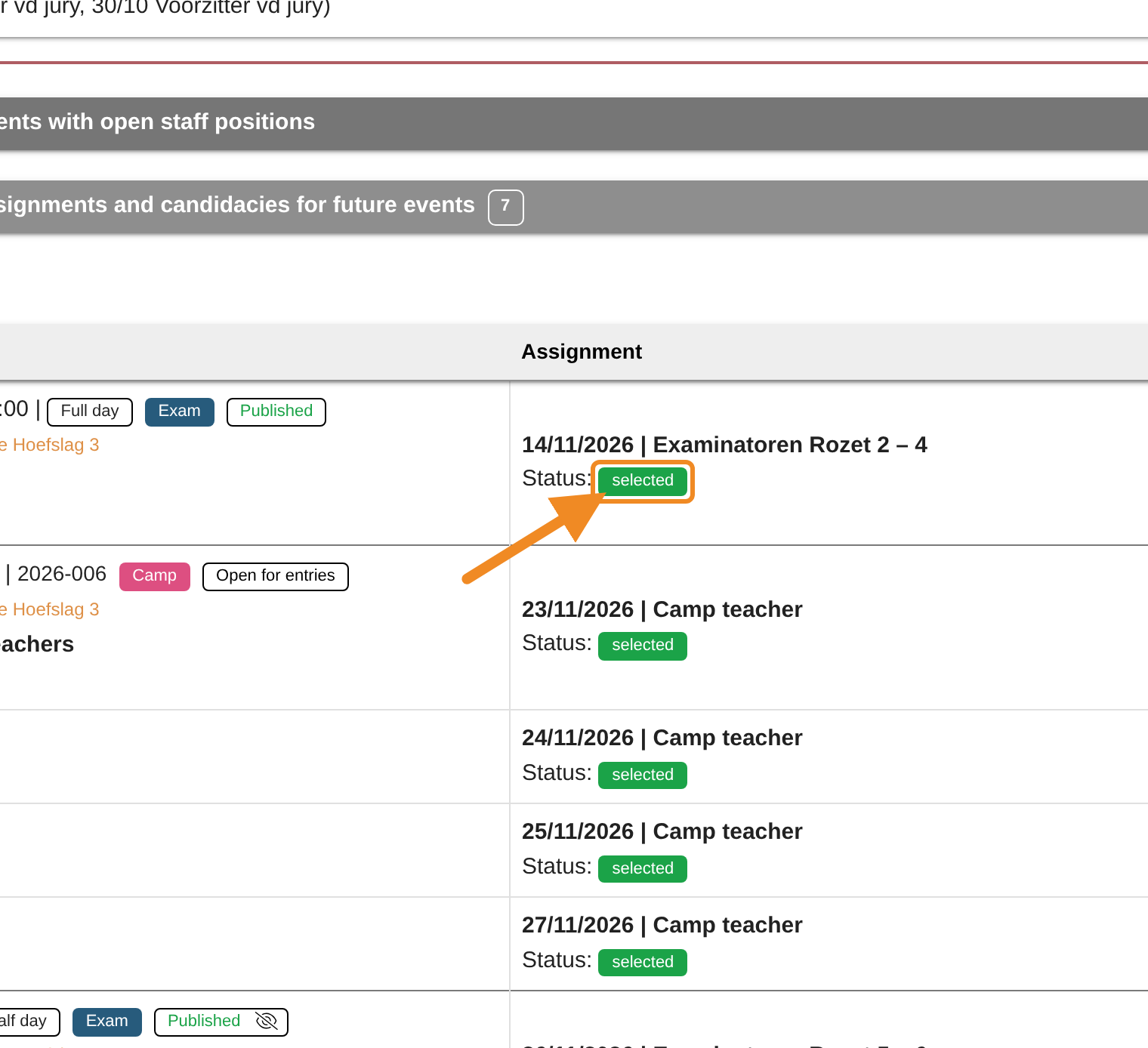
Step 12 — Read the status
Each position shows its status:
| Status | Meaning |
|---|---|
| “candidacy” | Sent; Paardensport Vlaanderen has not decided yet. |
| “selected” | You examine at this session. |
| “reserve” | You are on the reserve list. |
| “not selected” | Another examiner was chosen. |
| “withdrawn” | You withdrew your candidacy. |
The morning after a change, you also get the daily email about it.
Good to know
- Selected: the session also appears under “My roles in events” on the “Roles in events” tab, with your examiner role for that session.
- Withdrawing: open the form again (step 2 or 7), untick the position, then “Save” and “Confirm”. This works while the status is “candidacy” or “reserve”. Once you are selected, contact Paardensport Vlaanderen.
- A position in red (“Candidate doesn’t qualify for staff position”) asks for a qualification or region you do not have. You cannot apply for it.
- No Apply button: the session is no longer open for candidacies — Paardensport Vlaanderen has completed the recruitment, or the session has started.
- Other positions: the form shows only the positions open to you. Untick “Show only eligible open positions and already submitted candidacies” to see every position of the session.
If something goes wrong
| What you see | What to do |
|---|---|
| “Your compensation details for exams are incomplete. Choose your exam compensation option and add a matching payout contact on your profile before applying.” | Add your compensation option for exams and a matching payout contact on your profile (step 9). |
| I get no Tuesday email | Check that your profile shows an examiner qualification for exams. If it does, contact Paardensport Vlaanderen. |
| I do not see “Roles in events” on my profile | Your profile has no officials’ qualification yet. Contact Paardensport Vlaanderen. |
Related articles: How to Enter an Exam Session’s Results and Fill In Your Report