
Officials' compensations: quick guide
The Compensations module simplifies the process of reimbursing expenses to officials involved in the organization of events. This module can only be used in conjunction with the recruitment module as it requires an overview of officials' functions on a daily basis. In this article, we provide a quick guide to the officials' compensations functionalities and process description.
Process description step-by-step
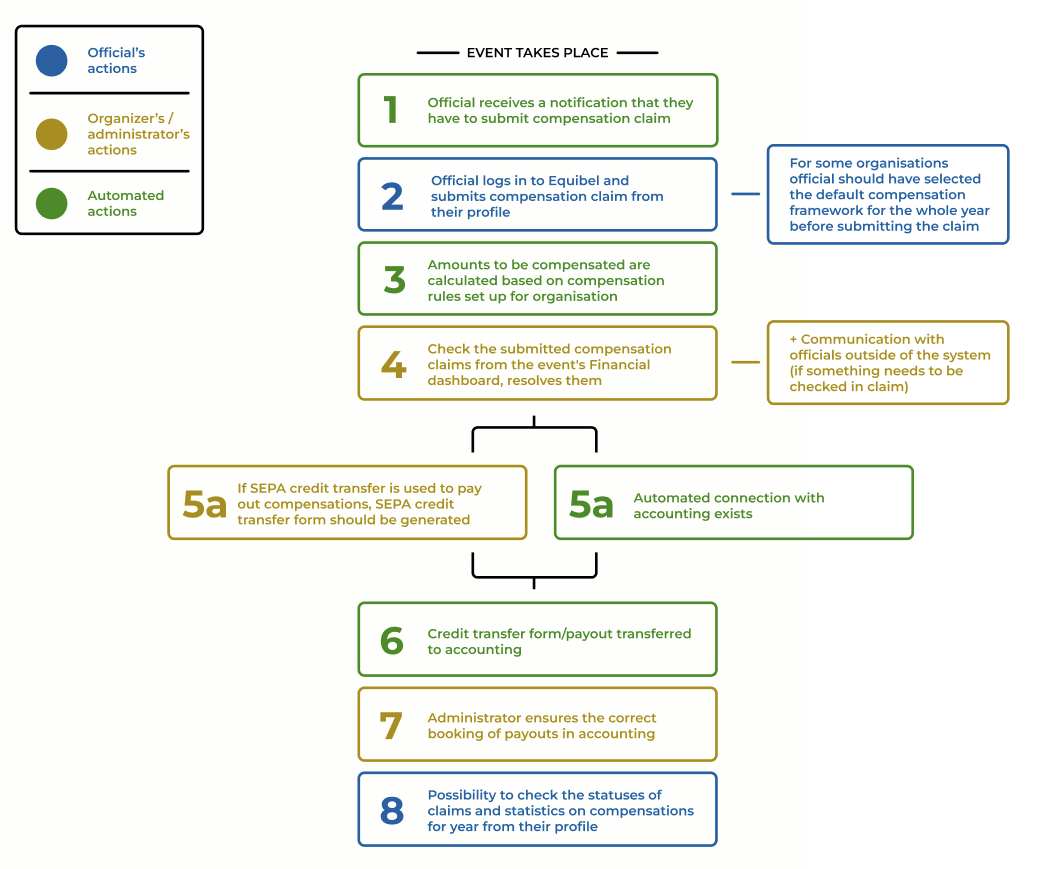
Step 1. Automated Notifications to Officials
After the event has concluded, all officials with selected functions eligible for compensations will receive an automated reminder informing them of the opportunity to submit a compensation claim.
Step 2. Official Submits Compensation Claim
All unsubmitted compensation claims can be found under the official's profile in the "Roles in Events" section.
For certain organizations, such as Paardensport Vlaanderen and all regions under Paardensport Vlaanderen, it is required that the official selects compensation preferences for the entire year. The compensation preference serves as the legal framework under which the compensation is paid. It can involve an invoicing procedure or voluntary work. The options for compensation preferences are numbered: option 1A, option 2, option 3, and option 4. There is also the option to work for an event for free, which is Option 5.
When submitting a compensation claim, the official will need to provide the contact for payout, which can be an organization for invoicing or personal contacts for all other options.
Step 3. Calculation of Amounts
Amounts are calculated based on predefined rules for compensation. Daily rates for compensation and specific conditions for travel allowance can be set for each option, staff function, event type (national, communautaire, regional), and administrative organizer. There is also a provision to pay an additional allowance for certain functions that may involve overtime work.
The official is expected to provide data on the number of kilometers traveled and any additional compensation requested.
For option 3 (invoice), an invoice document should be provided. A document is not needed if both the administrative organizer and the company issuing the invoice are using the Peppol network.
Official submits compensation claim. After submission, official cannot edit or delete the claim. For all modifications the administrative organizer should be contacted.
Steps 4-7. Resolve compensation claims
Administrator of event (can also be done via functional mail box for respective discipline and organiser) would receive every morning an email specifying submitted and unresolved claims. Unresolved claims can also be found in Backoffice -> Compensation claims interface.
Compensation claims can be accessed via Event profile -> Finances -> Compensations list -> Submitted and processed compensations.
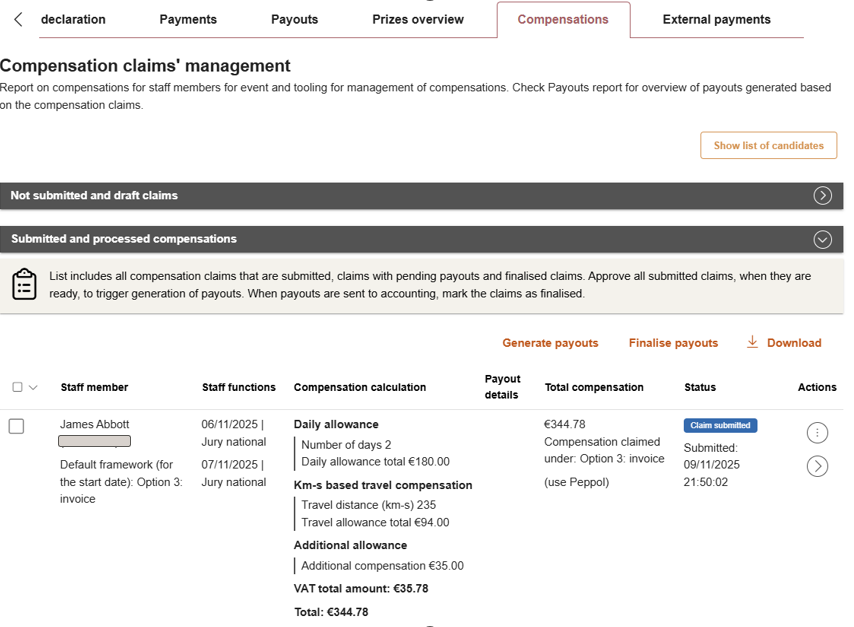
Take the following step to resolve compensation claim:
- Check if compensation calculations are correct and within allowed limits. You will find all information on the screen for the claim.
- Approve claim and generate payouts. You may either use a single action to approve the claim and generate payout or the mass action. Generation of payout may take some time as a pdf. document should be created.
- For administrative organiser (Paardensport Vlaanderen) that use automated connection with accounting system (Adfinity), all generated payouts will be forwarded automatically to accounting. Invoices should be checked and managed outside of the system.
- For administrative organisers that do not use API connection with accounting system, download the SEPA file or excel file and forward it to accounting.
- Mark all forwarded claims as Finalised. For organiser using automated synchronization, payouts will be marked as finalized automatically. Invoices should be marked as finalized following the process for invoices (manually).
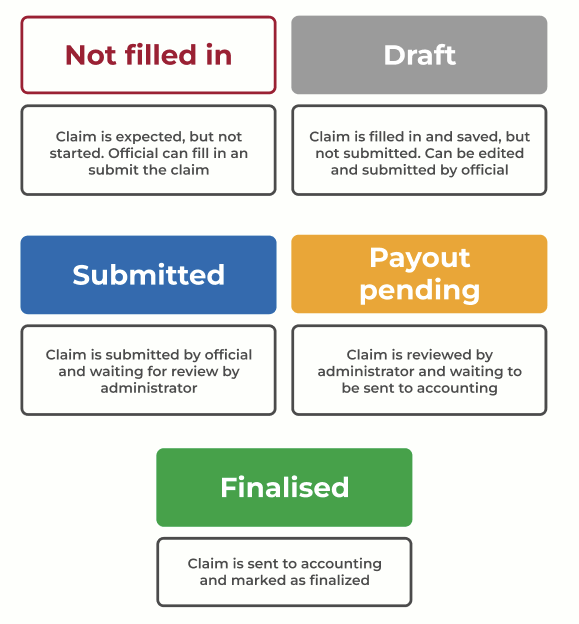
Statuses of compensation claims
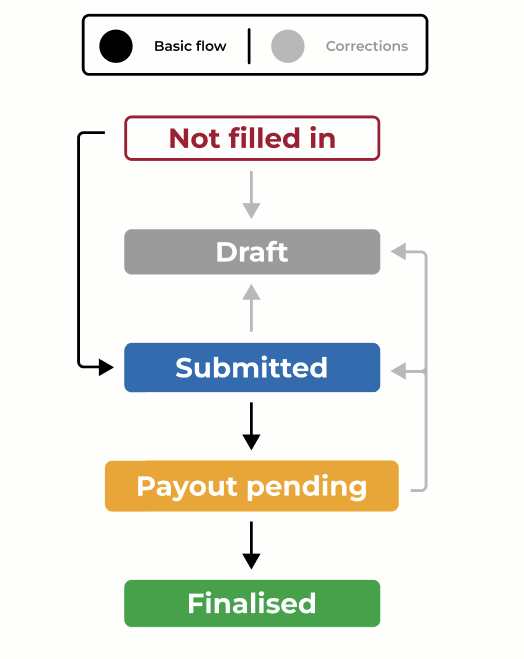
Transition between statuses
Step 8. Possibility for officials to check statuses of their claims from profile and get a statistical overview
Officials can follow the statuses of claims from their profile -> Roles in events section -> Past assignments.
In addition, under the section Officials, there is a possibility to check total amounts of compensations per option, organiser or event.
Similar possibility exists for the Administrative organisers via Backoffice -> Compensation Statistics interface.