
Officials recruitment: quick guide
The officials recruitment module allows you to define officials' functions under an event, set basic minimum requirements, collect officials' applications, and resolve them. In this article, we provide a quick guide to the officials' recruitment functionalities and process description.
Process description step-by-step
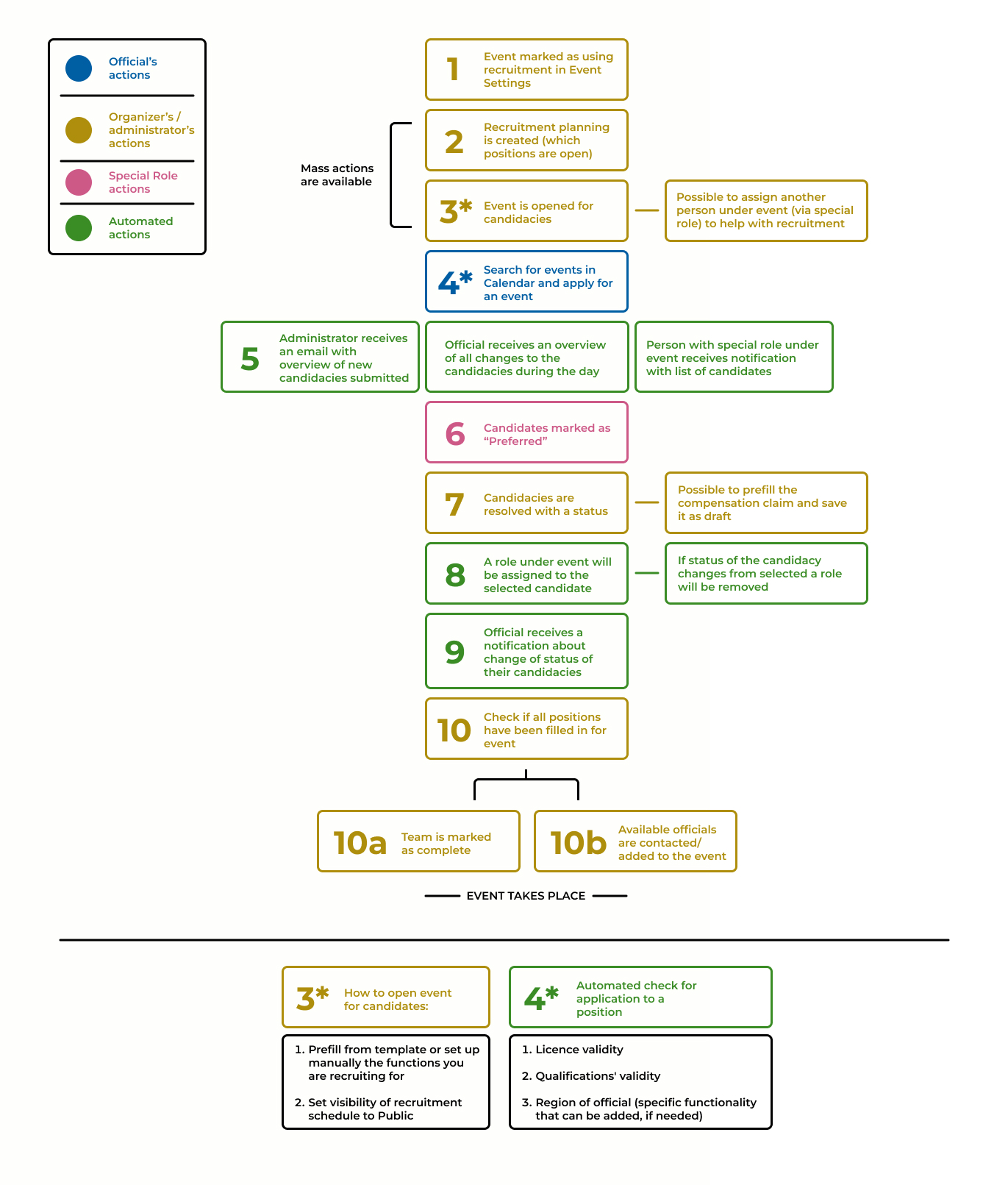
#Step 1. Set up that event is using recruitment and compensations
#Step 2. Create recruitment planning
#Step 3. Assign a coordinator under event to manage planning and applications
#Step 4. Application for a staff position in event
#Step 5. Possibilities of transactional notifications (emails)
#Step 6. Marking a candidate as preferred
#Step 7. Resolving candidacies
#Step 8. Automated assignment of a role for officials with selected candidacies
#Step 10. Closing event's recruitment
Step 1. Set up that event is using recruitment and compensations
The settings to mark that event is using recruitment module are under Actions -> Edit event -> Services section in event edit form.
- Checkbox "Use staff recruitment and functions" will become active, if federation uses this functionality.
When it is checked, please add also email and other contacts for officials to be able to contact you in case of questions. These contacts will be used in emails sent to officials as contact details in relation to their candidacies.
- Checkbox "Event uses staff compensations" regulates, if compensation claims can be submitted after event is ended. This checkbox will become active, if organisation acting as administrative organiser for event is using compensations module.
Both parameters and contacts are cloneable.

Implications of parameters:
- When event is using staff recruitment, this event will appear in Officials calendar and administrator can specify staff positions (functions) for the recruitment.
- When event is using compensations:
- Compensations tab will appear under Event profile page -> Finances (next to the Prize money).
- Officials' assignments under event would become eligible for compensations, unless specific official's assignment is not marked as excluded from compensations via the system.
Step 2. Create recruitment planning
Recruitment planning defines, which positions will be open for officials to apply and for which dates of the event. Under recruitment planning it is also possible to control, if officials can already apply for this event or still not, and determine some other parameters.
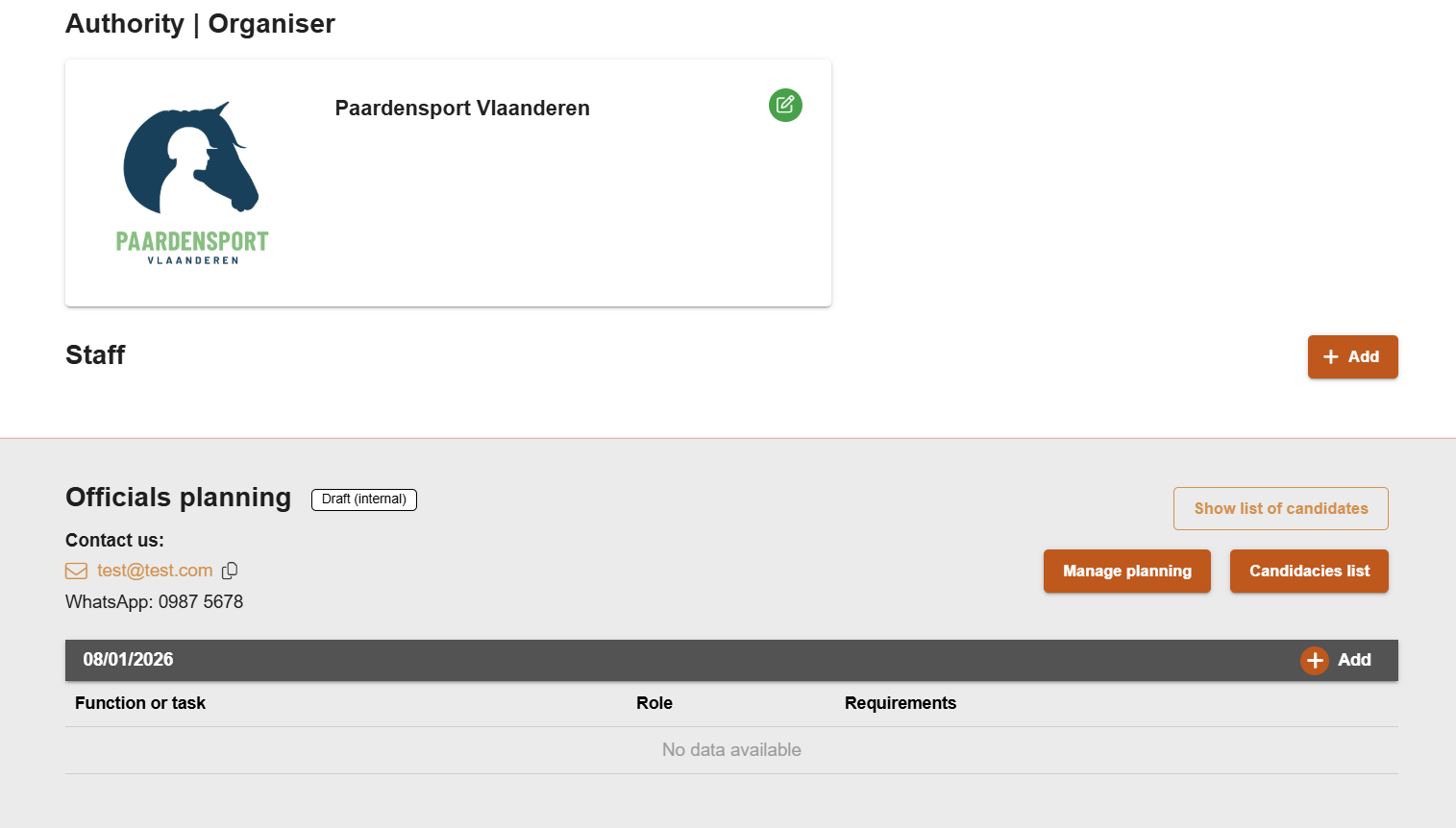
- Recruitment planning can be managed for single event from Event profile page -> Contact and Officials -> button "Manage planning":
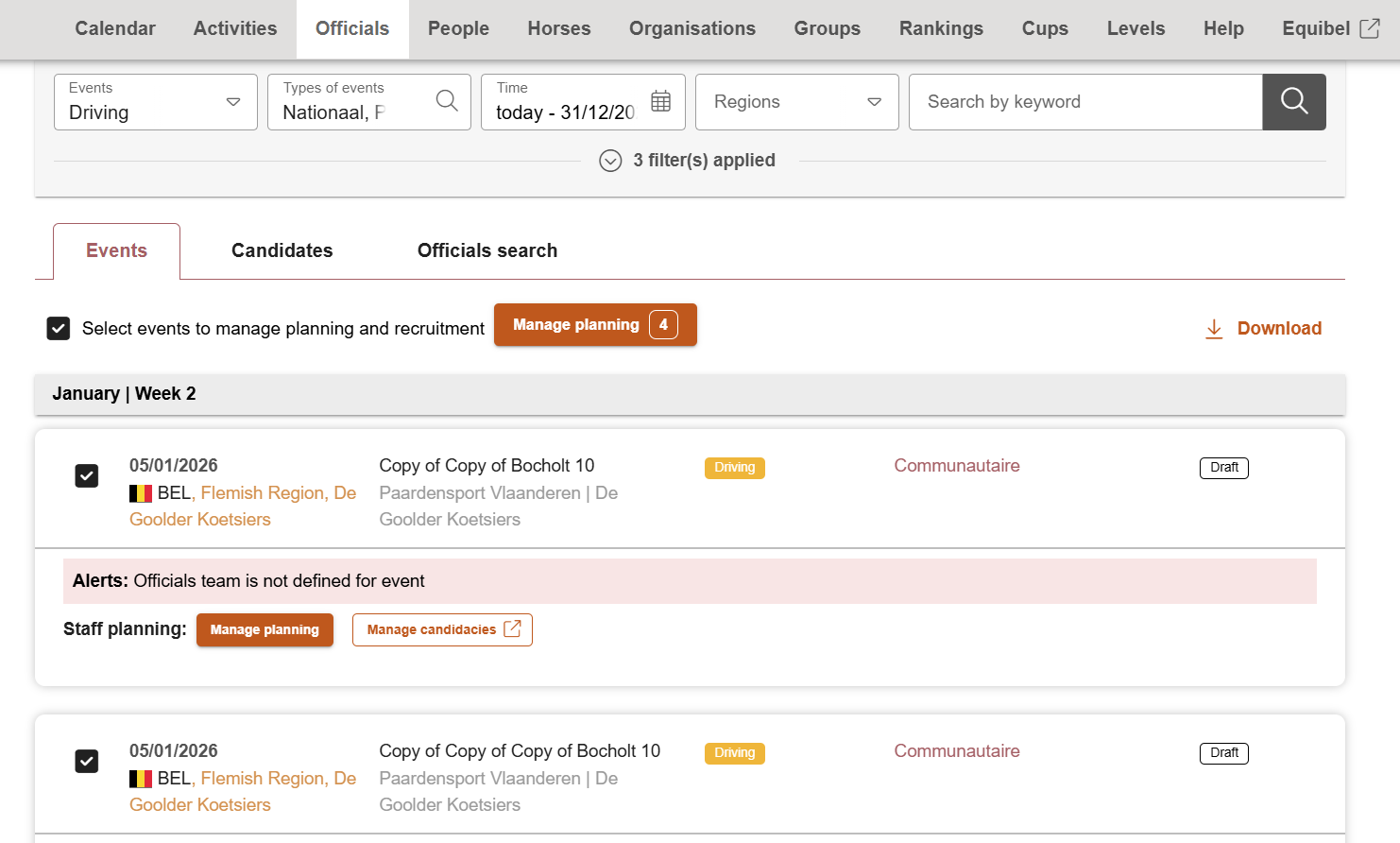
- Alternatively for mass update of several events, navigate to Officials calendar, search for events to manage (certain discipline, organiser, level), select them and click on "Manage planning":
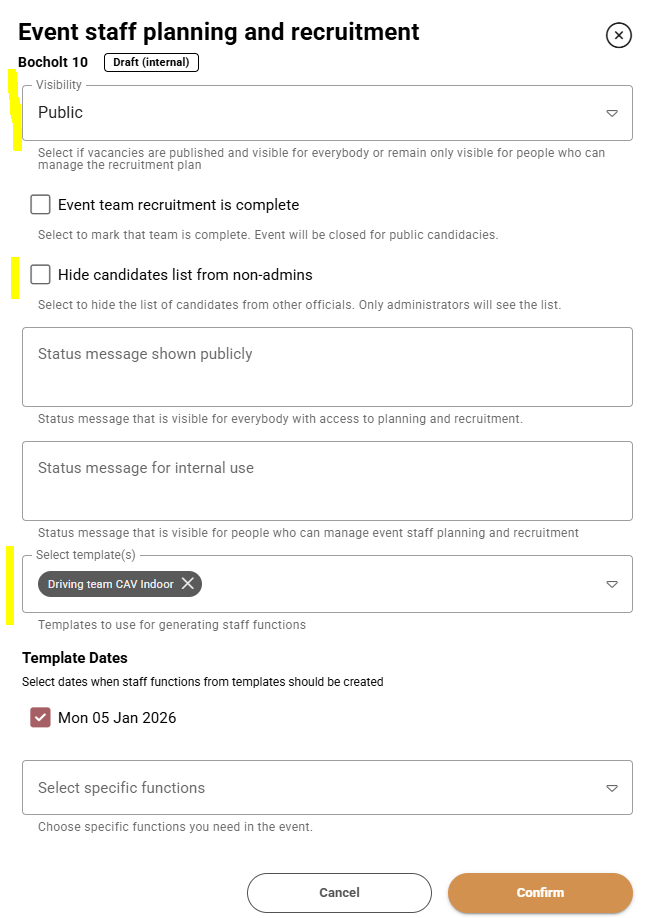
Quick steps to set up recruitment planning:
- Mark the visibility of the recruitment module as "Public".
- Decide if the candidates list should be hidden from other officials and marked as visible only for administrators.
- Select the template* of the officials' team and check for which dates the template should apply.
*The template of the officials' team is set up in Backoffice and it includes all the necessary functions for the discipline, level, and organizer of this event. If the template is used, all functions will be prefilled from it. Prefilled functions can be deleted, but their conditions cannot be changed, for example, license check requirements and eligible professional qualifications. Also, the name of the function should remain as in the template.
Other features:
- The system allows marking that team recruitment is complete, meaning no more applications will be accepted and the recruitment status will be marked as locked.
- Capability to include a public message that will be visible:
- On the event's card in Officials calendar
- On the recruitment module in Contacts and Officials on the event's page
- Option to add an internal message visible only for administrators.
- Ability to choose and prefill single functions under an event. This functionality operates similarly to a template, but allows the selection of specific functions. It is particularly useful for training days and events with a limited team of officials, where some roles are not needed or for specific events where specific roles will be needed.
Step 3. Assign a coordinator under event to manage planning and applications
Under event, it is possible to assign users with special roles that would give access to some functionalities to manage recruitment of this event.
Two roles can be used:
- Official recruitments coordinator - allows full management of recruitment of the event, including changing planning parameters, adding and managing candidacies and recommendations of the staff candidates.
- Club representative - has limited rights to see the candidates and add recommendation for the preferred candidates.
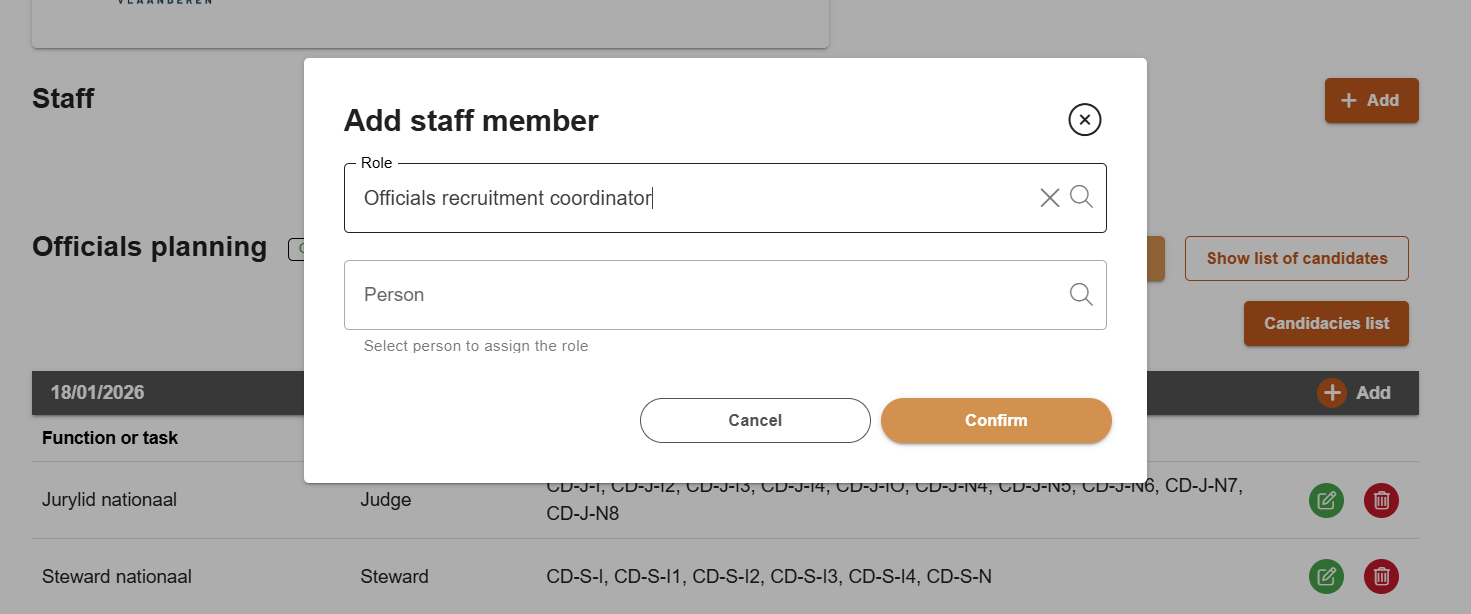
To add these roles: Event profile-> Contacts and Officials -> Add Staff member -> Add staff member under event and issue the respective role.
Step 4. Application for a staff position in event
When user submits an application for a position in event, there will be the following automated checks applied:
- Validity of membership (01) or licence - for most staff functions requirements are set up as part of the template.
- There are exclusions, for example, writers and other special functions, where licence or membership is not checked.
- When application is submitted in November-December for the next year, the licence validity will be checked based on the current year's licence.
- Validity of professional qualifications (official's functions), for example, Dressage Judge N1, N2, Jumping Steward N1 - these requirements are also set up as part of the template and shown on the Event Profile page -> Contacts and Officials -> Staff Planning module.
- Affiliation of official under a certain region, based on valid membership (01) or licence - a special type of checks that may be useful for some regional organisations that use such type of restrictions. Should also be set up in templates.
When administrator submits an application, there will be a possibility to override all restrictions and submit an application on behalf of official.
Step 5. Possibilities of transactional notifications (emails)
- An official will receive a comprehensive overview of the changes in their applications every morning. This will be delivered in a single email containing all changes made the previous day.
Here is an example of the email:

- If configured, the administrative organizer can receive a summary of all unresolved candidacies and reserves for future events. This type of notification will be sent to the specific email address, such as the functional email for Dressage officials at LEWB or Paardensport Vlaanderen.
-
If configured, a person with a role in the event (coordinator or club representative) can receive an email when someone submits a candidacy, allowing them to indicate a preference for this candidacy.
This is currently an optional feature, but can be added after the rollout if there is a demand for this functionality.
Step 6. Marking a candidate as preferred
This functionality is exclusive to recruitment coordinators, club representatives, and recruitment managers at leagues and regional organizations. Its purpose is to designate the preferred candidate for the team.
To mark a candidate as preferred, go to the Candidacies List under the Staff Planning. Then, click on the "Preferred" button on the right of the candidate's summary:
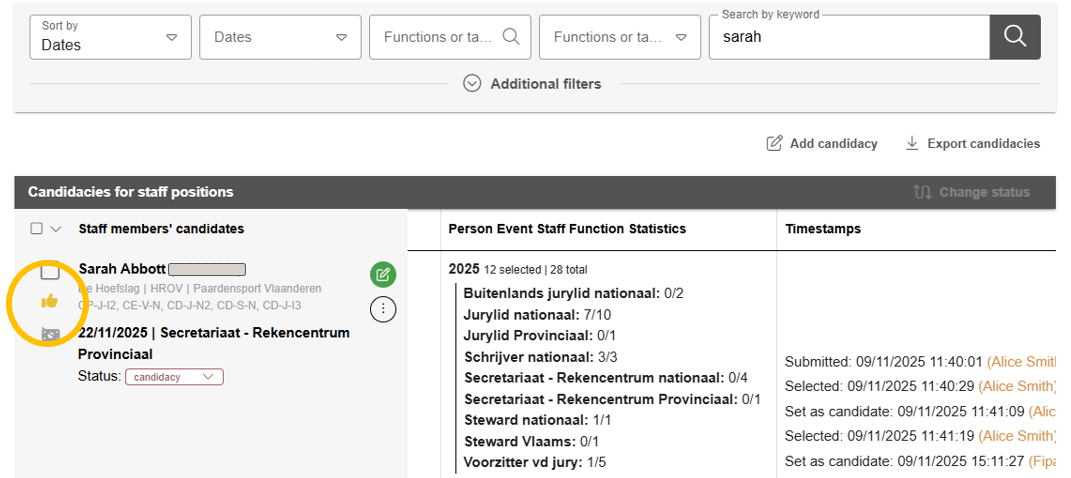
The preferred flag can be toggled on and off as needed. Preferences are established for specific candidates for a particular function and date of the event.
Step 7. Resolving candidacies
Candidacies should be resolved by recruitment administrators and/or recruitment event coordinators.
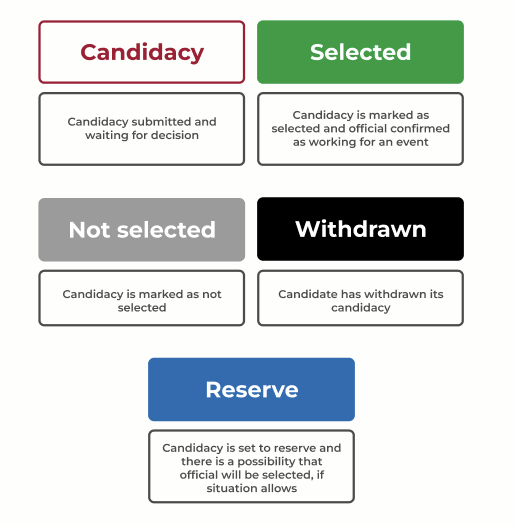
A candidacy is considered unresolved (officials are still awaiting a definitive decision) when it is in the CANDIDACY or RESERVE status. The final statuses are Selected, Not selected, and Withdrawn.
The statuses and their meanings in the system are:
In order to facilitate decision-making in the candidate selection process, the Candidacies List offers the following tools:
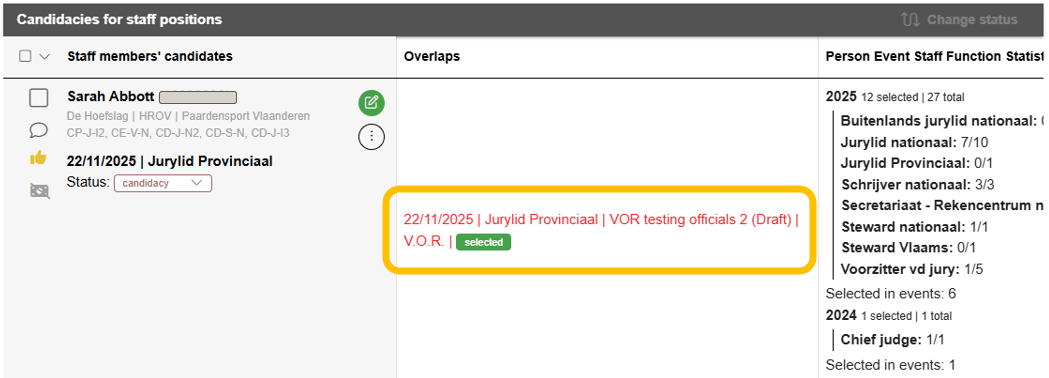
- Overlaps - This feature displays the overlaps of candidacies for the same date, including the status of the candidacy and specific event and function details. In the screenshot, the individual has chosen an assignment for an event on the same date.
- Assignment Statistics for official - This report summarizes the candidacies for the past and current year. It provides an overview of selected candidacies and the total number of candidacies, as well as the number of events where the official has worked or has been selected.

- For candidacies, there is also a possibility to see the note left by Official as well as internal note that can be added by administrator.
- We store and show the full overview of all actions done to the candidacy: changes of statused and who has done the changes.
- There is also an access to official's data on currently valid licence, insurances and contact details.
Step 8. Automated assignment of a role for officials with selected candidacies
An automation has been implemented for selected candidacies, whereby the role under the event will be added automatically for officials with selected candidacies.
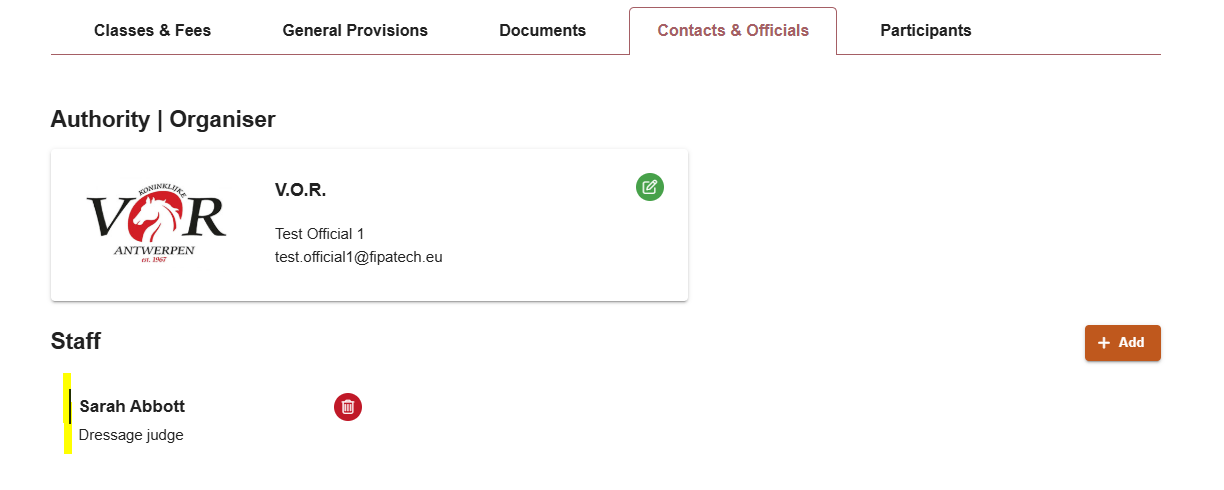
The role will be automatically removed if the status of the assignment of official changes from selected to any other status.
The assigned role is utilized within the system for the following purposes:
- Some roles may be granted specific permissions to access the master list, dashboard, or other functionalities relevant to their role.
- Roles are visible to athletes and other users, while functions and staff planning remain hidden. The visibility of a role enables the display of public information on the judges' and other officials' panel, which should typically be public as part of the schedule.
- For events/organizers utilizing the event reporting system, certain officials are required to complete and submit event reports or evaluations. The role is necessary to manage access to reporting features.
Step 10. Closing event's recruitment
If all positions have been filled in and no more candidates are expected, it is possible to mark that team is complete and if necessary add additional public note on the event's planning status:
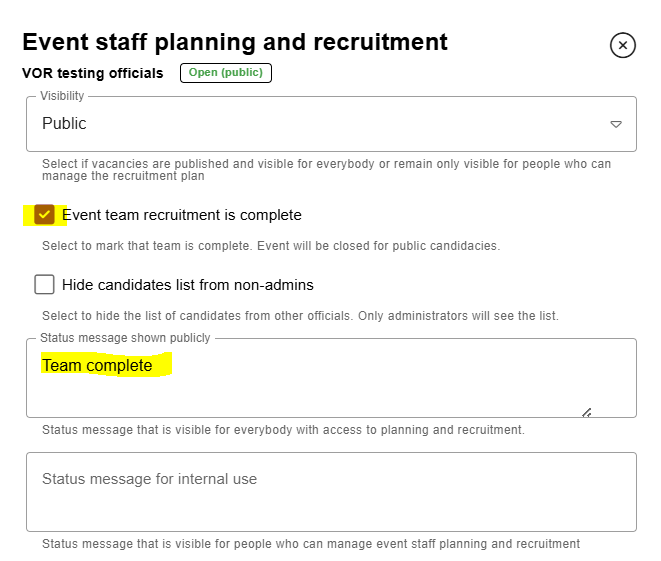
After event's team is marked as complete, no more applications will be accepted.